This section contains key details about the solution's planning, configuration, and installation. Before you install the solution, familiarize yourself with these details.
Dependencies
|
Component |
Description |
|---|---|
|
OneStream 8.4.0 or later |
Minimum OneStream Platform version required to install this version. |
Solution Development Location
Before beginning installation, decide whether to build the solution directly in the Production OneStream application or a separate Development OneStream application. This section provides some key considerations for each possibility.
Production OneStream Application: The primary advantage of building the solution in a Production application is that you will not have to migrate the resulting work from a Development application. However, there are intrinsic risks when making design changes to an application used in a Production capacity and not advised.
NOTE: OneStream strongly recommends that you implement the solution in the Development environment with a fresh copy of the Production application before starting work.
Development OneStream Application: As a best practice, use the Development OneStream application to configure and test the solution initially.
Installation
-
Log into OneStream.
-
On the Application tab, click Tools > Load/Extract.
-
On the Load tab, find the solution package using the Select File icon and click Open.
-
When the solution file name appears, click Load.
-
Click Close to complete the installation.
Package Contents
OneStream Analytic Drill Down Solution Administration is the user interface for the settings and setup of OneStream Analytic Drill Down.
Workspaces
The Analytic Drill Down Workspace contains all the necessary business rules and cube view groups.
Metadata Members
The following Metadata members will be created upon completion of the Setup Process:
-
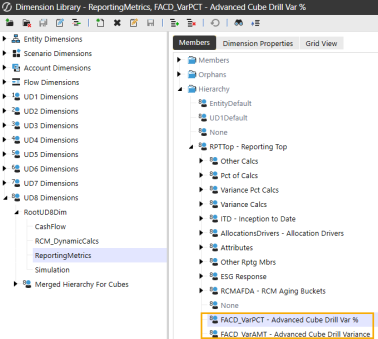
FACD_VarAMT
-
FACD_VarPCT
These members are dynamic members, so that no data will aggregate.
Data Structures
OneStream Analytic Drill Down installs and utilizes one custom table to store source system connection information. The table name is “XFW_FACD_SourceConnectors” with the following fields and associated data type:
-
Id (guid)
-
Name (nvarchar50)
-
Description (nvarchar255)
-
DashboardName (nvarchar100)
-
RecordLimit (int)
-
Enabled (bit)
-
BtnOrder (nvarchar10)
-
UserName (nvarchar250)
-
TimeStamp (datetime)
Initial Setup
You are guided through the solution setup process the first time you run the solution.
In OneStream, click OnePlace > Dashboards > Analytic Drill Down Admin > Solution Administration.
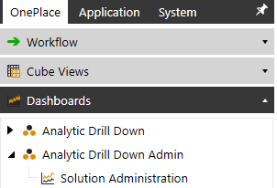
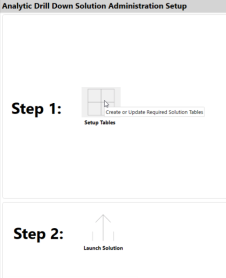
Solution Setup Steps
Click Setup Tables from Step 1 below to create necessary custom tables and perform any necessary schema updates.
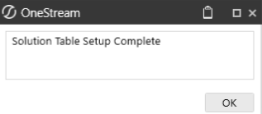
Once this process is complete, a dialog box displays.
Next, click Launch Solution from Step 2. Then click Setup Metadata to create the necessary solution metadata. This metadata is required for the out-of-the-box Variance Analysis to function correctly.
-
Select Variance Dimension Type from the drop-down, then Continue.
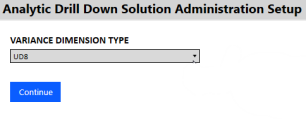
The dimension type selected in this step will allow a specific dimension to be chosen in the next step.
NOTE: OneStream recommends using UD8, assuming the best practice of using this dimension for dynamic calculations is followed, and no metadata that would need to be drilled exists there.
-
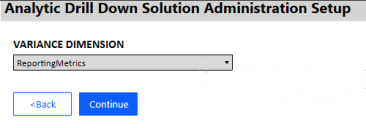
Select Variance Dimension from the drop-down menu, then Continue.
-
Select Variance Dimension Parent to designate the parent member of the required solution metadata members, then Continue.
NOTE: Only parent members from the selected dimension will be displayed.
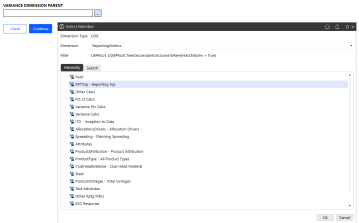
NOTE: OneStream recommends selecting ‘Root’ as the parent if there is no other appropriate parent member.
-
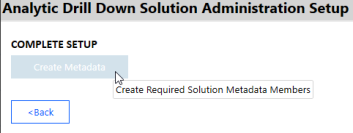
Click Create Metadata to create the required solution metadata and to open the OneStream Analytic Drill Down Settings page.
-
After a successful installation, the solution will automatically switch to the Solution Administration dashboard.
-
Confirm successful metadata creation by navigating to the OneStream Dimension Library. The metadata members chosen during setup will now be visible in the dimension.
-


