The dialog box makes it simple to build complex Member Filters without having to remember or look up the proper syntax. This dialog box is embedded in areas such as Cube Views and the Dimension Library.
-
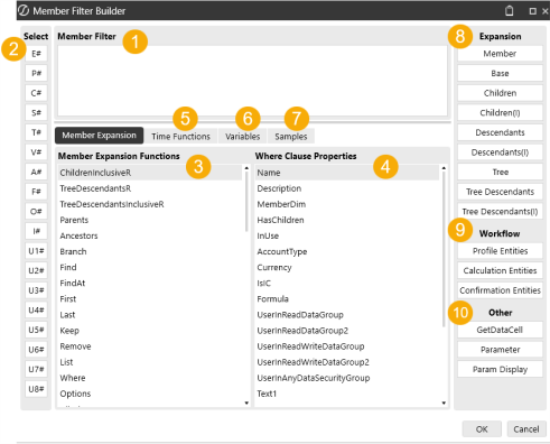
Member Filter: Location where the Member Filter is built. Enter text in this section or use the other items in the dialog box to enter information into the field.
-
Dimension Tokens: There is a button for each dimension that launches the appropriate selection dialog box.
NOTE: When searching for a member in the Select Member window, you can search by its name, alias, or description.
-
Member Expansion Functions: Double-click a Member Expansion to add it to the Member Filter.
-
Member Expansion Where Clause: If you select the Member Expansion Where, use the Where Clause properties to complete the expression.
Example: UD2#AllProducts.Children.Where(Name Contains Clubs)
-
Time Functions: Only applies to the Time dimension, such as T#POVPrior1. Double-click a Time function to add it.
-
Substitution Variables: Double-click on a system-wide substitution variable to add it.
-
Samples: Refer to this tab for example syntax for complex queries and calculations, including how to build Member Expansions, Where Clause expressions, time expressions, calculations (GetDataCell, and column and row expressions), custom member list expressions, and XFBR, XFCell, and XFGetMemberProperty.
-
Expansion: Commonly used Member Expansions added to the end of filters. Double-click the expansion to add it.
-
Workflow: These buttons are commonly used Workflow Member Expansions used in Cube Views that point to a report, form, or dashboard and are affiliated with a specific Workflow Profile.
-
Other: Commonly used Member Filter functions that enable you to create calculated columns and rows or use a custom parameter to store member lists.

