A sequence is an ordered series of one or more data management steps that run in the order defined in the Sequence Steps tab. To create a new data management sequence, select the Create Sequence  icon.
General (Sequence)
Name
The name of the data management sequence.
Description (Optional)
A description of the data management sequence.
Data Management Group
The data management group the sequence belongs to.
Application Server (Optional)
This enables you to specify a particular application server in the event the sequence has an abnormally long run-time or one application server is preferred over another.
Notification
Use these properties to enable email notifications upon the completion, failure, or both, of a data management sequence.
Enable Email Notification
When set to False, the default value, email notifications are not sent. When set to True, notifications can be customized by user and group and are sent based on event type.
NOTE: If there is no email server available, this feature is disabled.
Notification Connection
Email server connections are automatically identified. Select the appropriate server.
Notification User and Groups
Select users and groups to be notified when the data management sequence runs. Select the ellipses to display the Select Users and Groups dialog box. Select users and groups, and use the Add Selected Item icon to move them to the Results List pane. Select the OK button.
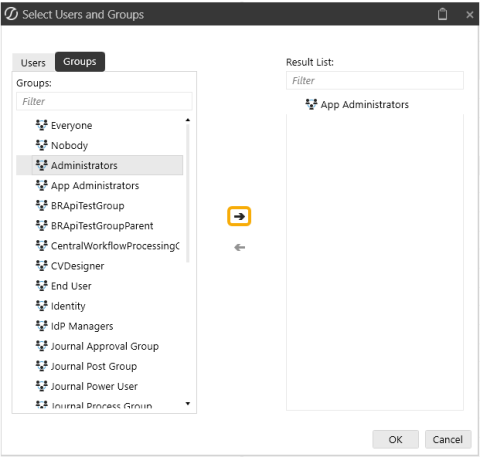
NOTE: The error log captures information about users with no, invalid, or deactivated email accounts.
Notification Event Type
Select the notification event to trigger the email. You can choose from the following options:
-
Not Used: This disables the feature when Enable Email Notification is set to True.
-
On Success: This sends the email when the data management sequence runs successfully.
-
On Failure: This sends the email when the data management sequence fails.
-
On Success or Failure: this sends the email when the data management sequence finishes regardless of status.
The following example is a sample notification email.

Task Activity
The data management sequence monitors the server’s CPU and evaluates other queued tasks to ensure they are processed in order as resources become available. If the server resource utilization is greater than the limit, the job status is set to Queued and the task progress bar stays on the queued task step until enough CPU resources are available to start the task. This can be monitored in Task Activity.
Use Queueing
When set to True, the default value, queueing is used for this task to have better control of the application server’s CPU utilization. This task will not start running until CPU utilization is below the specified value or until all previously queued tasks have been completed.
Maximum % CPU Utilization To Run
Enter the maximum CPU utilization allowed on the application server before this task can transition from queued to running. Enter a number between 1 and 100 or leave this setting blank to use the default value of 70%. This value can be modified in the Application Server Configuration.
NOTE: Do not set a value less than 10 or the task may never start.
Maximum Queued Time Before Canceling (minutes)
Enter the number of minutes that this task is allowed to be queued before it cancels automatically. Enter a number or leave this setting blank to use the default value of 20 minutes. This value can be modified in the Application Server Configuration.
When a task is queued, the Task Progress dialog box stays on Task Queued. Open Task Activity to monitor the queued task and the current server CPU utilization.
NOTE: Batch processing queue overrides other workflow batch queue settings. The batch processing queue does not apply to batch script, only the batch screen in the workflow.
Parameter Substitutions 1-8
Parameter Name (Optional)
The name of a parameter being used as a variable to be passed into the sequence.
Value
The value passed into the related parameter variable.
Sequence Steps Tab
Use the Sequence Steps tab to add steps to a sequence. Select the Add Step  icon to display the Add Step dialog box. Choose a step and select the OK button.

