Use File Management to view all previously uploaded BAI files for the selected workflow, scenario, and time period.
NOTE: Only administrators can view all previously uploaded files for all workflow profiles, scenarios, and time periods. See Administration Management.
Overview Grid
The overview grid displays uploaded files for the current workflow.
NOTE: The BAI Parser Solution does not require you to upload directly to the solution. You can load and automate files through the workflow. BAI files uploaded directly through the workflow process appear in the File Management overview grid, Global File Management overview grid, and in the File Source drop-down on the Preview dashboard.
NOTE: Only the most recent 100 files are displayed.
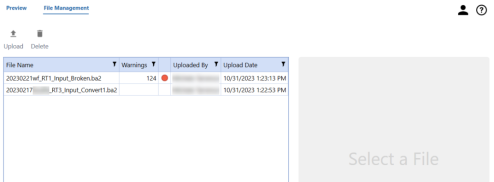
The grid displays the following column information:
-
File Name: The name of the file
NOTE: File names can appear more than once.
-
Warnings: Total number of warnings that appeared in the file. A red dot to the right of the column indicates a warning.
-
Uploaded By: User who uploaded the file
-
Upload Date: Date the file was uploaded
Use the parameter filter to refine the data in the overview grid.
File Preview
Click any file in the overview grid to preview the file. The preview pane defaults to the File Preview tab, which displays the raw BAI file.
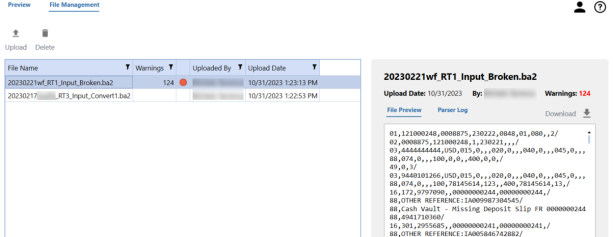
Click the Download icon to download the data.
Parser Log
Use the Parser Log tab on the preview pane to display the parsed results of the generated file.
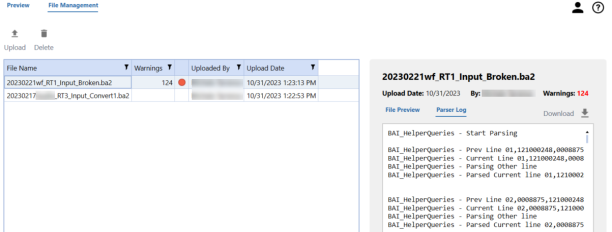
Click the Download icon to download the log.
Export Grid Data
To export content from the overview grid, right-click in the grid and select Export.
Upload Files
Upload files from File Management to view in the Preview dashboard.
To upload a file:
-
From File Management, click the Upload icon.
-
Use File Explorer to select the file to upload and click Open.
Once uploaded, the file appears in the:
-
Overview grid on the File Management dashboard.
-
Preview grid on the Preview dashboard.
-
File Source drop-down on the Preview dashboard.
Delete Files
You can manage the list of files displayed in the overview grid on File Management by deleting files. Deleted files will only be removed from the BAI Parser Solution. All data uploaded to a workflow will be preserved.
To delete a file:
-
From File Management, select the file to delete.
-
Click the Delete icon.
-
On the Delete File Confirmation dialog box, click the Remove button to delete the file from the grid.


