Filtering Data
FDX BRApis provide a filter option that enables you to specify a subset of the source dataset to extract. You can filter using source dataset member names and values. In addition to the entityMemFilter, scenarioMemFilter, and timeMemFilter, all the GetData FDX BRApis have the As String filter variable. This filter variable returns specific datasets.
The filter can be defined in the connector business rule or Workspace Assembly file itself. You can also use the NameValueFormatBuilder and define the filter in the Workflow Profile Substitution Text Settings fields. Where the filter is defined depends on whether you need a general filter used by different Workflow Profiles or if you need a filter specific to the Workflow Profile. For a filter specific to the Workflow Profile, use the Substitution Text Settings fields. See Substitution Text Settings.
IMPORTANT: The filter is searching for names and values in the source dataset before any transformation rules, including derivative rules, are applied.
TIP:
Filter Syntax
The syntax required is different depending on where the filter is defined. If the filter is defined in the rule itself, the string must be surrounded by quotation marks.
Example: Dim filter As String = "Account Like '1*' or Account Like '2*'"
If the filter is defined in a Substitution Text Setting field, the string needs to be surrounded by square brackets.
Example: Filter=[Account Like '1*' or Account Like '2*']
Follow these steps to build the filter syntax:
-
Connector Field Column Name: Define the Connector Field column name. The filter variable needs this name defined to determine which column to search on. Review the Connector Field column names returned in the data source to determine which column names to use. If you are using the TimePivot BRApis and you want to search by using values, reference the Time column name rather than using the Amount column name.
Example: Filter=[Account Like '*400' and Time1 > 50000]
-
Like: Specify the name of the member.
-
And/Or: You can use these to search for more than one connector field name and search criteria.
Example: Filter=[Account Like '*400' and Time1 > 5000 or Account Like '*300' and Time1 > 2000]
-
Single Quotes: If the search criteria is text, it must be surrounded by single quotes. If the search criteria is a value, it does not need to be surrounded by single quotes.
-
Search Criteria
-
Names: You can specify an exact name or use wildcard characters to search for multiple names, such as * or %.
-
Values: You can search for values that meet a specific criteria using standard visual basic operators, such as >< = .
-
NOTE: If you do not want to use any search criteria in the filter, set it to String.Empty in the business rule. For example, Dim filter As String = String.Empty. If using the NameValueFormatBuilder to reference a filter in the Workflow Profile Substitution Text Settings, use either filter=[] or filter=[Unknown].
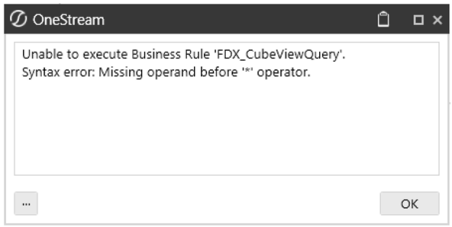
Syntax errors are returned in an error message as the data is imported. For example, this error message was returned during the Blend import because there were no single quotes around the search name criteria: Unable to execute Business Rule 'FDX_CubeViewQuery'. Syntax error: Missing operand before '*' operator.