Import Automation
When a workflow import is scheduled, these steps are completed:
-
A Task Scheduler task calls a data management sequence.
-
The data management sequence calls a data management step.
-
The data management step calls a Workspace Assembly extender business rule file.
-
The Workspace Assembly file processes the import.
Complete the following steps to automate your import:
-
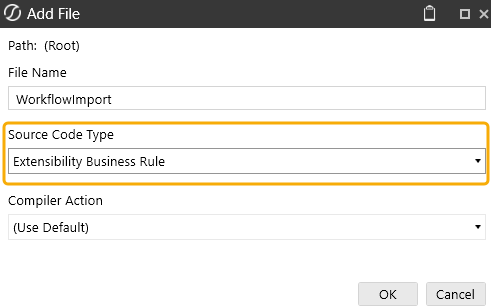
Create a Workspace Assembly extender business rule file. From the Source Code Type drop-down menu, select Extensibility Business Rule.
NOTE: For a delimited file data source, this BRApi references the workflow import Incoming folder, which is used to store the files that will be imported. To upload a file to the workflow import Incoming folder, navigate to OneStream File Explorer > File Share > Incoming, then expand the top-level workflow cube folder. Upload and import files to the relevant Workflow Profile folder.
Because the BI Blend import does not load data to a cube, you can use BRApi.Import.Process.ExecuteParseAndTransform to automate your import, rather than BRApi.Utilities.ExecuteFileHarvestBatchParallel. The variables and objects this BRApi expects can be referenced in the Definition, Objects, and Sample tabs. See Fast Data Extract Sample Code.
-
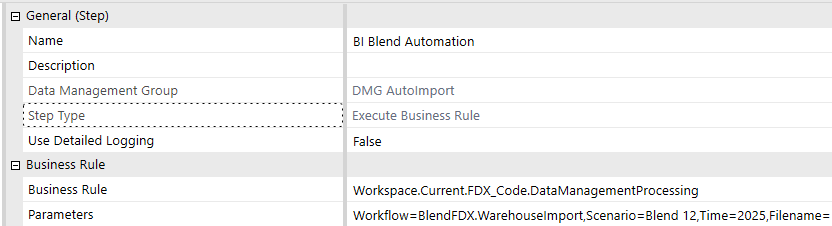
After the Assembly File is created, create a data management step. In the Create Step window, select Execute Business Rule.
Reference the business rule using this naming convention: Workspace.Current.MyWsAssemblyName.MyShortBRName
-
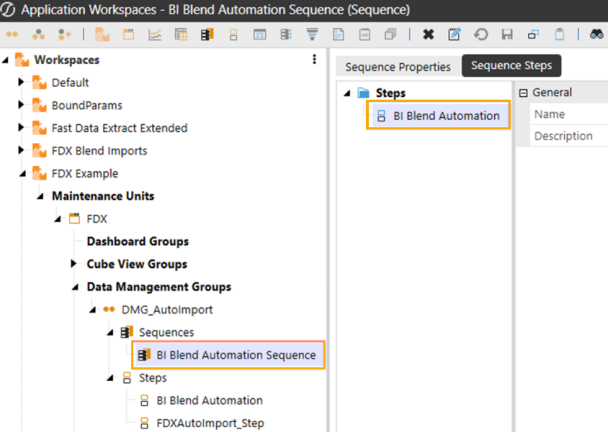
Create a data management sequence. A Task Scheduler task can only run data management sequences, so the step must be added to the sequence.
Test the data management sequence to ensure it runs successfully. You can also test each data management step separately.
TIP: You can set up email notifications and define who is notified for each event type. In the data management sequence you created, go to Sequence Properties > Notifications.
-
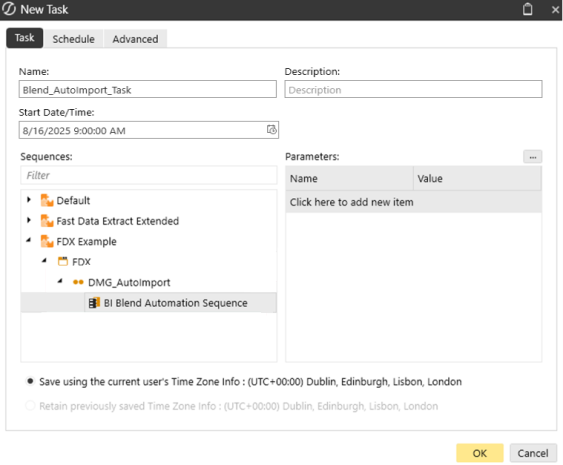
Create a Task Scheduler task to run the data management sequence at a specific date and time. In the Task tab, give the task a starting date and time, and select the data management sequence from the navigation tree. In the Schedule tab, set how often the task will be run.
Batch Harvest API
Instead of using the ExecuteParseAndTransform API, you can use this Batch Harvest API to automate your Blend workflow import: BRAPi.Utilities.ExecuteFileHarvestBatchParallel.
This references the Batch Harvest folder, which is used to store the files that are going to be imported. This API can be used with a Direct Load or File Import.
If you use the Batch Harvest API for a direct load, a trigger file must be created and saved to the Batch Harvest folder. The trigger file name tells OneStream which Workflow Profile to import data to. The trigger file can be created manually, or it can be generated by the extensible business rule.


