Set Up Fast Data Extract
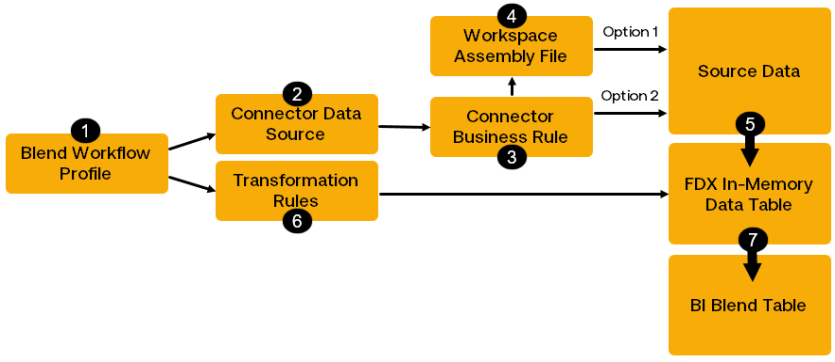
The following diagram shows the import process and displays the artifacts that must be set up for FDX BRApis to extract data for import:
-
When a Load and Transform is run, the import calls the Blend Workflow Profile.
-
The Workflow Profile calls the connector data source.
-
The connector data source processes the connector business rule.
-
The connector business rule processes the Workspace Assembly file that contains the FDX BRApi, and data is extracted from the data source.
-
The extracted metadata and data are stored in the FDX In-Memory data table. If using a TimePivot API, time is pivoted.
-
Transformation rules are processed.
-
Connector Business Rule
You can call the FDX BRApis directly in your connector business rule, or you can call them using a Workspace Assembly file. However, if the FDX BRApis are in a Workspace Assembly file, the data source still needs to reference a connector business rule.
To reference a Workspace Assembly file from a connector business rule, select the rule and navigate to the Properties tab. In the Referenced Assemblies field, enter the Workspace Assembly using this syntax: WS\Workspace.WorkspaceName.AssemblyName
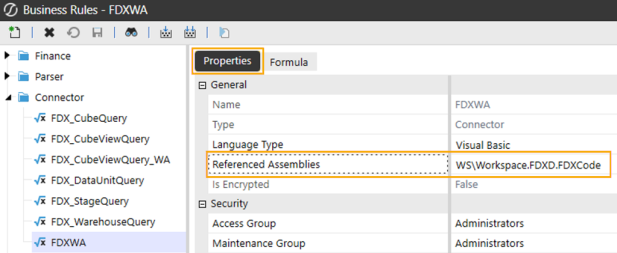
In the Formula tab, return the Workspace Assembly file itself using this syntax: WS\Workspace.WorkspaceName.AssemblyName.FileName
Considerations
Review these considerations when setting up the Blend import using FDX and a connector business rule:
-
If there are zeroes in the Data Unit for some time periods, it is recommended that you turn zero suppression off for each time period in the data source.
-
Enable all Attribute Value dimensions needed in the cube Integrations tab for the Scenario Type of your Blend scenario.
-
If you are importing using the TimePivot BRApi, ensure that the Data Controls Measure Type setting is TimeWFViewAV. Ensure that your Data Controls content Type setting includes Attributes or Extended Attributes. See Data Controls Settings.
-
If you do not see the correct connector fields in the data source, check the connector business rule or Workspace Assembly file. Make the correction, and refresh your application.
-
Check that the transformation rules are mapping to the correct members, including the scenario members.
-
If you are using Workflow Profile Substitution Text Settings variables, ensure they are correct, including the timeMemFilter variable. See Substitution Text Settings and Filtering Data
-
If you are using the TimePivot BRApi, ensure the viewName variable value for the FdxExecuteDataUnitTimePivot function is set to YTD. If this is not set, you will receive this error: No valid DataKeys (Scenario / Time) found in data source.
-
If you are using the TimePivot BRApi and have multiple time periods in the data source, map the Amount in the data source to one of the time periods. Otherwise, you will receive this error when you import the data: No valid DataKeys (Scenario / Time) found in data source.
Workspace Assembly File
If using a Workspace Assembly file, write it next. The rule needs to get the field lists as columns from the data source, then it must run the Fast Data Extract.
-
Select the FDX BRApi to return the field list. The field list column is used to populate the data source connector fields. The following FDX BRApis are available:
-
FdxGetCubeVieworDataUnitColumnList
-
FdxGetStageTargetColumnList
-
FdxGetWarehouseColumnList
-
-
After the FDX BRApi is selected, define the variable values.
Example: FdxGetCubeViewOrDataUnitColumnList(si, timeMemFilter, isTimePivot, useGenericTimeColNames)
The following variables are used in this FDX BRApi example:
-
timeMemFilter: This determines the number of time periods that will be listed in the data source connector fields. You can return multiple time periods with a maximum of 36.
-
isTimePivot: If TimePivot FDX BRApis are being used to return the data in time columns so that time is treated as a measure, ensure that this is set to True.
-
useGenericTimeColNames: If set to True, this will use GenericTimeColNames Time1-Time36 in the data source connector fields. If set to False, this will use the TimeColNames defined in the data source.
NOTE: The FDX application BRApis that return field names to the data source from your application have the dimensions that need to be returned in the data source connector fields. Only the time periods must be defined when the field names are returned. The FDX warehouse BRApi that extracts data from a warehouse needs the column fields to return to the data source connector fields. These need to be defined in addition to the Time columns.
-
-
Select the relevant FDX BRApi to extract the data and prepare it for import using the BI Blend import. Define its variables. The following FDX BRApis are available:
-
FdxExecuteCubeView
-
FdxExecuteDataunit
-
FdxExecuteCubeViewTimePivot
-
FdxExecuteDataUnitTimePivot
-
FdxExecuteStageTargetTimePivot
-
FdxExecuteWarehouseTimePivot
TIP: If you are extracting data for multiple periods, it is recommended that you use the TimePivot FDX APIs to accelerate the import. See Time Pivot.
-
Use Workflow Profile Substitution Text Settings in your rule to define variable values and make them unique to each Workflow Profile import. See Substitution Text Settings.
Data Source
A data source must be set up to connect to the data table generated by the FDX extract.
NOTE: If you are using the Time Pivot option, time is treated as a measure in your data table even if it is stored as a dimension in the source dataset. The time periods will be in columns across each record.
Complete the following steps to set up a data source:
-
Create a Connector Data Source and select your Connector Rule Name.
-
Map the data source fields.
-
Assign the Time columns. If a Time Pivot API is being used, assign your time columns to your attribute value and extended attribute value dimensions if necessary.
-
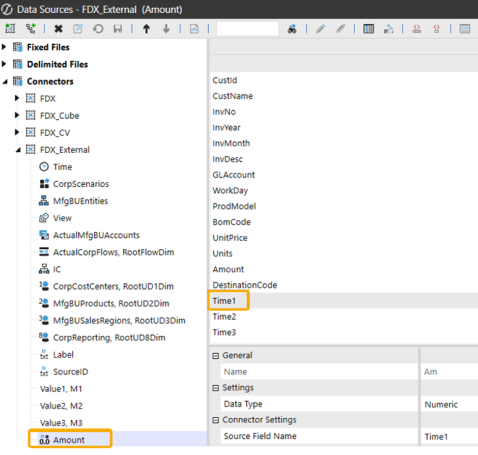
If you are using a Time Pivot API, assign the Amount dimension to one of the Time columns. See Time Pivot.
In this example, FdxExecuteWarehouseTimePivot is used to return data from an external warehouse data source to the FDX data table. Amount is mapped to the Time1 Source Field Name.
Transformation Rules
Update the transformation rules as needed.
TIP: BI Blend only imports base members not parent members, so you may want to bypass these members.
Workflow Profile
Complete the following steps to set up a Blend Import Workflow Profile:
-
Assign the data source and transformation rules to your Blend Import Workflow Profile.
-
Define the BI Blend Settings. See Workflow Profile BI-Blend Settings
NOTE: If Time Pivot is being used, select the relevant Content Type option to include the Attribute and Extended Attribute columns.
-
Define any variables that need to be defined in the relevant Substitution Text Settings field. See Substitution Text Settings.
Run the import and check the data in your BI Blend table to ensure you have the data needed.
NOTE: BI Blend imports data for base members and aggregates the data. If you have parent member data in your Cube View or Data Unit, map those members to base members, or set an aggregation point so that BI Blend will aggregate the base data to parent members.


