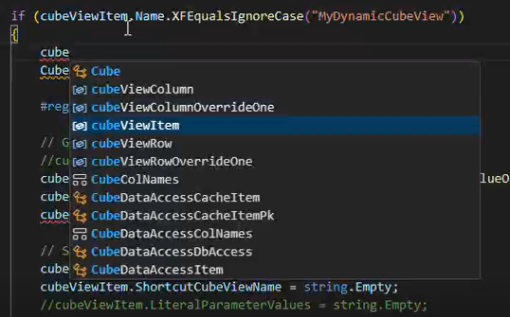
You can download OneStream reference assemblies to integrate IntelliSense capabilities in your IDE. For information on creating a local NuGet repository, see Setting Up Local NuGet Feeds.
Complete these steps to download reference assemblies and configure IntelliSense:
-
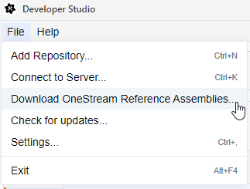
Navigate to File > Download OneStream Reference Assemblies.
-
From the Select Version drop-down menu, select a reference assembly version.
-
Select the Browse
 icon and use File Explorer to select the download location and then select the Download button. The location defaults to your Downloads folder.
 -
When the progress bar is completed, select the Open Folder in File Explorer button to display the NUPKG file's folder location.
-
Open a terminal window or command prompt and then navigate to the directory containing the item or project you want to add the reference to. In the following example, the reference is added to the DynamicCubeView project.

Enter the following command to set up a local NuGet repository for the reference assemblies:
Copydotnet nuget add sourceIn this example, the repository points to the c:\nuget directory and is named LocalRepo.
-
Enter this command to add the reference assemblies to your project:
Copydotnet add package OneStream.Platform.ReferenceAssembliesThis command must also include the version number listed in the package file name. In this example, the file name lists version 9.2.0, so that version is listed in the command.


IMPORTANT: This second command must be entered in each project file.
For more information on adding dotnet packages and local feeds, see Dotnet Package Add and Setting Up Local NuGet Feeds.
IntelliSense functions in your IDE once these commands are entered. This image shows IntelliSense functioning locally in Visual Studio.