The Definitions page enables you to assemble data and ensure it is linked to the frameworks you need. Definitions are used to collect additional data points that are unrelated to factors. OneStream provides a starter set of Definitions that are linked to ESRS KPIs. You cannot delete Definitions provided by the solution, but you can edit and deactivate them. Definitions provide flexibility when reporting on more than one framework. Definitions can be assigned to multiple frameworks so that Definition data only requires a single entry. If a dynamic cube is being configured, administrators can set dimension member properties for each Definition from this page in the Cube tab.
Manage Definitions
Use the toolbar options to manage definitions.
-
To view and edit categories, select the Categories button. See Categories.
-
To create a new Definition, select the New button.
To view Definition details, select a Definition from the grid and the Definitions details pane is displayed. Use the Definitions details pane to edit the selected Definition. The Definitions details pane has the following tabs: General, Frameworks, Control Lists, and Cube.
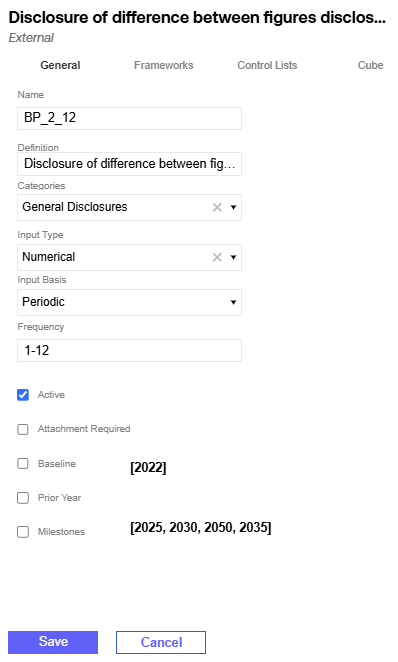
General
Use the General tab to view and edit Definition general properties.
| Property | Definition |
|---|---|
| Name |
For external Definitions linked to ESRS KPIs, the name is automatically set to the associated KPI name. For internal Definitions, you must assign a unique name. This field is required. When a dynamic dimension is set up for Definitions, in ESG_AccountDefinitions, each Definition is appended with D_<Name>. |
| Definition | The Definition field is read-only for external Definitions. This field is required for internal Definitions. |
| Categories |
Use the Categories drop-down menu to update a Definition's category. To add a custom category, select the Categories button. See Categories. |
| Input Type |
Use the Input Type drop-down menu to update a Definition's input type. To view which input types are mapped to the ESRS data types, see Appendix A: Definition Input Types. The input type must be in the same category as the reporting unit you select in the Frameworks tab for Definitions with these input types: time, data, distance, volume, weight, area, and energy. |
| Input Basis |
This determines if Definition data is collected as periodic or YTD. This property only displays for Definitions with a numeric input type. The Default Input Basis Global Options setting determines the field's default value. See Global Options. The property cannot be modified if the Definition has valid data entries. |
| Frequency |
Use the Frequency field to edit a Definition's frequency. Frequency determines which workflow periods the Definition will display in. Comma delimited format and range format is accepted. Definitions with a Narrative unit type default to a yearly frequency. |
| Active |
Definitions are active by default. To make a Definition inactive, deselect the Active checkbox. |
| Attachment Required | To require an attachment for a Definition, select the Attachment Required checkbox. |
| Baseline | To include the baseline year in the report for this definition, select the Baseline checkbox. The values set up in the Global Options page display here. See Global Options. |
| Prior Year | To include the prior year in the report for this Definition, select the Prior Year checkbox. |
| Milestones | To include the milestone years in the report for this Definition, select the Milestones checkbox. The values set up in the Global Options page display here. See Global Options. |
Select the Save button after editing general Definition properties.
See Report Structure and Data Management for details on how the Baseline, Prior Year, and Milestone options impact data collection and reporting.
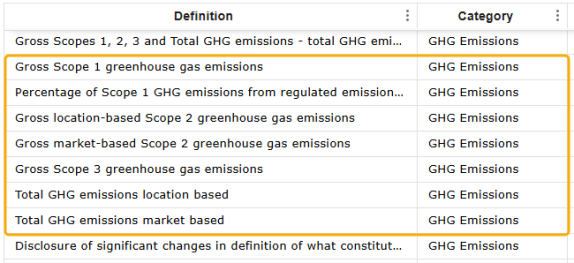
The Baseline, Prior Year, and Milestone checkboxes are selected by default for Definitions linked to KPIs E1-6:
Frameworks
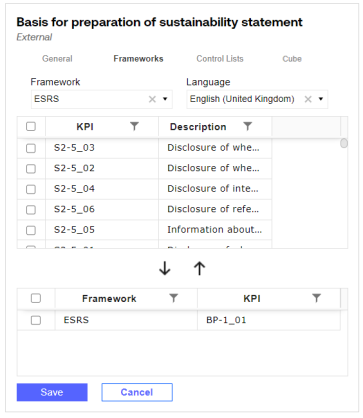
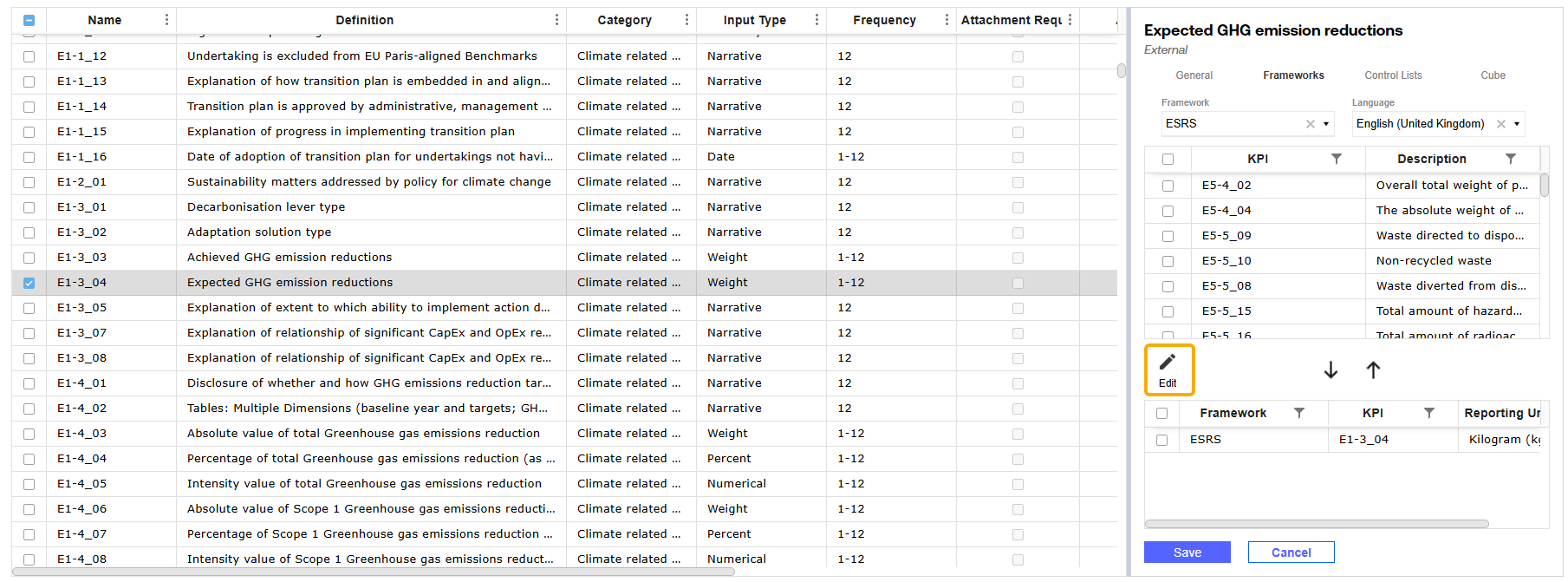
Use the Frameworks tab to view which Framework KPI is assigned to the Fefinition. The assigned Framework KPI is displayed in the bottom grid. If the Definition is set to an input type that requires a unit of measure, the reporting unit is selected by default based on the input type. Use the Edit icon to edit the reporting unit if needed. The reporting unit selected determines the unit of measure displayed for that Definition in a dynamic cube and in a report built on the Reports page. See Frameworks.
To assign KPIs to a Definition, complete the following steps:
-
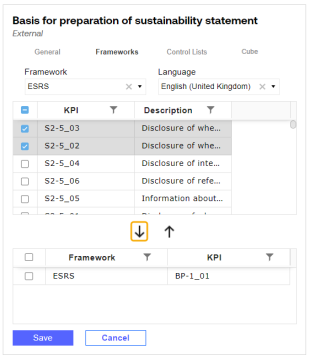
From the Frameworks drop-down menu, select the Framework containing the KPIs you want to assign to the Definition. All KPIs in that Framework are displayed in the grid below.
NOTE: Both internal and external Frameworks are supported and display in the Frameworks drop-down menu.
-
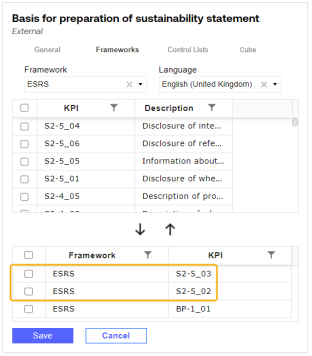
Use the checkboxs to select KPIs and select the Add icon. The KPIs display in the bottom grid.
-
Select the Save button
The Edit button displays if the Definition is set to an input type that requires a unit of measure. the reporting unit is selected by default based on the input type.
To edit the reporting unit, complete the following steps:
-
Select the Edit button to display the dialog box.
-
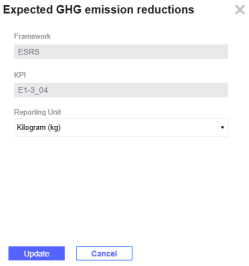
From the Reporting Unit drop-down menu, select a reporting unit for the KPI. The reporting unit must be in the same category as the input type selected in the General tab. Select the Update button.
-
Select the Save button.
Control Lists
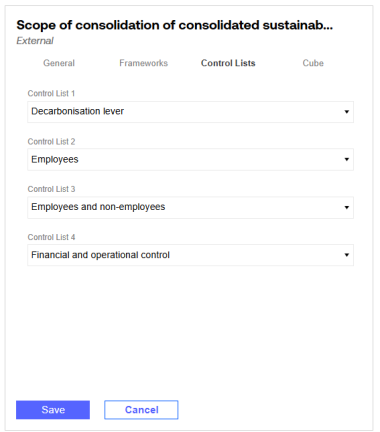
Use the Control Lists tab to assign Control Lists to the selected Definition. A maximum of four Control lists can be assigned to a Definition. See Control Lists. The selection for Control List 1 displays as the first column on the report, and the selection for Control List 2 displays as the second column. Control Lists 3 and 4 do not display on the report. See Report Structure.
To assign Control Lists to a definition, select Control List values from the relevant Control List 1-4 drop-down menus. Control Lists must be selected sequentially. For example, the Control List 1 selection cannot be blank if Control List 2 has a selection. When all values are selected, select the Save button.
Cube
When configuring dynamic cube services, use the Cube tab to set dimension member properties for each Definition. Any updates made to a Definition are reflected in the related account dimension member.
| Property | Description |
|---|---|
| Account Type |
This property determines how the accounts roll up to a parent. Each definition is preset to a recommended Account Type. If there is no recommended Account Type set, the property defaults to Flow. For descriptions of each Account Type drop-down menu option, |
| Formula Type |
This property determines the behavior related to the member's formula. Each definition is preset to a recommended Formula Type. If there is no recommended Formula Type, the property defaults to (Not Used). For descriptions of each Formula Type drop-down menu option, |
| Text Properties 1-8 (Optional) | Use these fields to set custom attributes for use in business rules, Member Filters, or transformation rules. Change the value over time as business needs change or by scenario type. If multiple attributes are required in a single text field, separate them with a comma. |
Select the Save button after editing cube Definition properties.
NOTE: Once a dynamic cube is made, dynamic dimensions are read-only in the OneStream Application tab.
Delete a Definition
The Delete  icon only displays when an internal Definition is selected. Solution provided Definitions cannot be deleted. If an internal Definition is assigned to a Profile, marked as active, or has data entered for it, you cannot delete the Definition.
To prevent data entry for a Definition that cannot be deleted, mark the Definition as Inactive.
Mass Update Definitions
Use the Mass Update pane to modify the properties for multiple Definitions at once. To display the Mass Update pane, use the checkboxes to select multiple Definitions from the grid. The Mass Update pane enables you to edit General properties and Cube properties.
The pane displays all common data between the selected Definitions. If the property selection is not common between the selected Definitions, that property is left blank.
NOTE: The Input Basis property only displays if all Definitions selected for the mass update have a numeric input type.
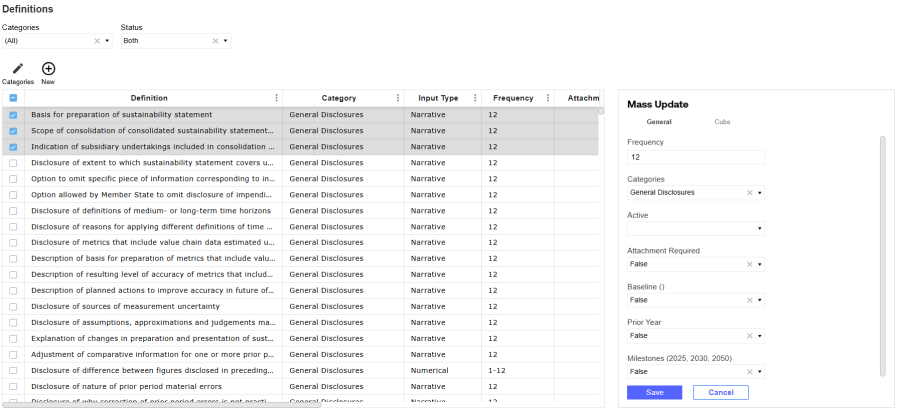
In the Cube tab, the Text properties display (No Change) by default. These properties are not updated unless a user modifies the default value.
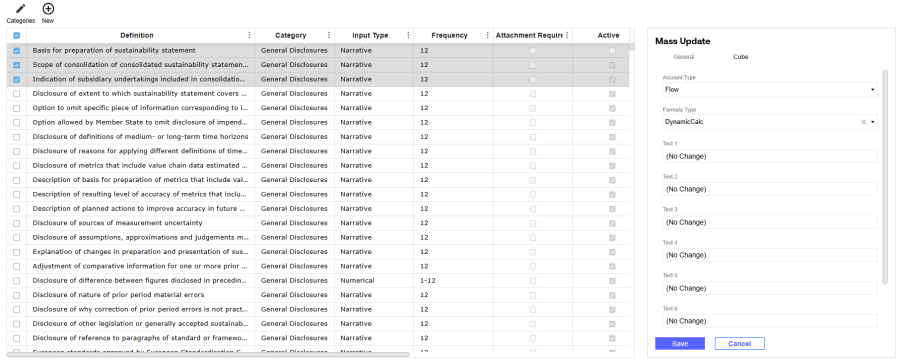
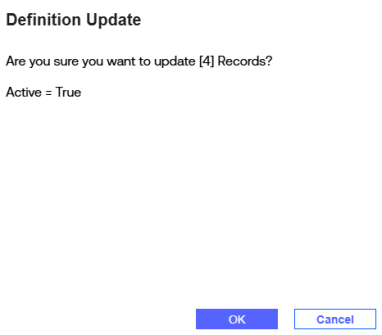
When you have finished editing the Definitions, select the Save button. A Definition Update slide-out panel is displayed with a summary of your changes. To proceed with the mass update, select the OK button.
To mass delete internal Definitions, use the checkboxes to select multiple internal Definitions from the grid and then select the Delete icon.
Categories
-
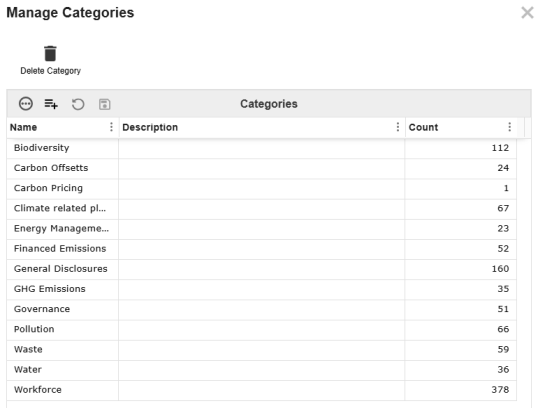
Select the Categories button to display the Manage Categories slide-out panel. All default categories will display in the Categories grid.
-
Select the Insert Row icon to add a new category.
-
Enter a name. The Description field is optional.
-
Select the Save icon.
The Count column will show the number of Definitions assigned to that category. New categories will have a count of zero.
Add Definitions to Categories
-
Select the Definition from the Definitions grid to display the Definition details pane.
-
From the Categories drop-down menu, select a category for the Definition.
-
Select the Save button.
Deleting Categories
To delete a category, select the Delete Category button.
If the category you are deleting has Definitions assigned to it, those Definitions will be moved to an automatically created Other category. This Other category cannot be deleted while Definitions are assigned to it.

