IMPORTANT: The Sites tab displays if Carbon Performance Manager is enabled.
The Sites page enables you to map entities, Factors, and Access Groups to the correct locations. Sites function as a place to connect all your carbon activity data collection. The Sites page is where you will do your configuration for Scope 2.
Use the toolbar options to manage Sites.
-
To add a new Site, select the New button.
-
To delete a Site, select the Delete button.
NOTE: You cannot delete a Site that has one or more associated data entries.
-
To download a template for Site data, select the Download button.
-
To import a template with Site data, select the Import button.
Manage Sites
Use the Site details pane to view and manage Site configuration settings. The pane includes the following tabs:
-
General tab: Manage Site properties
-
Factor Groups tab: Assign and remove Factors
-
Utilities tab: Manage market-based Factors for each utility
General
The General tab has the following properties:
| Property | Description |
|---|---|
| Name | Enter a Site name. |
| Enabled |
The Enabled checkbox is selected by default. To disable the Site, deselect the Enabled checkbox. |
| Description (Optional) | Enter a Site description. |
| Access Group | Assign an Access Group to the site. See Access |
| Entity |
Select the ellipses to choose an entity. You cannot select multiple entities. |
| Country | Select a country. |
| State/Province | Select a state or province. If the selected Country does not have a State/Province, the State/Province drop-down menu displays No data. |
| City | Select a city. |
NOTE: When creating a new Site, General properties must be saved before you can add Factor Groups in the Factor Groups tab.
Factor Groups
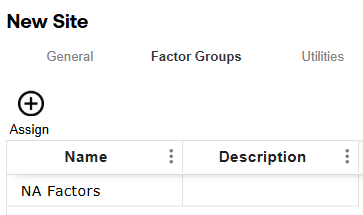
The grid displays all Factor Groups assigned to the Site.
To assign Factor Groups to a Site, complete the following steps:
-
Select the Assign button to display the slide-out panel.
-
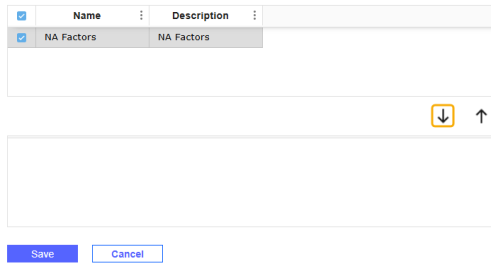
Select the checkboxes next to the Factor Groups you want to assign and select the Add icon. The Factor Groups display in the grid below.
-
Select the Save button. The Factor Group displays in the grid with a name and description.
Utilities
The Utilities tab enables you to manage multiple suppliers for each Site and edit market-based Factor assignments. The grid displays each supplier assigned to the Site.
To assign suppliers, complete the following steps:
-
Select the Assign button to display the Utility Suppliers slide-out panel.
-
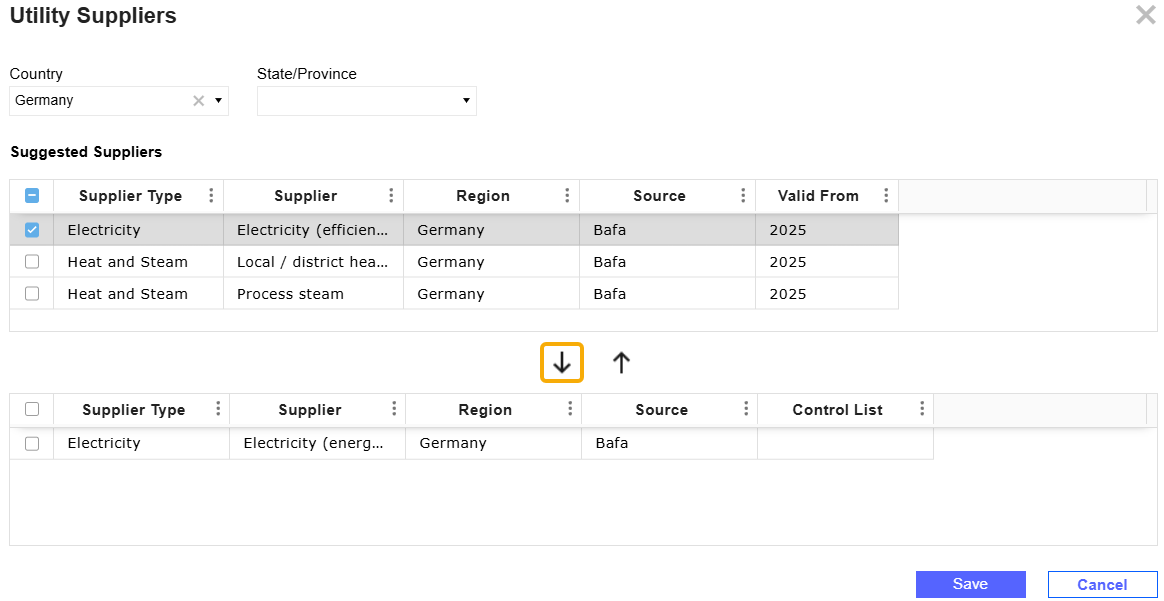
From the Country and State/Province drop-down menus, make necessary selections to filter the top grid.
-
Select suppliers from the grid and select the Add Selected Suppliers icon. The suppliers display in the bottom grid.
-
Select the Save button.
To edit a supplier and assign market-based Factors, complete the following steps:
-
Select a supplier and then select the Edit button to display the slide-out panel.
-
From the Control List drop-down menu, select a Control List. Control List selection is not required.
-
From the Input Basis drop-down menu, select either Periodic or YTD. The Default Input Basis Global Options setting determines the field's default value.
-
In the Market-Based Factor field, select the ellipses to display the Select a Grid slide-out panel. The grid displays all Scope 2 Factors.
-
From the Country and State/Province drop-down menus, make necessary selections to filter the grid results.
-
Select a Factor and then select the Save button.
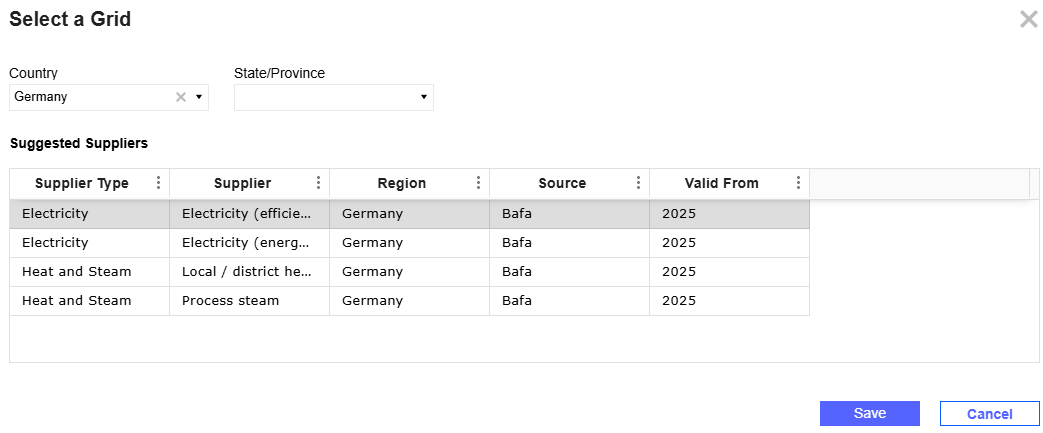
To reset your selection, select the Reset Market-Based Factor icon. When the Market-Based Factor field is set to Auto Select, the factor is automatically selected when calculations are run.

-
-
Select the Save button.
Import Sites
Use the Download and Import buttons to download a Site entry template and bulk import Site data.
To import Site data, complete the following steps:
-
Select the Download button. Fill in all required template columns.
Column Description Name Enter a name for the Site. Description (Optional) Enter a description for the Site. Entity This columns has a drop-down menus enabling you to select a valid entity. It populates all members in the cube's Entity dimension. To review your cube selection, see Global Options. Country This column has a drop-down menu enabling you to select a valid country. State/Province Enter a state or province. Invalid states or provinces do not display in the grid when the file is imported. City Enter a city. Access Group This column has a drop-down menu enabling you to select a valid Access Group. It populates all Sustainability Solution access groups. To review your access groups, see Access.
Select (Unassigned) if you do not need an Access Group assigned to the Site.
-
When you complete the template, select the Import button.
-
In the File Upload window, select the BROWSE button to open File Explorer.
-
Select the template and select the Open button.
-
Select the Upload button.
-
The Spreadsheet Import Report slide-out panel displays showing the number of entries added to the Sites grid. Review the entries and select the Close button. If there are validation errors, the Spreadsheet Import Report slide-out panel displays a compiled list of errors.
NOTE: All imported Sites are enabled by default.

