Editing the Register
You can edit the Register by using the Spreadsheet tool or the Register grid controls.
The Register uses the Dynamic Grid enabling you to add, remove, cancel all changes prior to saving, and save Register values. You can also select a cell in the Register and a list of drop-down values will display based on member definitions, control lists, or parameter values assigned from the Register Definition.
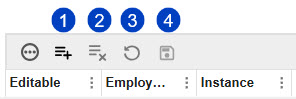
-
Insert Row
NOTE: When you insert a row, default values will automatically populate.
-
Delete Row(s)
-
Cancel all changes prior to saving
-
Save
All of these functions are tied to security access, so if you do not have security access to delete rows, you will not be able to perform that action. You can view the Editable column to verify which rows of information you have read/write access to. A checked box indicates read/write access. If you make edits to information you do not have access to, a dialog box displays and the information will remain.
Spreadsheet Tool
The Spreadsheet tool opens a new page which enables you to make edits to your Register and not have to upload a new set of data every time you need to make an update. The tool enables you to edit a single cell, edit multiple cells at once, copy and paste from cell to cell, copy and paste a row to a new row, right-click and insert a row, and delete rows.
The spreadsheet tool also utilizes drop-down menus within cells in a column. These drop-down menus populate from control lists and parameters that have been assigned in the Register Definition for a quick way to make updates and avoid invalid entries.
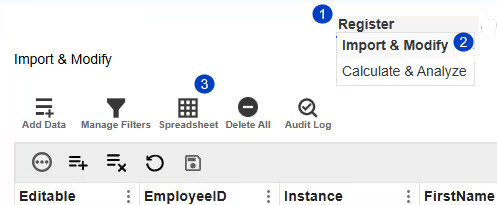
To edit your Register using the Spreadsheet tool, follow the legend and corresponding instructions:

-
Hover your cursor over the Register menu.
-
In the drop-down menu, select Import & Modify.
-
Click the Spreadsheet button.
-
Complete edits and click the Save button.
-
Click the X button to navigate back to the Register read-only page.
NOTE: When scrolling through your data, the header row remains fixed at top of the spreadsheet so you do not lose track of which column the information is in.
Certain validations are put in place to make sure your information does not get removed or go against any preselected attributes of the solution, such as:
-
Columns cannot be removed if selected column data is being used in a formula. To remove the column data, formula information must be updated to reflect the change you want to make.
-
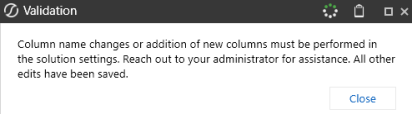
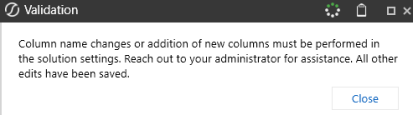
When editing the Register, you cannot update the column name or add a new column. If you right-click on a column, the Insert and Delete selections are unavailable. If changes are made to the column name and other row information, a dialog box displays and only the row information changes are saved.