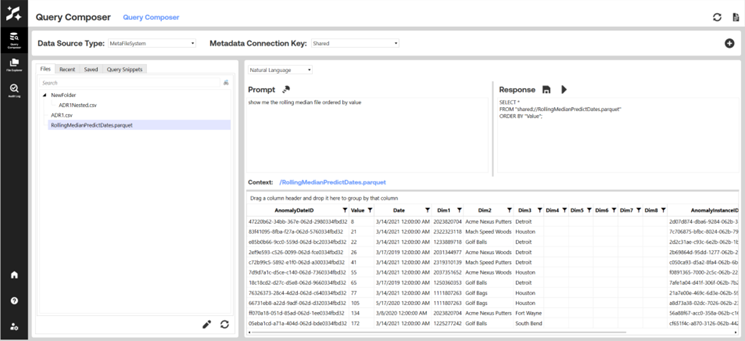
The Query Composer section of the solution allows the user to:
-
Write custom queries to pull data directly from a database or the Meta FileSystem.
-
Quickly generate queries on the selected table or file using available quick action buttons.
-
Top 1000: Get the first 1000 entries from a table or file.
-
Total Records: Get the row count of a table or file.
-
Table Schema: Get schema information about the table or file.
-
Drop Table: Drop the table from the database (SQL-only).
-
-
Convert natural language prompts into SQL or DuckDB queries.
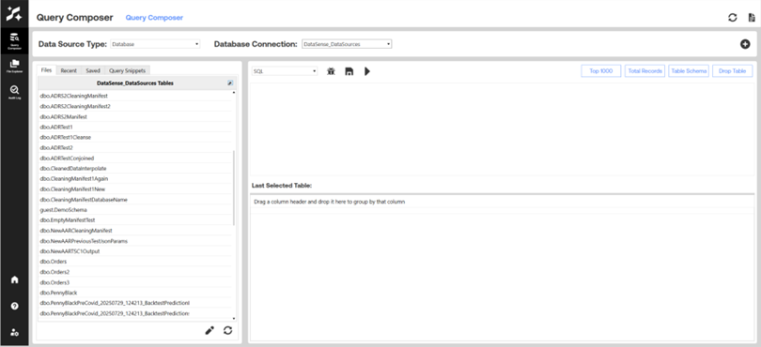
Query Composer Drop-downs, Buttons and Requirements for Use:
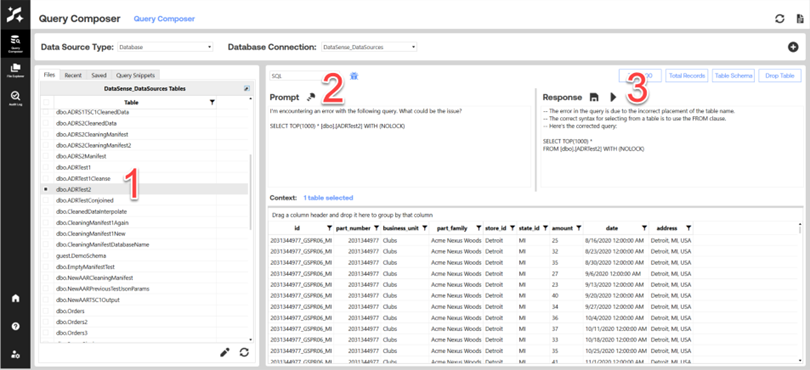
The first step that should be taken before using any of the buttons at the top of the screen is to select a table from the grid in the bottom left corner. You will know that a table has been selected if you see the name of it displayed above the text editor:
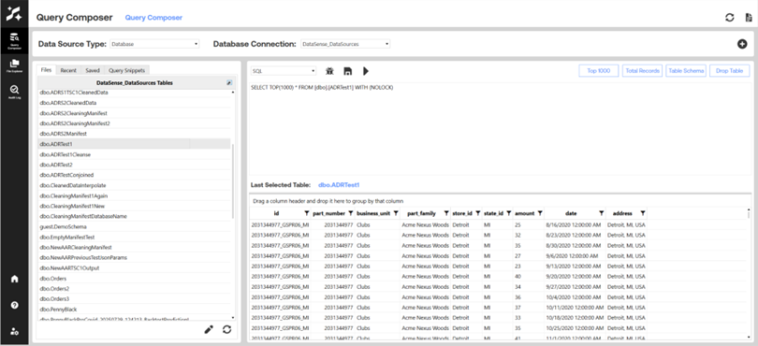
Drop-downs
-
Data Source Type
-
Select the type of source on which to query.
-
Options: Database, Meta FileSystem.
-
-
Database Connection
-
Select the database on which to query.
-
Options: All available databases.
-
- Metadata Connection Key
-
Select the Meta FileSystem folder on which to query.
-
Options: Routine, Shared.
-
- Query Type
-
Select the kind of query to build.
-
Database Options: SQL, Natural Language.
-
Meta FileSystem Options: DuckDB, Natural Language.
-
-
Debug Mode

-
Enter a special debug mode, supply a prompt and run a query-building assistance routine powered by Xperiflow to investigate any errors with your query.
-
-
Save Query

-
Save the current query with a custom name.
-
-
Run Query

-
Execute the current query against the selected database or Meta FileSystem folder.
-
-
Top 1000

-
Select the first 1000 rows from the selected table or file to display in the bottom grid.
-
-
Total Records

-
Retrieves the total row count from the selected table or file to display in the bottom grid.
-
-
Table Schema

-
Retrieves the column schema of the selected table or file to display in the bottom grid.
-
-
Drop Table

-
Opens a dialog and allows the user to drop the currently selected table
-
Database source-only
-
-
-
ETL File Create

-
Use the ETL Dialog to add new tables and files to your databases or the Meta FileSystem. Utilize AI Data Tools to perform an initial exploration of your data and transform it how you see fit.
-
-
Query Snippets
-
Prebuilt templated queries to help the user execute more complex database operations with ease.
NOTE: User must replace table names, column names, and data types in queries before executing. Future releases of AI Data Tools will attempt to further enhance this feature.
-
-
Natural Language to SQL Query
-
Utilizes the Xperiflow engine to convert a natural language prompt into a valid SQL or DuckDB query.
-
Context must be provided to the routine by selecting tables or files.
-
For databases, select one or many tables from the database
-
For Meta FileSystem, select an individual file, or a folder to select all subfiles that are able to be queried with DuckDB.
-
-
-
-
Edit Table or File

-
Alter the selected table or file by modifying its name or its column types.
-
Column type changes are not yet available for files.
-
Alter functionality is not yet available for tables with non-default schema.
-
-
Delete the selected table or file.
-
Natural Language Routine
The Natural Language Routine appears in two forms: Debug Mode and Natural Language to Query. They are functionally equivalent, however they are presented in distinct contexts.
Debug Mode
If a query is not functioning properly, you can select the Debug Mode button from the Query screen to begin query debugging.
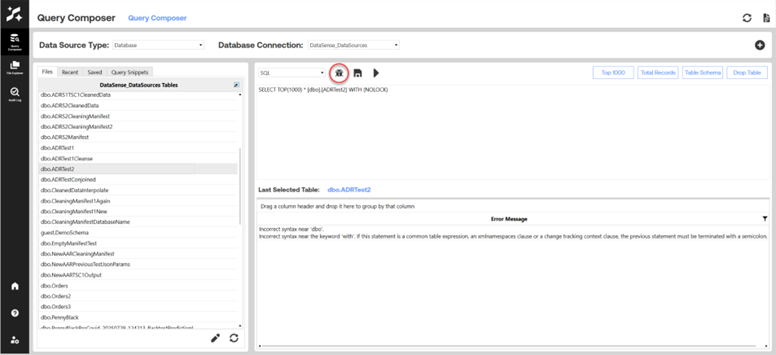
When running this routine, context must be selected. This reduces the scope of tables or files the routine must search through when building your query.
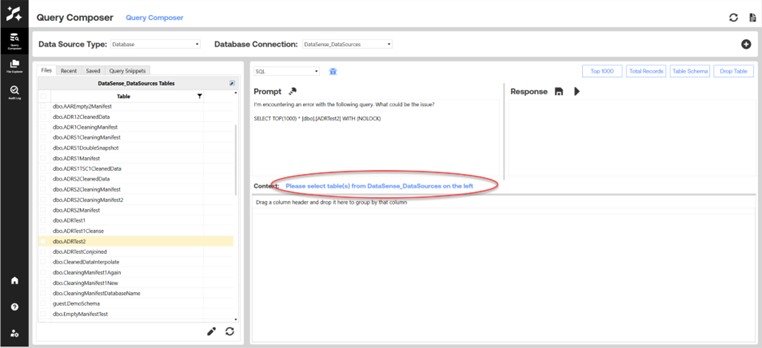
Once context has been selected, the query can be built against the context, and a response will be provided. That response can then be ran, and a result presented.
Natural Language to Query
The Natural Language mode can be accessed by the Query Type dropdown and presents in a similar manner.
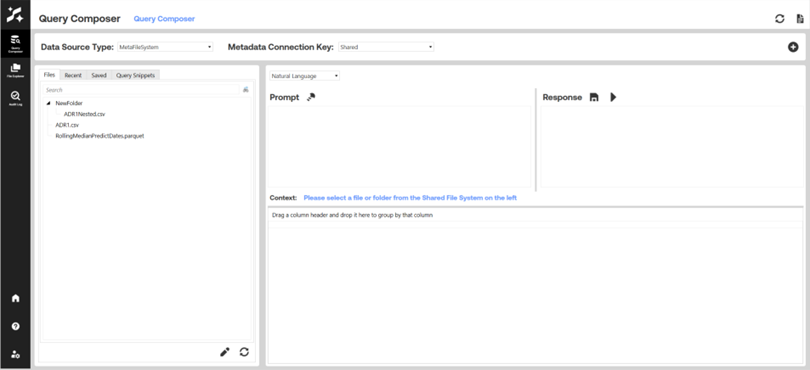
When selecting context on the Meta FileSystem, you can select either an individual file, or a folder to select all tabular files nested within the selected folder.