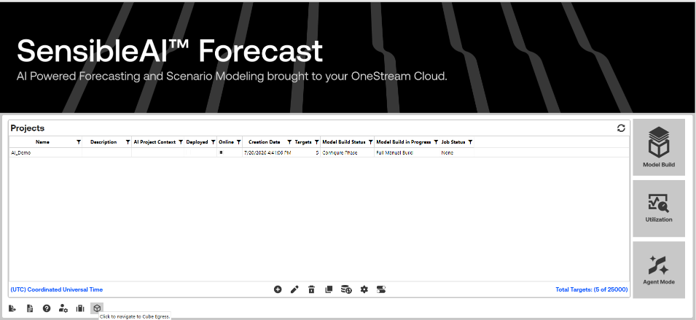
When writing prediction results back to a OneStream cube, a Workflow Profile must be configured. The Cube Admin Workflow page simplifies this process by automatically creating the infrastructure required to execute a standard Import > Validate > Load workflow.
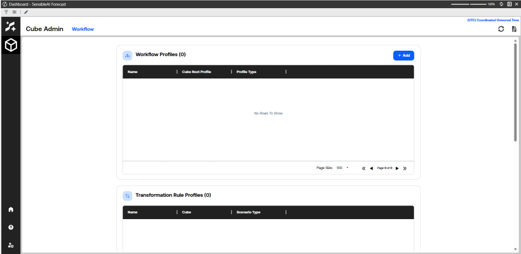
This configuration links together three key components:
-
Data source: Defines where the data originates.
-
Transformation rule profile: Defines how source data is mapped and transformed.
-
Workflow Profile: Defines the workflow process that loads data into the cube.
Understanding the Components
Data Sources
A data source defines where the prediction data is coming from and answers the question of where data is coming from.
Examples may include:
-
SensibleAI Forecast output
-
Flat files
-
External systems
-
Integration sources
Transformation Rule Profiles
After data is imported into the staging area, OneStream applies transformation rules before loading data into the cube. Transformation rules answer the question of how source data should be translated into the format require by the cube.
A Transformation rule profile:
-
Maps source fields to destination dimensions.
-
Converts source values into formats expected by OneStream.
-
Executes transformation logic against each imported row.
For example:
| Source Value | Transformed Value |
|---|---|
| 01/15/2025 | Jan-2025 |
| SalesDept | Sales |
| US-East | East Region |
Workflow Profiles
A Workflow Profile defines the process used to load data into OneStream. Workflows are the standard mechanism users employ to move data through the platform. Workflow Profiles answer the question of how data moves through the system and into a cube.
A Workflow Profile:
-
Organizes workflow steps.
-
Associates data sources and transformation rules.
-
Controls how data moves through the loading process.
A typical workflow includes:
-
Import
-
Validate
-
Load
Creating a Cube Write Configuration
To create a cube write configuration, complete the following steps:
-
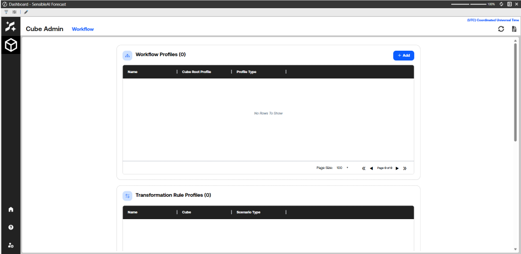
Open the Cube Admin dashboard and select the Workflow tab. The page displays Workflow Profiles and transformation rule profiles. Initially, no profiles may exist.
-
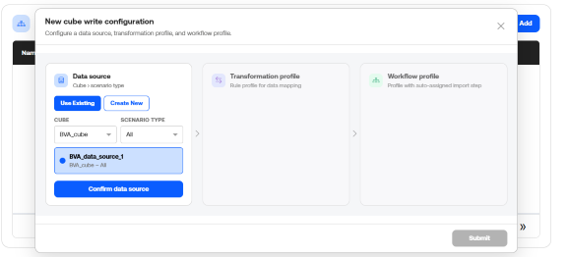
In the Workflow Profiles section, select Add. The New Cube Write Configuration wizard displays, which guides you through creating a data source, transformation profile, and Workflow Profile.
-
In the Data Source section, choose Use Existing to select an existing data source or choose Create New to create a new data source. After selecting a cube and Scenario Type, select Confirm Data Source. The selected data source becomes available for the next step.
-
After confirming the data source, configure the transformation profile. You can use an existing transformation rule profile or create a new transformation rule profile. The transformation rule profile determines how imported data is mapped and transformed before loading. Once configured, confirm the profile to continue.
-
After the data source and transformation profile are confirmed, the Workflow Profile section becomes available.
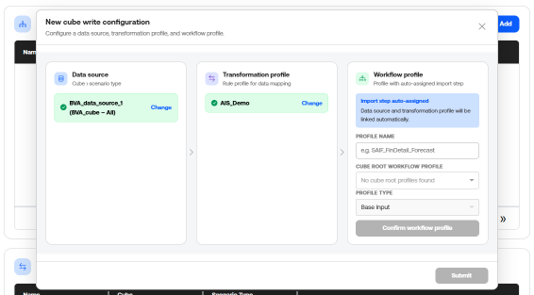
Complete the following fields:
Field Description Profile Name Name of the Workflow Profile Cube Root Workflow Profile Parent Workflow Profile, if applicable Profile Type Workflow Profile type, typically Base Input The system automatically assigns the Import step and links the selected data source and transformation profile. Select Confirm Workflow Profile.
-
After all three component are confirmed, select Submit. The system will programmatically create the required OneStream infrastructure to support the standard Import, Validate, Load Workflow process.
When the configuration is submitted, the system does the following things automatically:
-
Creates or links the data source.
-
Creates or links the transformation rule profile.
-
Creates the Workflow Profile.
-
Connects all components together.
-
Configures the Import step.
-
Enables a complete Import, Validate, Load Workflow for cube write-back operations.
This removes the need to manually create and connect each OneStream object individually.
Example Use Case
A user wants to write SensibleAI Forecast results back into a planning cube.
The user:
-
Creates a new Cube Write Configuration.
-
Selects or creates a data source for forecast output.
-
Creates a transformation rule profile to map forecast dimensions.
-
Creates a Workflow Profile.
-
Submits the configuration.
The system automatically generates the workflow infrastructure required to import, validate, and load forecast data into the cube.

