Import Blend Data
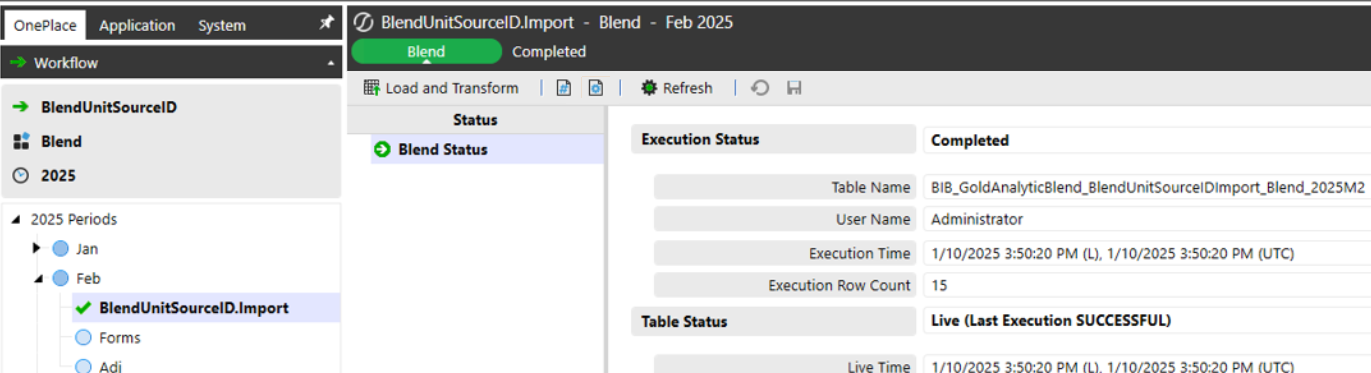
The workflow name used can be Blend, Blend Workspace, or Workspace Blend. Your import options are the same as other OneStream Workflows that commonly result in cube data.
Data can be collected using:
-
Files (Fixed or Delimited)
-
Connectors
-
Other workflow Stage data
Delimited Files
When loading data to a BI Blend workflow using a delimited file, a bypass must be used if the first row of the file contains column headers.
How to Use a File Bypass
Use a bypass to prevent file load failures in cases where a delimited file contains column headers.
-
Create a bypass:
-
Navigate to Application > Data Collection>Data Sources.
-
Under Delimited Files, select a data source.
-
Click Create Source Dimension.
-
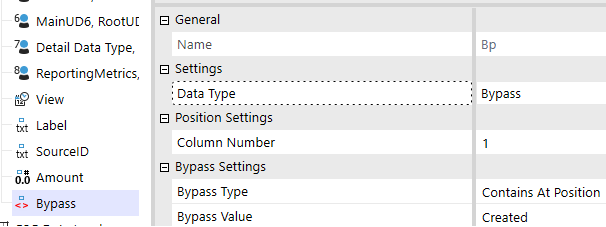
From the Name drop-down menu, select Bypass.
-
Click the OK button. The default Bypass Type is Contains Within Line.
-
In the Bypass Value field, type the name of the first column header.
-
Click the Save button.
-
-
Load the delimited file into a BI Blend workflow.
Static Values in Fields
In Platform Version 7.4.4 to Platform Version 8.1.3, field values are bypassed if a Static Value is applied to the field. In Platform Version 8.2 and later, fields with a Static Value are no longer bypassed.
To replicate this functionality and drop certain lines, typically headers, create a Complex Expression or Business Rule that bypasses the field.
For example, the following rule, applied to the Account field, would ensure the line containing the Account header is ignored:
'Check the parsed value for the criteria string
If StringHelper.FindIgnoreCase(args.Value, "Account") Then
    'Set the bypass switch on the globals object in order to tell the parser engine to skip this line.
    globals.Bypass = True
End If
Return args.Value


