The POV panel can be accessed from the OnePlace toolbar and can be used to view and modify the current Cube POV. Similar to Workflow POV, the Cube POV menu is presented as an overlay instead of a floating dialog. Notably, information from the Windows Platform POV menu is displayed in a two different areas in the browser:
-
Global POV: Select the gear icon in the application header to view current Global POV.
-
Workflow POV: Navigate to Workflow from the OnePlace panel to view and modify the current Workflow POV.
Additional Features
Modify a POV
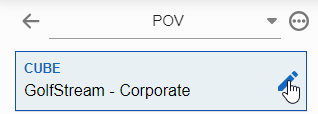
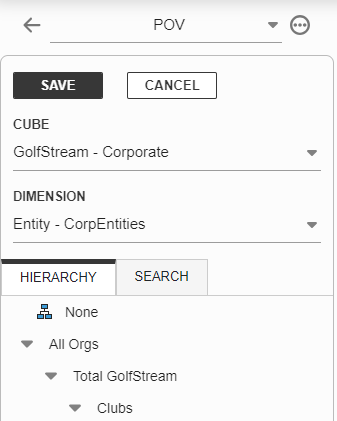
To modify a POV, click the pencil icon next to each field, make your modification, and click Save.
Save a POV
To save a POV, select Save POV from the POV context menu. File Explorer will then open, providing the option to name and save the current POV settings.

Apply a Saved POV
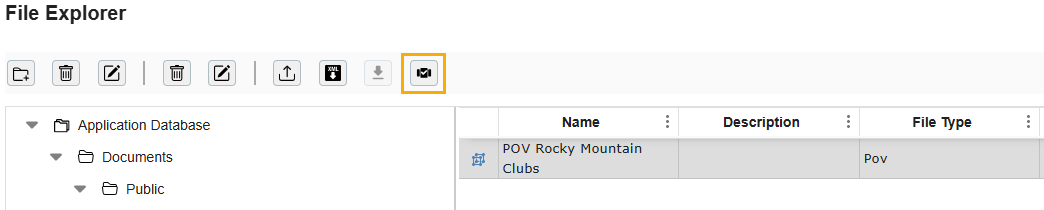
Saved POVs are stored in File Explorer. To set a saved POV, use the Apply POV button in the File Explorer toolbar. You must select an item with the file type of POV selected to see the button. POV can only be applied through the File Explorer.