Components enable you to build the dashboard's user interface and display data. You can use components across multiple dashboards and dashboard groups in the same Maintenance Unit.
Create a Dashboard Component
 Select the Components node and click the Create Dashboard Component button. From the Create Dashboard Component window, select a component, and click the OK button.

In the Component Properties tab, name the component. You can feed parameters and other Substitution Variables into the description so that they display in the resulting component when run in a dashboard.
Example: Account: |!TrendAccountParam!| Year:|WFYear|. If the existing and accessible Parameter TrendAccountParam returns Net Income Region and the user's Workflow POV Year is set to 2012, the description text Account: Net Income Region Year: 2012 will display when processed.
Manage Components on a Dashboard
Navigate to the dashboard in your Maintenance Unit and select the Dashboard Components tab.
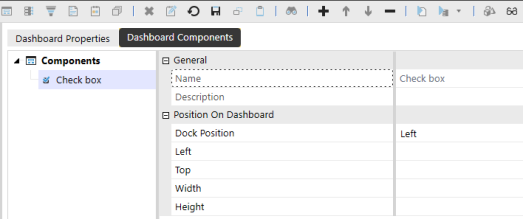

To add and assign a dashboard component, click the Add Dashboard Component button.

To move a dashboard component up in the Components list, select the component and click the Move Up button.

To move a dashboard component down in the Components list, select the component and click the Move Down button.

To remove a dashboard component from the Components list, select the component and click the Remove Selected Dashboard Component button.
NOTE: Press CTRL to multiselect components from the Add Dashboard Component window.
Position On Dashboard Properties
Dock Position
This enables you to dock a component in a specific position on the dashboard. You can choose from the following options: Left, Right, Top, and Bottom.
Left
This sets the amount of dashboard space to allocate to the left dock position.
Top
This sets the amount of dashboard space to allocate to the top dock position.
Width
This property only applies to Dock and Canvas dashboard layout types. Enter a percentage or pixel value to set the width of the dashboard.
Height
This property only applies to Dock and Canvas dashboard layout types. Enter a percentage or pixel value to set the height of the dashboard.
NOTE: The Position On Dashboard settings do not apply to some dashboard layout types. See Dashboard Properties.


