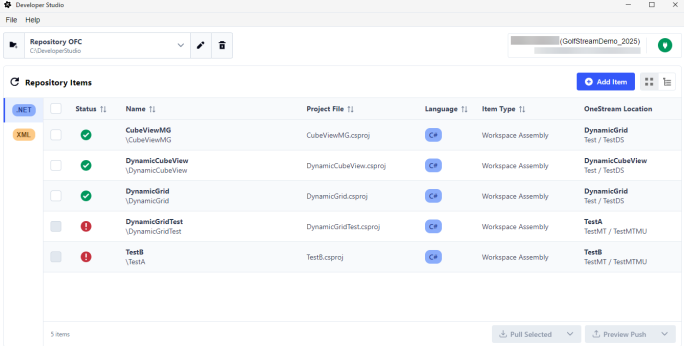
All .NET items created display in the Repository Items grid.
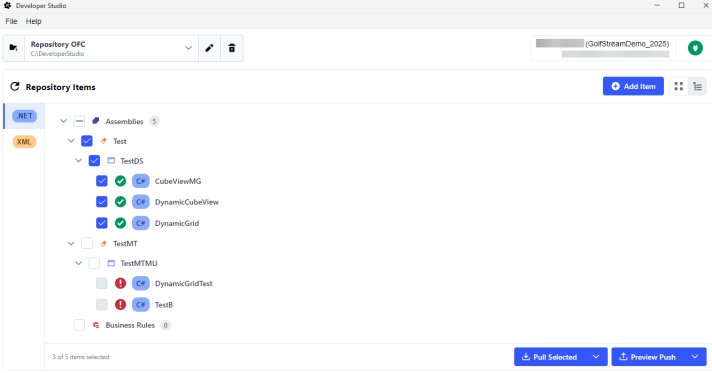
To view items in a hierarchy view, select the Hierarchy View icon. This view enables you to easily select all business rule items and select all assemblies under a specific Workspace or maintenance unit. Select the Grid View
 icon to switch back to a grid view.
All items within the currently selected repository display in the Repository Items grid with the following columns:
| Column | Description |
|---|---|
| Status |
The status of the item:
|
| Name | The name of the item and the full file path. |
| Project File |
The name of the project file. |
| Language | The languages of the project file, which can be C# or VB.NET. |
| Item Type | The item type is either business rule or workspace assembly. |
|
OneStream Location |
The location of the item within OneStream. For example, WorkspaceA - MUA - Assembly A. WorkspaceA is the Workspace name, MUA is the Maintenance Unit name, and Assembly A is the assembly name. |


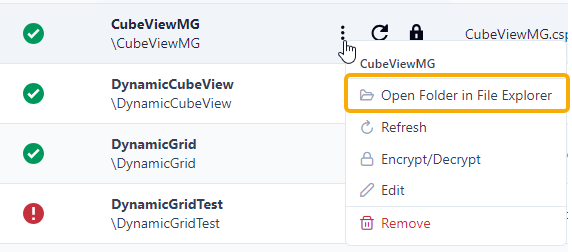
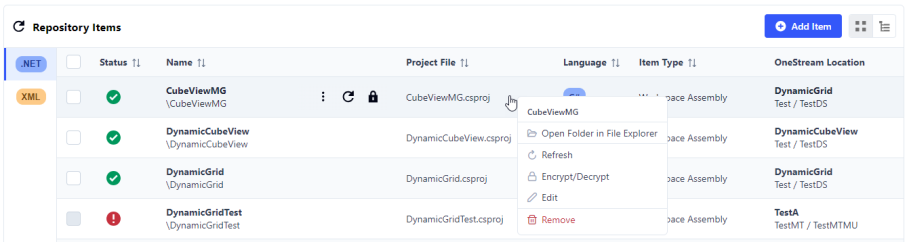
To view the folder file location of an item, right-click the item or select the ellipses to display the context menu, then select Open Folder in File Explorer.

To manually refresh the Repository Items grid, select the Refresh icon.
NOTE: If you edit your osmap files outside of Developer Studio, the grid will automatically refresh.
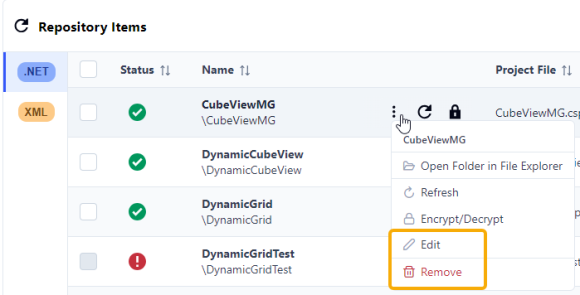
To manage repository items, hover over the item or right-click to display available actions.
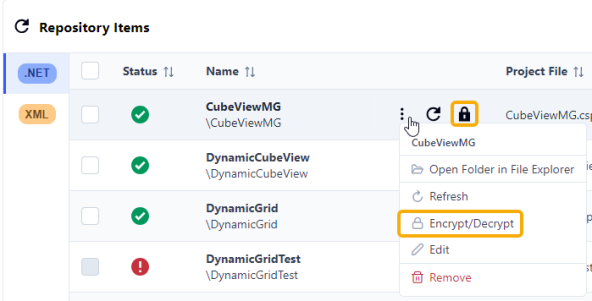
To encrypt or decrypt an item, select the Encrypt/Decrypt icon or choose the option from the context menu. See Encrypt and Decrypt Items.
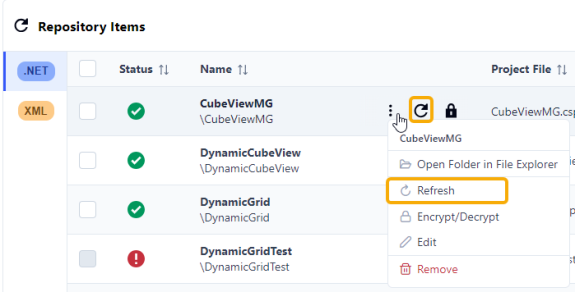
To manually refresh a single item, select the Refresh icon or choose the option from the context menu.
To edit or remove an item, select the ellipses to display the context menu and select an option.
When you select Edit, the Edit Item window displays. You can choose a new business rule or assembly from OneStream. You cannot rename an item or edit the selected project file.
IMPORTANT: When you remove an item, nothing is deleted locally or on the server. If you want to delete your project or source file, this must be done manually outside of Developer Studio. If the same item is created in two different repositories with different folder paths, removing the item from one repository will not remove it from the other.