Setup and Installation
This section contains important details related to the planning, configuring, and installation of your solution. Before you install the solution, familiarize yourself with these details.
Dependencies
Ensure that you have each of the following components installed:
| Component | Description |
|---|---|
| 9.0.0 |
Minimum Platform release required to install this release. |
Before installation, decide whether to build the solution directly in the Production OneStream application or in a separate Development OneStream application. This section provides some key considerations for each option.
Production OneStream Application: The primary advantage of building the solution in a Production application is that you will not have to migrate the resulting work from a Development application. However, there are intrinsic risks when making design changes to an application used in a Production capacity and it is not advised.
NOTE: OneStream strongly recommends that you implement the solution in the Development environment with a fresh copy of the Production application before starting work.
Development OneStream Application: As a best practice, use the Development OneStream application to build the solution.
Create the OneStream Development Location
-
Ensure all the OneStream artifacts relating to ESG Reporting and Planning such as Workflow Profiles and entities, are in the Production application.
-
Create a backup copy of your Production database, or copy your Production OneStream application to your Development environment and rename it. This Development version will be used for your ESG Reporting and Planning project.
Application Server Settings
You may need to edit the OneStream Application Server Configuration so users can create and change data in the additional database tables. If other OneStream Solutions (such as Specialty Planning) are already in the application, these adjustments may already exist.
See Help and Miscellaneous Information.
Configure the OneStream Application Server
Be sure that the security group settings include the users who work on and set up the solution before proceeding.
NOTE: Group settings are applicable to all OneStream Solutions; it is important to keep the group names generic.
-
Start the OneStream Server Configuration Utility as an Administrator.
-
Click Open Application Server Configuration File > Database.
-
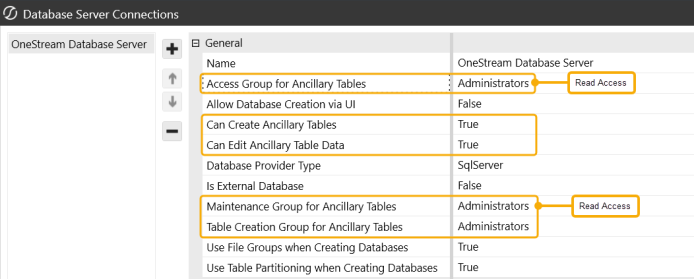
Edit the following OneStream Database Server properties:
-
Access Group for Ancillary Tables: Select a group that includes those who will access records.
-
Can Create Ancillary Tables: True
-
Can Edit Ancillary Table Data: True
-
Maintenance Group for Ancillary Tables: Select a group to edit and maintain tables.
-
Table Creation Group for Ancillary Tables: Select a group who can create tables.
-
Restart Internet Information Server.
Install ESG Reporting and Planning
The ESG Reporting and Planning solution is a paid offering. Once you have completed the purchase, complete the following steps to install the solution:
-
In OneStream Solution Exchange, go to OneStream Solutions and select the ESG Reporting and Planning tile.
-
On the ESG Reporting and Planning page, in the Platform Version drop-down menu, select the appropriate OneStream Platform Version.
-
In the Solution Version drop-down menu, select the most recent version.
-
Click the Download button.
-
Log in to OneStream.
-
On the Application tab, go to Tools > Load/Extract.
-
On the Load tab, use the Select File button to locate the solution package.
-
Click the Open button.
-
When the solution file name displays, click the Load button.
-
Click the Close button to complete the installation.
Set Up ESG Reporting and Planning
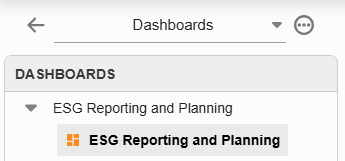
The first time you run the solution, you are guided through the table setup process. In the OneStream Modern Browser Experience, click Dashboards > ESG Reporting and Planning > ESG Reporting and Planning.
Create Tables
-
Click Step 1: Setup Tables. All tables are prefixed with XFW_ESG. For a complete list of tables and package contents, see Appendix B: Tables and Package Contents.
This step may be necessary when upgrading even if tables already exist. ESG Reporting and Planning does not drop any tables that already exist but modifies table structures and adds new ones if necessary.
-
When setup is complete, click Step 2: Launch Solution to open the solution.
Package Contents
The ESG Reporting and Planning Workspace and Dashboard Maintenance Unit provides the user interface for the solution and includes the required dashboard groups, components, data adapters, parameters, and files. See Appendix B: Tables and Package Contents.


