Detail item mapping is done in Transaction Matching. If a match set is assigned to a reconciliation, you must map each data set within the match set to a reconciliation.
Keep these mapping requirements in mind:
-
If the account reconciliation instance is single currency (multi-currency is not enabled), then Local Amount and Item Name must be mapped.
-
If multi-currency is enabled and all reconciliations within the Reconciliation Inventory are multi-currency, then Detail Amount and Item Name must be mapped.
-
If multi-currency is enabled and single and multi-currency reconciliations exist in the Reconciliations Inventory, then Local Amount, Detail Amount, and Item Name must be mapped.
To map detail item information:
-
In Transaction Matching, click Show Administration page
 .
. -
Click Data Sets and then select a data set.
-
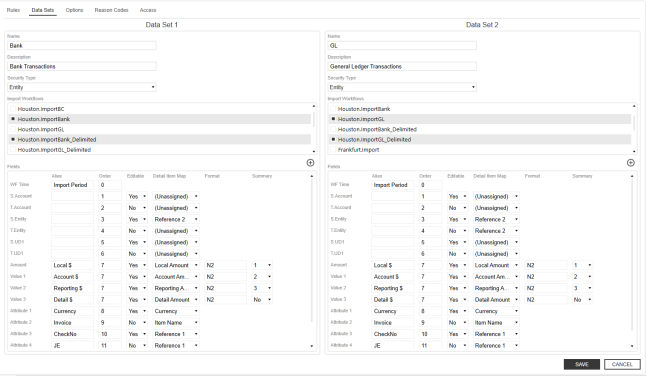
Align the Name column with the alias for the Account Reconciliation column. For example, Invoice is mapped to Item Name in Account Reconciliation.
-
In the Detail Item Map column, make selections to map which columns in Transaction Matching populate the detail item in Account Reconciliations. For example, the check number will be displayed in the Reference 1 column.
-
In the Editable column, set which fields will be editable on the Transactions page directly in the grid by clicking Yes or No. The following fields cannot be set as editable: SourceID, S.Cons, Cons, S.Scenario, Scenario, S.Time, Time, S.View, View, S.Origin, Origin, WF Profile, WF Time, and Status WF Time.
NOTE: Even if fields are marked editable, they cannot be edited for matched transactions and transactions that are associated to a detail item in Account Reconciliations.


