-
Launch the OneStream Database Configuration utility.
-
Right-click a database and select Copy to Clipboard > Connection String.
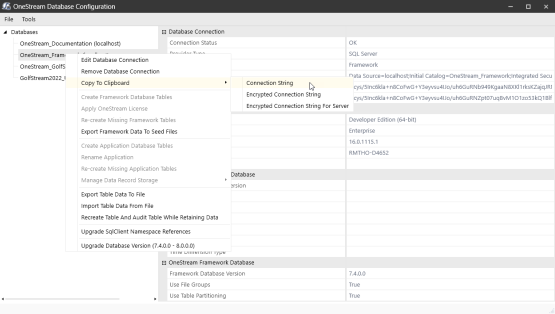
- Copy the encrypted string.
-
Email Connection String:
Example:
SmtpHost=[smtp.office365.com], SmtpPort=[587],]
EnableSSL=[True], SmtpSourceMailAccount=[userID@youremaildomain.com],
SmtpSourceMailAccountPassword=[passwordEmail Connection String with From Address (optional):
Example:
SmtpHost=[smtp.office365.com], SmtpPort=[587],
EnableSSL=[True], SmtpSourceMailAccount=[username], SmtpSourceMailAccountPassword=[password],
FromAddress=[userID@youremaildomain.com]
SAP Connection String:
Example:
"USER=YourUserID LANG=EN CLIENT=800 SYSNR=00 ASHOST=HostServerName PASSWD=YourPassword" -
The encrypted string is stored to the clipboard.
Encrypted Email String:
Example:
XScpcDzo3an7EWAAp6Wvz1IZWE3Q+Fo8DSx0OpacS0Yp5X4sHXtiQGdAoNmNGU48xOa
3xD3C68yAl7B8aXUbv02lj4921ErgN2R+E1qlLG24p98O8a62X0n/q4PS70xzo
sL7R9HzKWT0txtfbpJMUPYrIhCDz6Ubd52/buVABQyUxf2c0Y1BmgIKE/
/6eOcMCv0D5abX6oKbEmZLlms7vXyuicD+KaYheBNX/vbtkA4=
Encrypted SAP String:
Example:
MF/HrDU0zQupeiyGGSUZ431S1guSfOCDoss4T7JYmiNm8BPTw7inI97W5en
ORZfrVN1Z8ADUHkavsRXKnomFKqBLmddbamOIt5s9bO3jxfXiLI
9B26SDQDKwJer1e6Jc -
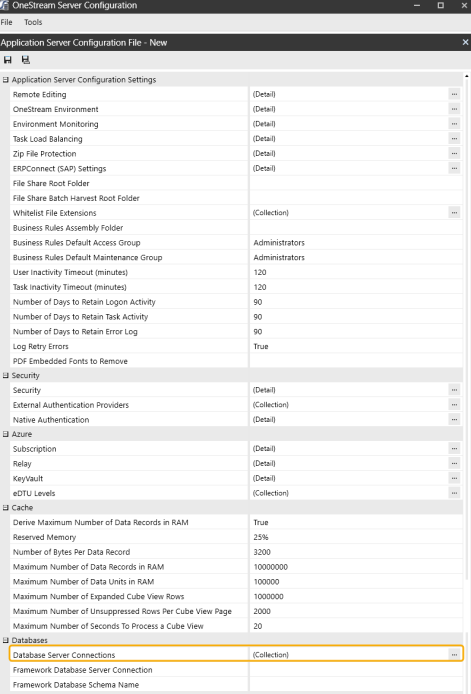
Open the OneStream Application Server Configuration tool.
-
Open Database Server Collections.
-
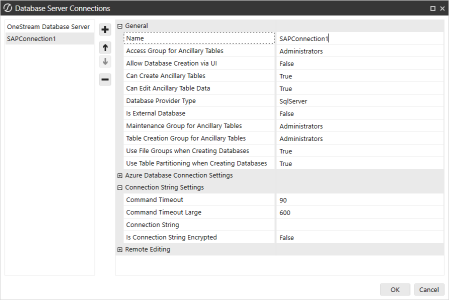
Add a database connection.
-
(Email Connection Only) In the OneStream Business Rule using the email connection, add the code to call the mail function:
CopyVB.Net
'Prepare the message
Dim emailConnectionName As String = "OneStreamEmail"
Dim toEmail As New List(Of String)
toEmail.Add("username@OneStreamSoftware.com")
Dim subject As String = "Test Mail"
Dim body As String = "Test Mail Body"
Dim attachments As New List(Of String)
attachments.Add("\\share1\FileShare\Applications\GolfStream_v30\TestFile.csv")

'Send the message
BRApi.Utilities.SendMail(si, emailConnectionName, toEmail, subject, body, attachments) -
(SAP Connection Only) In the OneStream Business Rule using the SAP connection add the code to call the mail function:
CopyVB.Net
Dim myR3Connection = BRApi.Database.CreateSAPConnection(si, sapConnectionName, openConnection)-
si: SessionInfo
-
sapConnectionName: The name of the connection setup in the DB configuration
-
openConnection: Boolean value stating whether or not to keep the connection open.
-


