Create a New Formula
To create a new formula, follow the legend and the corresponding instructions:
-
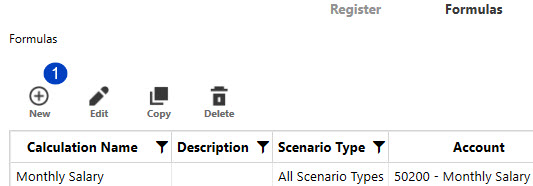
Click the New button.
-
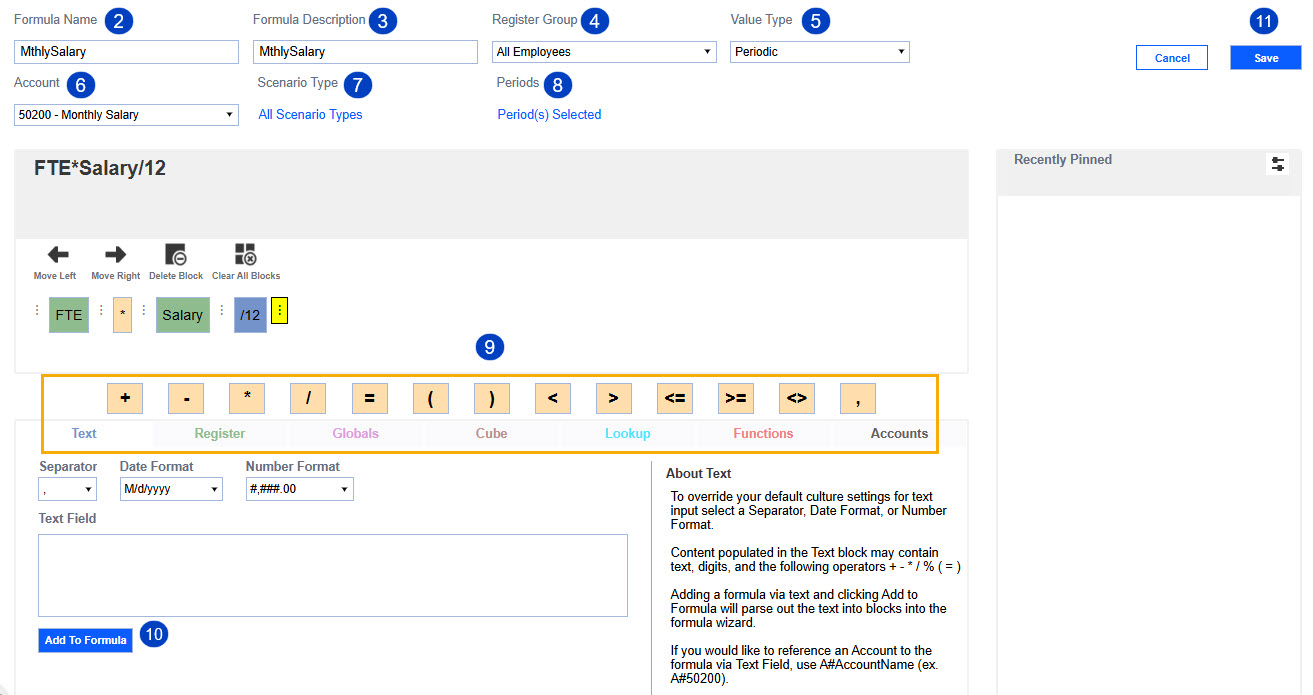
Name the formula. This step is required.
-
(Optional) Enter a formula description.
-
From the Register Group drop-down menu, select a Register Group.
-
From the Value Type drop-down menu, select a Value Type.
-
From the Account drop-down menu, select an Account.
-
Click All Scenario Types to select a Scenario Type.
-
Click Period(s) Selected to select a periods.
-
Build your formula blocks by choosing from operators, Text, Register, Globals, Cube, Lookup, Functions or Accounts. When selected, each block is automatically added to the end of the formula unless otherwise designated.
-
After you have entered text in the Text Field or selected a block from the Register, Globals or Cube option, click the Add to Formula button. The block will populate in the formula preview.
-
Click the Save button.
NOTE: If you click the Create Another Formula button after saving a formula, the Register Group drop-down menu will be reset to All Employees for the Workforce Planning configuration or All Records for the Fixed Term Planning and Duration Based Planning configurations.


