Dynamic Attribute Mapping
Dynamic Attribute Mapping (DAM) automates the maintenance of reconciliation attributes. For example, you can assign risk levels based on balances, frequency, or other conditions, and group reconciliations according to specific criteria. Rules can be executed on demand or scheduled to run automatically, streamlining the reconciliation process for greater efficiency.
 Watch to learn more (4:23).
The Dynamic Attribute Mapping Rules page is where Administrators and Solution Administrators can create, edit, copy, delete, and run Dynamic Attribute Mapping Rules.
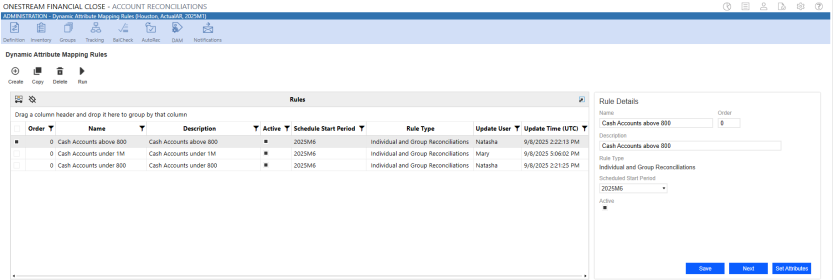
If no rules or multiple rules are selected, the right pane displays "Select a Rule". If there are no existing rules, the grid displays "Create a Rule".
This interface presents a grid view, not a SQL table editor. To update rule details you must use the form, right of the grid. Columns include:
-
Multiselect checkboxes: When a single rule is selected, you can edit, copy, delete, or run rules. When multiple rules are selected, the you can delete or run rules.
-
Order: Enter the order to run the active rules. It must be a whole number 0 or greater. Default is 0.
-
Name: This field is required. Enter a unique rule name. The character limit is 100.
-
Description: This field is optional. The character limit is 500.
-
Active: Upon rule creation the status defaults to active.
-
Scheduled Start Period: Select the start period from the drop-down menu. Default is current period.
-
Rule Type: This field is required. Select the Rule Type from the drop-down menu. Options include Individual Reconciliations Only, Group Reconciliations Only, Individual and Group Reconciliations.
-
Update User: Record of last user to edit rule.
-
Update Time (UTD): Time stamp of rule update.
NOTE: The Dynamic Attribute Mapping Rules breadcrumb directs the Administrators and Solution Administrators to the main rules page.
Create a Rule
-
On the Administration page, click the DAM button.
-
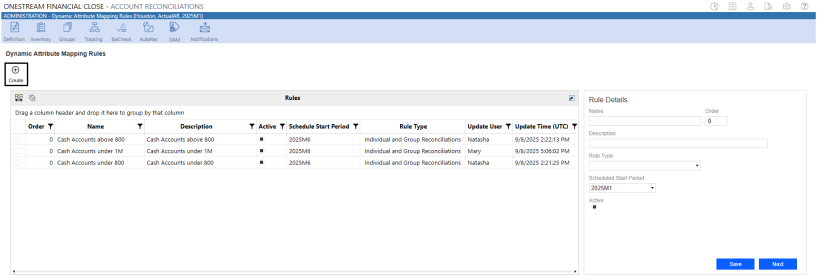
On the Dynamic Attribute Mapping Rules page, click the Create button.
-
In the Rule Details dialog pane, enter a name. This field is required.
-
In the Order field, type the order to run the rule.
-
Enter a description. This field is optional.
-
From the Rule Type drop-down menu, select a rule type.
-
From the Scheduled Start Period drop-down menu, select a start period. Default is the current period.
-
Click one of the following buttons:
-
Save to save the rule.
-
Next to save and go to Filter Criteria.
-
NOTE: If the rule should not be run, clear the Active checkbox.
Edit a Rule
-
On the Administration page, click the DAM button.
-
On the Dynamic Attribute Mapping Rules page, select the checkbox next to the rule to edit.
-
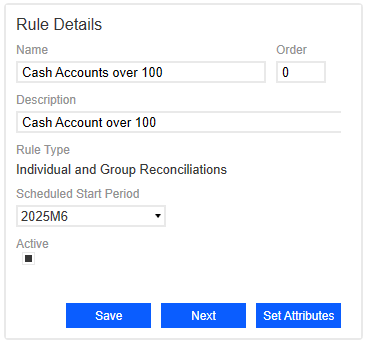
In the Rule Details dialog box, edit the available fields.
-
Click one of the following buttons:
-
Save to save the rule.
-
Next to save the rule and go to Filter Criteria.
-
Set Attributes to save the rule and go to the Set Attributes page.
-
Delete a Rule
-
On the Administration page, click the DAM button.
-
On the Dynamic Attribute Mapping Rules page, select the checkbox next to each rule to delete.
-
Click the Delete button.
-
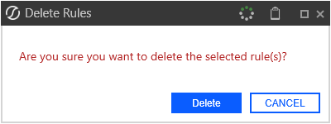
In the Delete Rules message box, click the Delete button .
Copy a Rule
-
On the Administration page, click the DAM button.
-
On the Dynamic Attribute Mapping Rules page, select the checkbox next to the rule to copy.
-
Click the Copy button.
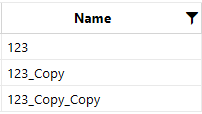
The newly created rule will have _Copy appended to the end of its name. If the same rule is copied again, the new rule will have _Copy_Copy appended to its name.
Run a Rule
Set attributes are updated on the selected rules when Run is executed. Active rules are executed in the order specified in the rules list and follow the scheduled start period. If multiple rules share the same order number, the system will execute them in alphabetical order.
To run a rule and view Task Activity, follow these steps:
-
Select the checkbox next to each rule to run.
-
Click the Run button.
-
In the message box, click the OK button.
-
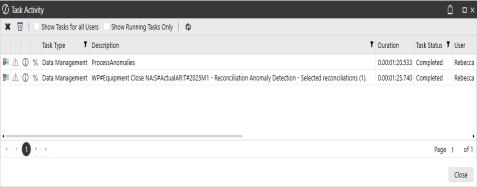
Click the Task Activity button and view the log.
Run Execution
When the run process is executed on a list of rules and encounters a validation failure, the reconciliation attributes revert to their original values.
IMPORTANT: When multiple rules update the same field, the last rule modifies the attribute.
Run Actions
During the execution of run, certain actions are blocked. Additionally, the same actions restricted during process are blocked during the execution of run. If any of the restricted actions are performed ruing the execution of run, an error message displays.
Items Blocked by Process, Mass Actions, and Create Detail Items (TXM Integration):
-
Open Match Detail Items Dialog in RCM (TXM Integration)
-
Create Detail Items in RCM (TXM Integration)
-
Data Management Jobs for MassActions/Process
-
Pull Prior Items
-
Copy Prior Items
-
Complete Workflow
-
Revert Workflow
-
Upload a T-Doc
-
Upload a S-Doc
-
Run Process
-
Add Detail Items (Reconciliation and Group Reconciliation)
-
Remove Detail Items (Reconciliation and Group Reconciliation)
-
Prepare a Reconciliation(with Certification on and off)
-
Approve a Reconciliation (with Certification on and off)
-
Recall a Reconciliation
-
Reject a Reconciliation
-
Unapprove a Reconciliation
-
Prepare a Reconciliation Mass Action (with Certification on and off)
-
Approve a Reconciliation Mass Action (with Certification on and off)
-
Recall a Reconciliation Mass Action
-
Reject a Reconciliation Mass Action
-
Unapprove a Reconciliation Mass Action
-
Pull B-Check
NOTE: When a TXM CreateDetailItems Data Management Job is running, updates to Recon Balances are blocked regardless of Workflow Profile.
Items Blocked by Process, and Mass Actions:
-
Attaching a Support Doc (R and I)
-
Deleting a Support Doc (R and I)
-
Copying Prior Support Doc
-
Overwriting a Support Doc (R and I)
See Rule Processing.


