A Role is a container of permissions that can be assigned to an identity under a scope. Each role can have a number of permissions that will dictate what an identity can do. Without assigning permissions to a Role, the Role has no effect. To see which permissions are assigned to a role, click on it and view the Assigned Permissions drop-down menu.
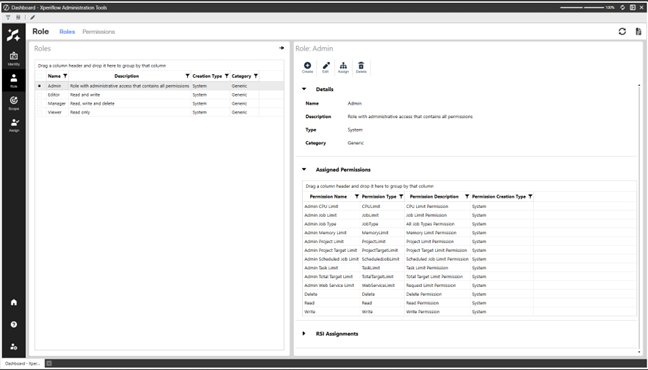
The default roles that come with Xperiflow Administration Tools are Admin; Viewer; Editor; and Manager. These are System roles that cannot be modified or deleted, but can be assigned to identities.
Admin
This role contains permissions that allow for maximum access across the AI Services environment.
Example: To create an administrators’ group, create a group called "Administrators", add Users who require administrator rights. Then, go to the RSI Assignments page and assign the Admin role to the Administrators group under the Global scope. The group can be modified at any time by adding or removing Users from this group.
Viewer
This role contains the Read permission. This allows you to read anything within the scope that the role is applied.
Example: Give a User the Viewer permission inside of a SensibleAI Forecast Project Scope by setting those three items as an RSI assignment. This User would only have read permissions inside of the Project, but not write or delete permissions.
Editor
This role contains both the Read and Write permissions.
Example: Give a User the Editor permission inside of a SensibleAI Forecast Project Scope by setting those three items as an RSI assignment. This User would have read and write permissions inside of the Project, run jobs (write to the project), but not delete permissions.
Manager
This role contains the Read, Write, and Delete permissions. This role allows for any of these actions to be used under the scope it is applied.
NOTE: When creating a SensibleAI Forecast Project, this Role is automatically applied to the User that creates the project and cannot be deleted. This ensures that the creator always has the ability to manage the project.
Grant Users access by creating an RSI Assignment of any of these three roles to an Identity and that project's scope. The role can also be applied globally by assigning it to the Global scope. This would apply to all project scopes, as the project scopes are all children of the global scope.
NOTE: When creating a SensibleAI Forecast Project, you are given the option to assign which Identities will have Viewer, Editor, and Manager roles inside of this project.
Create a Role
From the Roles page:
-
Select the Create button.
-
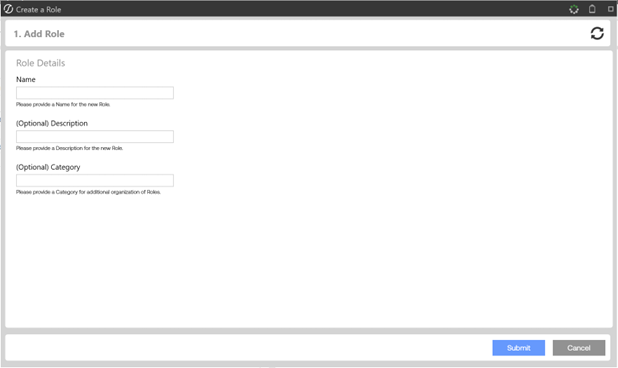
Enter a Name, Description (Optional), and Category (Optional)
-
Click Submit
-
Follow the remaining confirmation steps until the Role is created.
IMPORTANT: For a role to function, assign permissions and use in an RSI Assignment.
Permissions
For a Role to function, it must have a Permissions assigned to it.
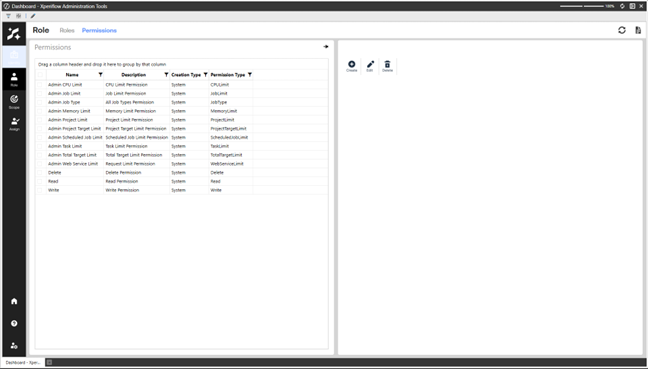
There are two categories of Permissions:
Limit Permissions
These limit a user from doing an action too many times. There are Project Limits, Job Limits, and Memory Limits. These types of limits are validated against all identities across groups.
Example: If an Identity has a project limit of 10, but is in a group with a project limit of 5, that Identity can only create 5 projects. The associated group is taken into the equation when granting access to create a new project. In order for the user to be able to create 10 projects, they would have to be taken out of any other groups or RSI Assignments with a more restricted role than 10 projects.
Existential Permissions
These are permissions that are granted differently than limits. Read, Write, Delete, and JobType permissions are all considered existential permissions. They are not validated against all identities across groups.
Create a Permission
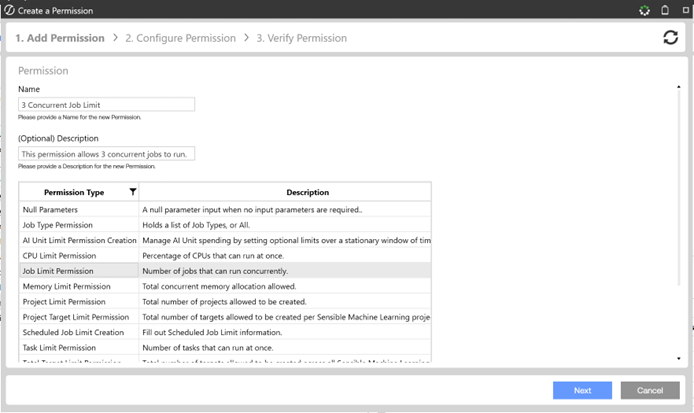
From the Permissions page:
-
Select the Create button.
-
Enter a Name and Description (Optional),
-
Click Next.
-
Follow the remaining confirmation steps until the Permission is created.
It is recommended to name the permission to detail its function.
Example: Create a ProjectLimit permission that limits the number of project to 5 named "5 Project Limit".
Assign a Permission
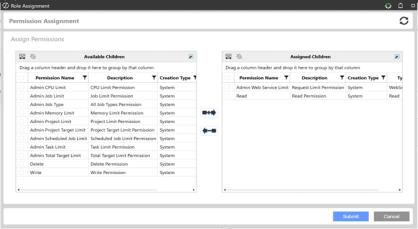
From the Roles page:
-
Select a Role.
-
Click Permission Assignment.
-
Move permissions to the right side.
-
Click Submit.
NOTE: Only one Permission of each permission type can be assigned to a Role.
RSI Assignments
An RSI Assignment is a Role, Scope, and Identity assignment. From the RSI Assignments page, user create, edit, delete, and view existing Xperiflow Administration Tools RSI Assignments. This is what adds function to these items. To grant access, user must create RSI assignments. This assigns a specific Role to an Identity under a given scope.
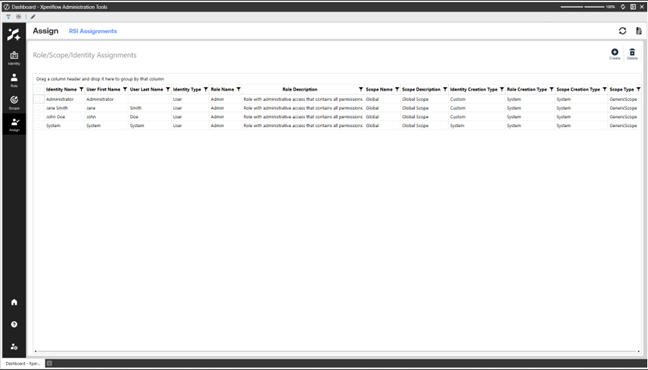
Example: To give the Viewer Role to a User within a Project scope, create an RSI Assignment with the Viewer Role, the chosen User, and a Project scope. To give a User the Viewer Role across all scopes, create an RSI Assignment with the Viewer Role, the chosen User, and the Global scope. This gives Viewer access to all Projects because all projects live within the Global scope.
Create an RSI Assignment
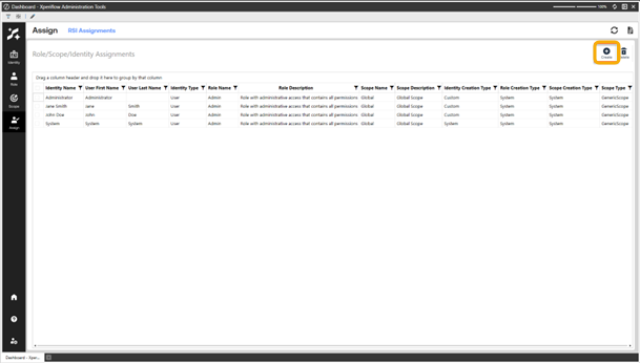
From the RSI Assignments page:
-
Select the Create button.
-
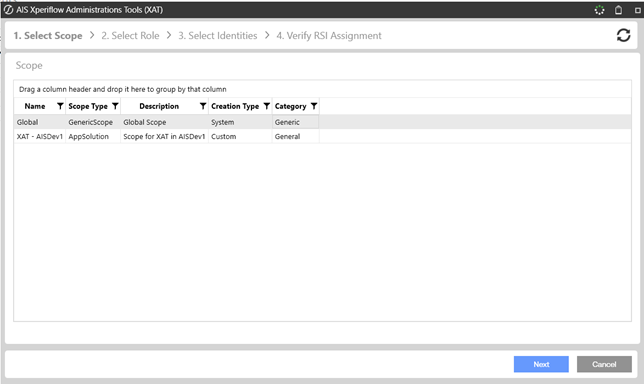
Select a scope.
-
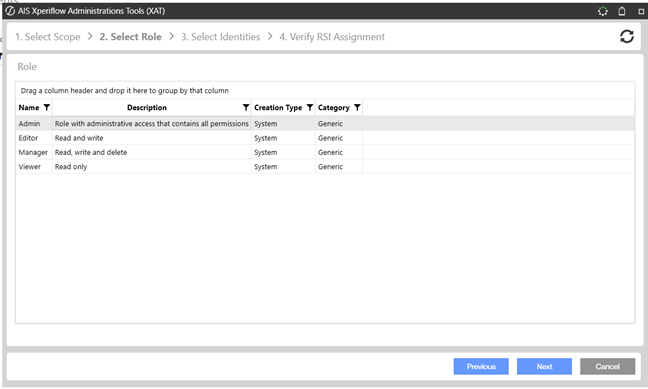
Select a role.
-
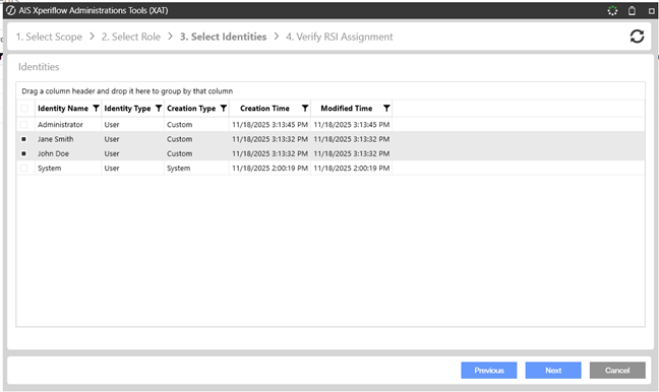
Select identities. One or more identities can be selected to create the same RSI assignment.
-
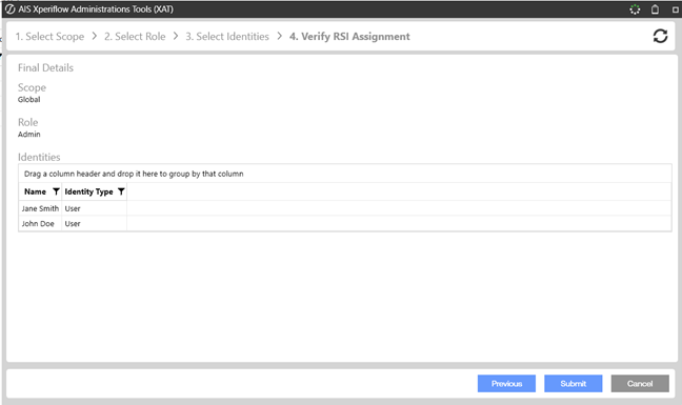
Verify the created RSI assignments. Click the Submit button.