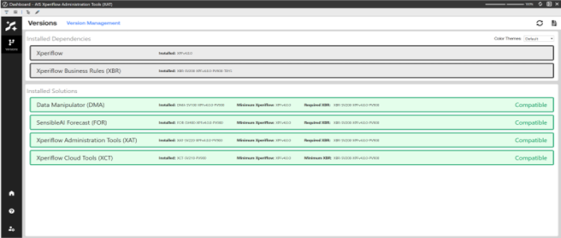
The Version Management section of Xperiflow Administration Tools allows for an administrator to easily view a snapshot of what the current versions of AI Services solutions are installed, as well as, their compatibility with each dependency installed on the environment. Below are further details on how to effectively use this page.
Installed Dependencies
The “Installed Dependencies” section, displays the current versions of each dependency installed on the AI Services environment. Upon set up an AIS environment, there are the following dependencies installed:
-
Xperiflow: The machine learning engine used throughout all of the AI Services solutions.
-
Xperiflow Business Rules (XBR): Shared library of functions used to interface with the Xperiflow Engine.
Installed Solutions
The “Installed Solutions” section, displays the current versions of each AI Services solution. Each installed solution displays the following:
-
Installed: The installed version of the solution.
-
Minimum Xperiflow: The minimum version of Xperiflow that is required for the currently installed version of the solution to be able to run.
-
Required/Minimum XBR: The minimum or required version of XBR for the currently installed version of the solution to be able to run.
-
Compatibility Label: An indicator of whether or not the currently installed version of the solution is compatible with the dependencies listed in the “Installed Dependencies” section. Below are the options that will display for this label:
-
Compatible: All of the required or minimum dependencies are installed for this solution.
-
Not Compatible: One or multiple of the required or minimum dependencies are not installed for this solution.
-
NOTE: Each solution card will be color coded base on if it is “Compatible” (Green) or “Not Compatible” (Red). There is also the ability to update the Color Theme of the page for users that may need different colors than green and red.


