OneStream Application Server
To set up a new Datasphere connection, you must create an external database connection using the OneStream Server Configuration. To create a connection to your SAP environment, follow these steps:
-
Locate the OneStream folder on your computer where the installation files are housed.
-
Open the XFServerConfig.exe file. This file is helpful when editing XML configurations.
-
In the OneStream Server Configuration dialog box, click File > Open Application Server Configuration File.
-
Locate the configuration file using File Explorer, select it, and click the Open button. The file will open and display a list of available settings.
-
In the configuration file, find Databases > Database Server Connections setting. Click the ellipsis to open the Database Server Connection dialog box.
-
The Database Server Connection dialog opens and displays the standard OneStream Database Server settings. The + icon enables you to add a new connection. Click the + button to add a new connection.
-
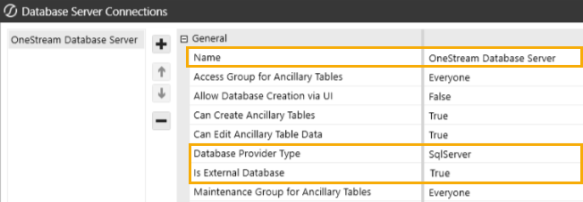
In the General category, set these fields:
-
Name: Enter a name for your connection.
-
Database Provider Type: Use the drop-down menu to choose SQLServer.
-
Is External Database: Set to True.
-
-
In the Connection String Settings category, use the Connection String field to enter the connection string of the database you plan to use.
Example:
Data Source=localhost;Initial Catalog=DatasphereDatabase;Integrated Security=False;User ID=TestUser;Password=TestPassword;Encrypt=False;
Trust Server Certificate=True -
Click the Save button.
-
Restart IIS and open OneStream SAP Connector.
-
Click the Datasphere Queries button and use the Connection drop-down menu to view your connection.
-
Repeat for all connections you want to create.
Database Connections with Smart Integration Connector
You can also set up your database connection using Smart Integration Connector. To learn more, See "Installation and Setup" section of the Smart Integration Connector Guide.


