Perform the tasks in the following sections to upgrade the complete OneStream system.
Uninstall OneStream Software
Uninstall the OneStream Server and, if installed, Client API.
-
Select Control Panel > Programs and Features > Uninstall a Program.
-
Locate the OneStream Servers component.
-
Right-click OneStream Servers and select Uninstall.
-
If installed, locate the OneStream Client API component.
-
Right-click OneStream Client API and select Uninstall.
Reinstall OneStream Servers
Install the OneStream Servers on the Application Server and Web Server.
-
Browse to the OneStream Servers package, right-click OneStreamServers-#.msi and select Install to run the server installation.
-
On the landing page, click the Next button and accept the License Agreement.
-
Specify the directory where the software was previously installed and click the Next button.
-
Select Custom.
-
On Select Features, select the features to install.
-
Application Server: Select Application Server and Server Configuration Utility.
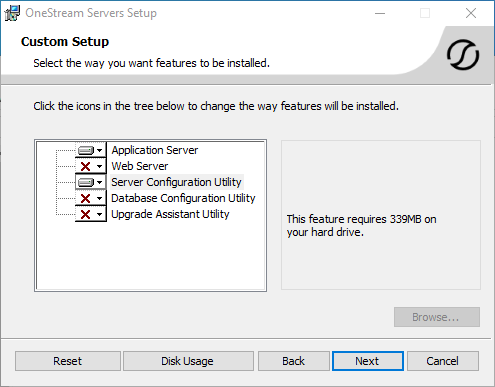
NOTE: Choose the Database Configuration Utility and Upgrade Assistant Utility if the application server is the server where the Database Configuration Utility was previously installed.
-
Web Server: Select Web Server and Server Configuration Utility.
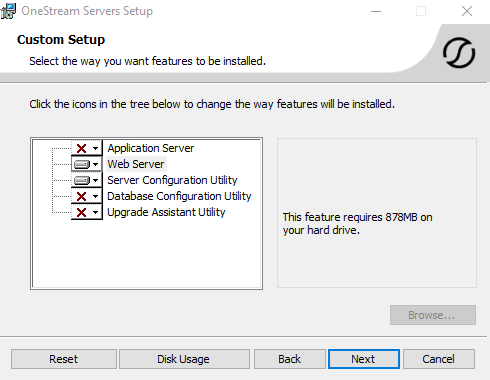
-
-
Click the Next button.
-
Click Install then Finish.
Reinstall OneStream for Desktop
-
Browse to the OneStream package, right-click OneStreamDesktop-#.msi and select Install.
-
Click the Next button and accept the License Agreement.
-
Select Custom.
-
Select the directory where the software was previously installed and click the Next button.
-
On Select Features, select all options and click the Next button.
-
Click Install then Finish.
Upgrade the Framework and Application Databases
IMPORTANT: When updating OneStream, update the database schema to the most recent version. All database upgrade steps must be completed sequentially. Users cannot skip steps or stop updates once started.
Changes are made to stage tables for this release, so the database update may take time.
-
Before performing these steps, have a database administrator back up all OneStream databases.
-
On the OneStream application server with the OneStream Database Configuration Utility installed, select Start > Programs > OneStream Software > OneStream Database Configuration Utility.
-
Right-click the utility and select Run as Administrator.
-
Right-click OneStream Framework Database and select Upgrade Database Version. If disabled, an upgrade is not required.
NOTE: If you get an error, check the log for details: C:\Program Files\OneStream Software\XFDatabaseConfig\Log
-
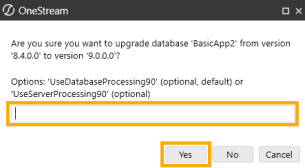
A dialog box displays giving you the option to process the schema upgrade on the database or the server. Leave the text field blank and click Yes to begin the database upgrade using the default setting, which is database.
-
Repeat the upgrade for each Application database and the Framework database until the option is disabled. This indicates the database is up-to-date.
Run the Upgrade Assistant Utility
This is an additional step that must be performed when upgrading from a Platform Version earlier than 8.0.0 to a Platform Version 8.0.0 or later. Specifically, this version of the Upgrade Assistant Utility will convert any legacy reports that were stored in CodeDOM format to now be stored as XML.
-
On the OneStream application server with the OneStream Upgrade Assistant Utility installed, select Start > Programs > OneStream Software > OneStream Upgrade Assistant Utility.
-
From the command line enter:
xfupgradeassistant -c C:\OneStreamShare\Config\XFAppServerConfig.xml -t ReportLayoutBytes -v -updateNOTE: C:\OneStreamShare\Config is the default path to the configuration file. You must update this path if it has been modified for your environment.
-
Enter exit to close the utility.
-
Restart IIS.
Update the ASP.NET Configuration File
The ASP.NET Configuration file (appsettings.json) must be updated on every server/folder as outlined in the following section:
-
Application server
-
C:\Program Files\OneStream Software\OneStreamAppRoot\OneStreamApp\appsettings.json
-
C:\Program Files\OneStream Software\OneStreamAppRoot\OneStreamMgmt\appsettings.json
-
-
Web servers:
-
C:\Program Files\OneStream Software\OneStreamWebRoot\OneStreamWeb\appsettings.json
-
C:\Program Files\OneStream Software\OneStreamWebUIRoot\OneStreamWebUI\appsettings.json
-
-
On each OneStream server, launch the OneStream Server Configuration Utility by clicking Start > Programs > OneStream Software > Server Configuration Utility.
-
Right-click the utility and select Run as Administrator.
-
Select File > Open ASP.NET Configuration File and browse to the appropriate location from the folders above.
-
Select the appsettings.json file.
-
When the file opens, copy the directory path of the configuration files.
NOTE: This path is commonly set to C:\OneStreamShare\Config
-
Enable HTTP and Enable HTTPS are enabled by default.
When SSL is not enabled, select Enable HTTP and deselect Enable HTTPS.
NOTE: Only one protocol can be selected: Enable HTTP or Enable HTTPS.
NOTE: For the WebUI server file for the Modern Browser Experience, you are not asked to select a checkbox to enable HTTP or HTTPS.
-
Save and close the file.
-
Repeat these steps on each web and app server in the environment.
Update the Configuration Files
Update the Application and Web Server Configuration files.
Update the Application Server Configuration File
-
Open the OneStream Server Configuration Utility, and select Run as Administrator.
-
Select File > Open Application Server Configuration File and select the Application Server Configuration file from C:\OneStreamShare\Config.
-
In Database Server Connections, select the ellipsis and update the command time-outs for the OneStream Database Server connection:
-
Short = 90 (required)
-
Large = 900
-
-
Select the Save icon and close the file.
Update the Web Server Configuration File
-
Open the OneStream Server Configuration Utility, and select Run as Administrator.
-
Select File > Open Web Server Configuration File and select the Web Server Configuration file from C:\OneStreamShare\Config.
-
To ensure the file version is updated, select the Save icon and close the file.
Update and Configure IIS
-
On each OneStream server, open the OneStream Server Configuration Utility by clicking Start > Programs > OneStream Software > OneStream Server Configuration Utility.
-
Right-click the utility and select Run as Administrator.
-
Choose Tools > Configure IIS.
-
In Configure IIS, specify the following:
-
For Web Site Name, enter the name of the OneStream IIS Website to update.
-
The OneStream App Server and Web Server sites
-
-
Select Update IIS Default Settings.
-
Select options to update IIS for the appropriate websites:
-
Use Web Server Settings: Specify the Web Server site.
-
Use App Server Settings: Specify the App Server site.
-
User Account Type: Specify Custom Account, then enter the user name and password of the OneStream Service account.
-
-
Click Update IIS Settings then OK.
-
Repeat these steps to set the appropriate IIS settings for the application pools in IIS.
-
Log on to each OneStream Web Server in the environment.
-
Browse to C:\Program Files\OneStream Software\OneStreamWebRoot\OneStreamWeb
-
Locate the OneStreamWeb.runtimeconfig.json file and open this file in a text editor.
-
Update the configProperties section with the following line:
"System.Threading.ThreadPool.MinThreads": 128Copy"configProperties": {
"System.GC.Server": true,
"System.Reflection.Metadata.MetadataUpdater.IsSupported": false,
"System.Runtime.Serialization.EnableUnsafeBinaryFormatterSerialization": false,
"System.Threading.ThreadPool.MinThreads": 128
}
NOTE: Add a comma before the previous line as shown in the previous example.
-
Save the file to apply the change.
-
Click Reset IIS.
Test the Windows Client Login Using ClickOnce
-
Using the Microsoft Edge Web Browser, navigate to the OneStream Windows App URL:
-
On-premises: http://<webserver>:50001/OneStreamWeb
-
Cloud: https://<customer>.onestreamcloud.com/OneStreamWeb
-
-
Click Open to launch the ClickOnce Windows app.
-
Confirm that you can log in.
-
From Application, select System Administration, then click Connect.
-
Select System > Tools > Environment to identify the application servers and their status.
-
Verify that each server is active.
Test the Modern Browser Experience Login
-
Navigate to the OneStream Modern Browser Experience URL:
-
On-premises for Modern Browser Experience: http://<webserver>:50001
-
Cloud for Modern Browser Experience: https://<customer>.onestreamcloud.com
-
-
Confirm that you can log in.
Verify the Application
-
Compile all business rules:
-
Right-click the grid and export any errors for analysis using an Excel file format.
-
Apply updates as needed.
-
-
Download and import the Standard Application and Standard System Reports from the Solution Exchange.


