Learn about key areas of OneStream Allocations Management.
Allocation Register
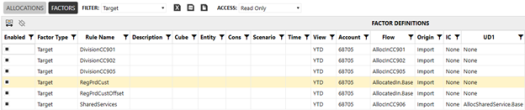
You can create any number of factor definitions to define a set of data intersections, or data buffer, that will be used as an input factor to an allocation definition. The factors define the data buffers for the various components of the allocation calculation, as well as the destination data buffer for writing the results.
Register Navigation
The Register is comprised of two main sections, Allocation Maintenance and Factor Maintenance, and a security combo box that alternates between Read and Edit modes for the particular maintenance screen currently active.
NOTE: Only users in the “Manage Setup” and “Manage Allocations” will see the Edit option. Refer to the “Security Roles” section for additional information.
Importance to Genealogy Reporting
It’s important to note that if you intend on using genealogy reporting, you should not rename or delete any allocations or factors used in those calculations since that information is used to show the allocation and factor details behind a genealogy record. If a change is necessary in such cases, mark the allocation or factor as disabled and created new.
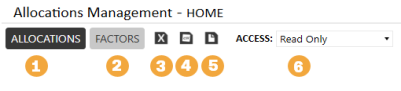
-
View/Edit Allocations
-
View/Edit Factors
-
Download Excel template to manage both Allocations and Factors.
-
Export either Allocations or Factors, depending on what is currently displayed, to CSV format.
-
Import a File. Excepted formats are either the Excel template or a previously exported CSV file.
-
Access drop-down that, depending on your security role, will allow you to change between Read and Edit mode for register maintenance.
When Factors are displayed there is one additional drop-down that can be used to filter the available factors by type.
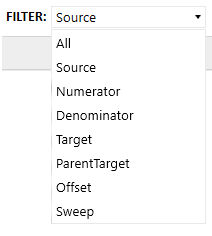
Source Example:
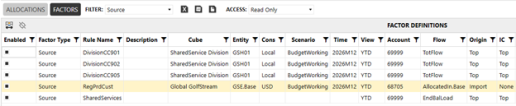
Target Example:
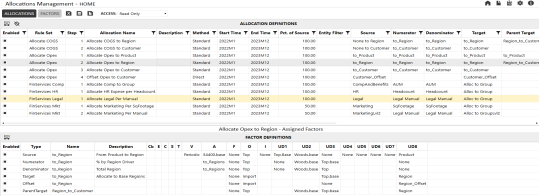
The Source, Target, Numerator, and Denominator factors (and optionally, the Offset, ParentTarget, and Sweep factors) are then combined into an allocation rule definition. The allocation rule record also defines the rule set, enabled setting, valid entities and date ranges, thresholds, and the allocation step (which determines the order the rules run).
Allocation Example:
Excel Definitions Template
The Excel template is comprised of two sheets, one for Allocations and one for Factors. There are 4 default lines to work with for each tab (lines 12 – 15 below), however this can be changed by deleting or adding rows. New rows should only be added between lines 11 and 16 to ensure the lines stay within the named range that is used during the import process.
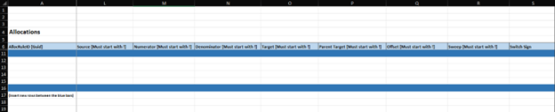
For new allocations leave the AllocRuleID or AllocFilterID filed value blank. This field should only be populated with a guid value when it is known, such as by exporting Allocations or Factors to CSV format. By adding the guid value, you can update an existing record using the merge method.
Exporting Allocations/Factors
Both Allocations and Factors can be extracted into a CSV format file. These files can be used for archive purposes and imported back into the solution, used for analysis, or copied over into the Excel template if you wish to make changes prior to import back into the solution.
Importing Allocation and Factor Definitions
OneStream Allocations Management provides the ability to import Allocations and Factors using an Excel template or CSV file.
Excel Template
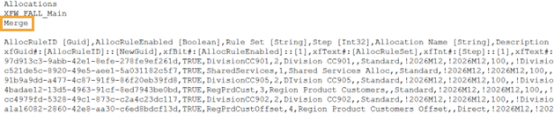
The Excel template is the primary method to loading files because it provides all the flexibility available in Excel and can also load both Allocations and Factors at the same time. Take note to only add, delete or modify records between the dark blue lines (lines 11 and 16 below). The default load method (cell A9 below) is Merge. This method will only add to the existing Allocations or Factors. Existing records cannot be removed or edited. Alternatively, the text in cell A9 can be changed to “Replace”. When "Replace" is used, any Allocations or Factors not listed in the file, but in the database, will be deleted and anything listed and currently in the database will be updated.
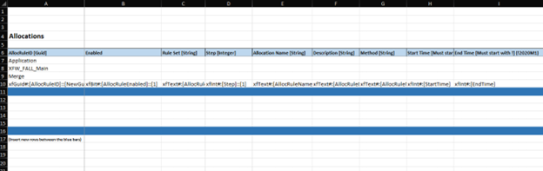
Select field values must be prefaced with an exclamation point (“!”). For example, if you want to enter “2023M1” you will need to enter "!2023M1”. The fields where this is necessary are:
-
Start Time
-
End Time
-
Target
-
Source
-
Numerator
-
Denominator
-
Parent Target
-
Offset
-
Sweep
CSV Export
In addition to the Excel template option, any Allocations or Factors exported into a CVS file can be imported. This option is intended to be used to restore from backup or aid in migrating between applications. Like the Excel template, the file can be used via Merge or Replace with merge being the default.
Definition Validations
OneStream Allocations Management will perform certain validations when Allocations or Factors are added, removed or updated. These validations are intended to reduce the chances of errors or bad calculation values resulting from incorrect definitions. These validations are performed regardless of the method used but the presentation of the error can be different. Presently, all validations act as hard stops, meaning that any error will terminate the update process.
Grid Editor Changes
Validations for grid editor changes occur when changes are saved and presented in a pop-up window.
Updates From File Import
Changes imported via an Excel template or CSV export appear in a two-step process. First, if any error exists, a pop-up will appear that reads “Import Failed – Review Error Report”. Next, click the paper icon on the left of the window to view a text report of the detailed validation errors.
Validations Performed
A robust list of validations is performed on Allocation and Factor updates that vary based on the category, action type, action method and allocation method. Below is a list of these validations.
| Category | Action Types | Action Methods | Allocation Method | Managed in Settings | Validation |
|---|---|---|---|---|---|
| Allocation | Insert/Update | Grid, Excel | All | No | 'AllocRuleSet' value is not empty |
| Allocation | Insert/Update | Grid, Excel | All | No | ‘AllocRuleName' value is not empty |
| Allocation | Insert/Update | Excel | All | No | 'AllocRuleMethod' value is a valid allocation rule type |
| Allocation | Insert/Update | Grid, Excel | All | No | ‘AllocRuleName is unique |
| Allocation | Insert/Update | Grid, Excel | All | No | 'SourceThreshold' value is a decimal |
| Allocation | Insert/Update | Grid, Excel | All | No | 'TargetThreshold' value is a decimal |
| Allocation | Insert/Update | Grid, Excel | All | No | 'Step' value is an integer |
| Allocation | Insert/Update | Grid, Excel | All | No | 'Target', 'Source', 'Numerator', 'Denominator', 'ParentTarget', 'Offset' and 'Sweep', if they have selections, are valid factor names in the database. |
| Allocation | Insert/Update | Grid, Excel | Standard | No | Allocation has a value for 'Target', 'Source', 'Numerator', 'Denominator' |
| Allocation | Insert/Update | Grid, Excel | Direct | No | Allocation has a value for 'Target' and 'Source' and no value for 'Numerator' or 'Denominator' |
| Allocation | Insert/Update | Excel | All | No | 'StartTime' and 'EndTime' are valid Time member names |
| Allocation | Insert/Update | Grid, Excel | All | Yes | 'EntityFilter', if it contains a value has a property formatted member filter script with valid member names that produce at least one member when executed |
| Factor | Insert/Update | Grid, Excel | All | No | 'AllocRuleName' value is not empty |
| Factor | Insert/Update | Excel | All | No | 'AllocRuleType' value is a valid allocation rule type |
| Factor | Insert/Update | Grid, Excel | All | No | 'Target', 'Offset', 'ParentTarget' factors do not have a value for Cb, E, C, S, or T |
| Factor | Insert/Update | Grid, Excel | All | No | 'Source' factor must have a selection for View, Account, Flow , Origin, IC, UD1-UD8 |
| Factor | Insert/Update | Grid, Excel | All | No | 'AllocRuleName' is unique |
| Factor | Delete | Grid | All | No | Factor linked to one or more allocation rules cannot be deleted until unlinked |
| Factor | Insert/Update | Grid, Excel | All | Yes | All dimension fields that contain a value have a property formatted member filter script with valid member names that produce at least one member when executed |
Allocation Calculation
Allocations are run using Custom Calculate Data Management steps. This allows complete control of when, where, and for what data units a specific allocation set will run. This also allows allocations to be incorporated into larger data management sequences, which might include consolidations, scenario copies, or even other allocation sets.
Using Custom Calculate Data Management Steps also allows the allocation engine to leverage OneStream’s built-in multi-threading capabilities since the allocations run using the core Analytic Engine.
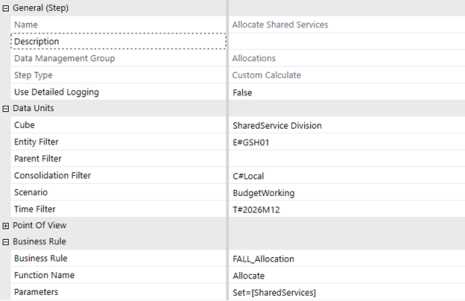
Beginning allocation data management step will run the allocation business rule.
Genealogy Reporting
In addition to any reports that you may wish to write against the pre- or post-allocated data in the Cube, the solution also allows for reporting that nests multiple allocation steps together, so you can clearly trace the genealogy of an allocation from its source, thru multiple layers of allocations, to its final result.
When initiating from a linked Cube View, the genealogy report defaults to a "bottoms up" view. For example, clicking on the sum of 251.47 (1) brings up genealogy details for allocations related to that point-of-view (2). In our example, that amount originates from a single genealogy balance. Clicking on a record in the grid then fills out two additional grids: "Allocation Levels" (3) and "Allocation Factors" (4), illustrating the layers of allocation and the factors at play, such as the applied driver percentage and its influence on the final calculated figure.
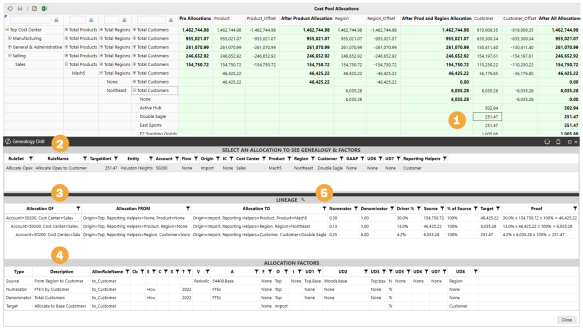
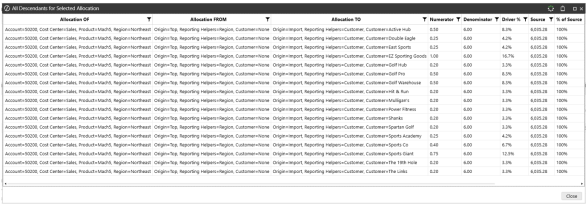
The “Lineage” report, accessed by selecting a record from the “Allocation Levels” grid and then clicking the “Lineage” button (5) shows more details, depending on the level of allocation being clicked on. It will display all the other descendants that received that level of allocation as well as all the subsequent allocations. See example below.