Allocations are run by creating Custom Calculate Data Management steps that define the Data Units being processed and the Allocation Rule Set being run.
Allocation Custom Calculate DM Step
The Data Management Step to run allocations looks like a typical Custom Calculate Step with the addition of one parameter to specify the Rule Set that will be executed when the Allocation runs.
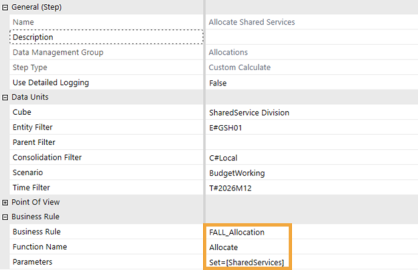
Multiple Allocation Rule Sets can be run at the same time by using a comma delimited list of sets in your custom calculate parameters. For example, “Set=[GolfStream_Demo, Benefits, Occupancy]” would run all the allocation steps contained in each of those three rule sets in order.
NOTE: For multiple rule sets, the comma delimited list must be wrapped in brackets.
Allocations Output
When Allocations run, they will produce two independent sets of output.
-
Allocation Results are written back to the cube. This is the expected behavior of any custom calculation process.
-
That data can be reported on using any OneStream reporting tool.
-
-
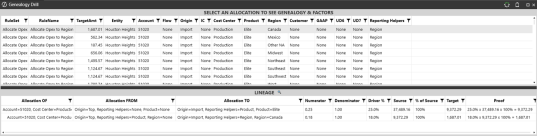
In addition, data relating the source intersection to the target intersection is written in a supplemental table. If your allocations rules are setup in such a way that the target, or result, of one allocation step becomes the source data of the next allocation step, the solution can nest those independent steps together in a hierarchy or path. We refer to this as the genealogy, or lineage, of the allocation:
-
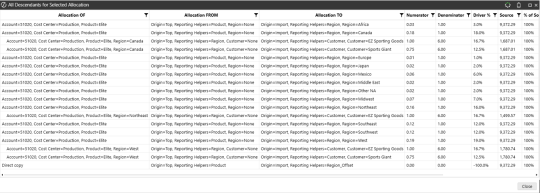
The above lineage is a very targeted view answering the question “Where did this number come from?”. However, sometimes you want to answer the question “Where did this data go?”. This can be done by selecting any level in your lineage reporting and clicking the magnifying glass to drill down on that specific intersection to see everywhere that data was allocated.

Log Data Buffers
When the “Log Data Buffers” setting is set to True, data buffer information will be written to the error when an allocation calculation is performed. This setting is intended to be used only for testing purposes since it will increase the duration of the allocation calculation and add to the size of the error log. Using this setting can help diagnose why certain allocations are producing the results that they are by viewing data buffer records for the related Factors as well as the calculation result.
Below is an example allocation and Data Management (DM) sequence. Assume “Log Data Buffers” is set to True.
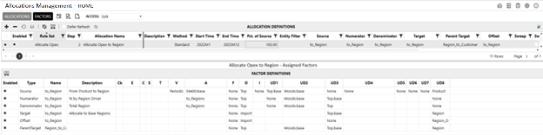
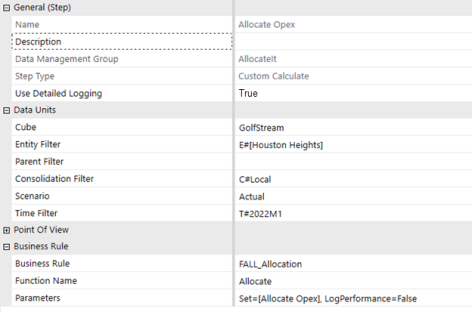
When the DM sequence is run the following error log records will be produced.
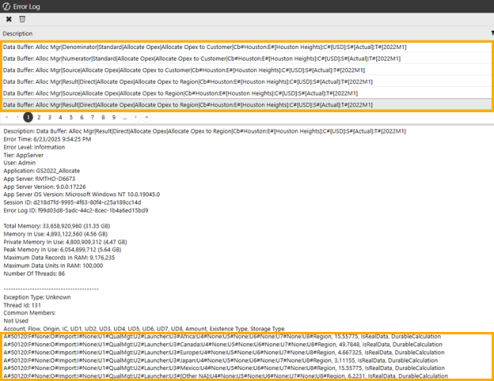
NOTE: Only use this feature as necessary and remember to turn the log feature off when finished to prevent unnecessary growth in the size of the OneStream error log.


