The Metadata Utility provides several utilities to compare, validate, analyze, and generate statistics for metadata members.
Dimension Comparison
The Dimension Comparison utility enables a user to compare metadata of similar dimension type or types from different sources and obtain a detailed list of changes between the reference and comparison metadata sets. A metadata source can be an entire application metadata set or a single dimension.
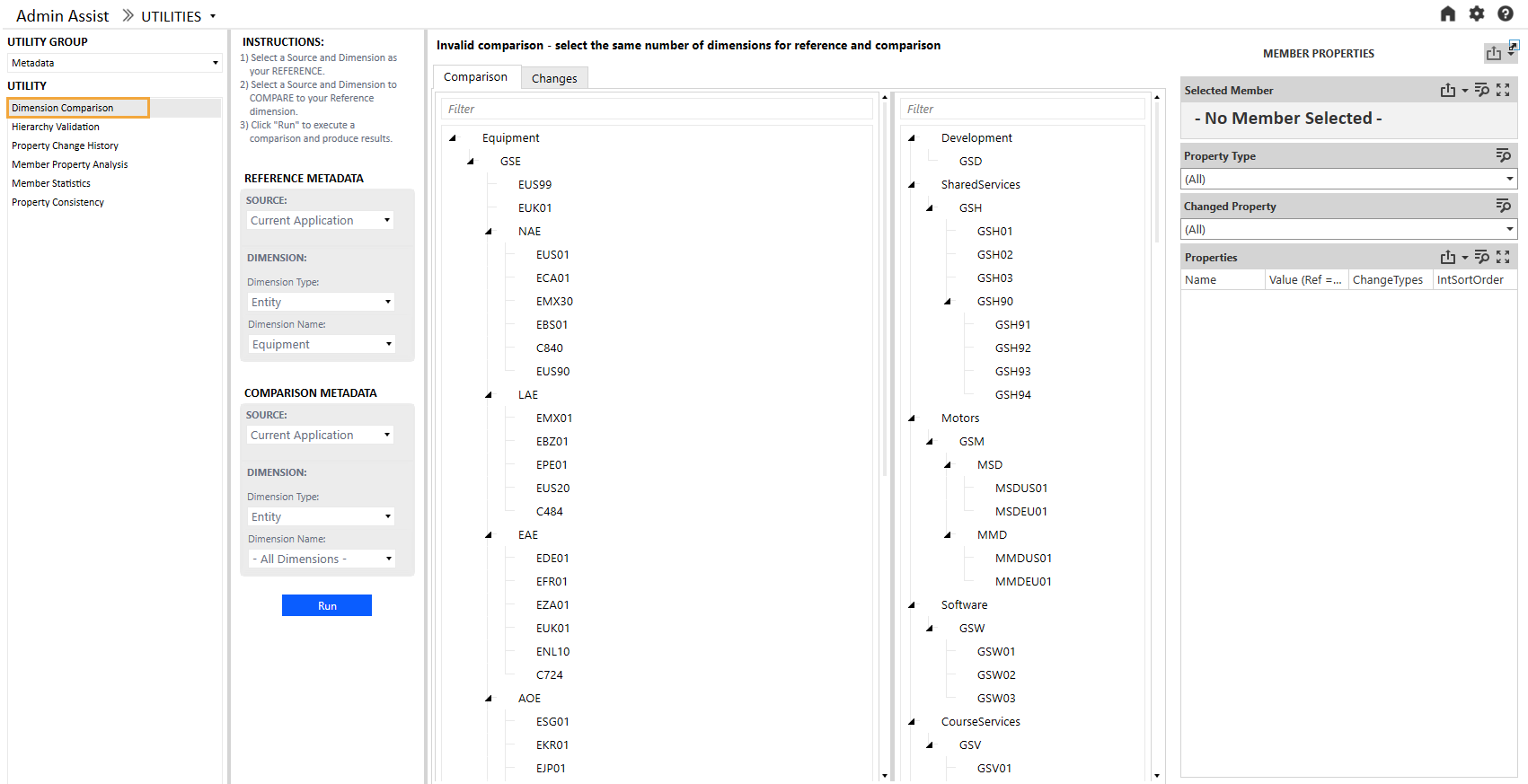
Metadata Sources
There are three metadata sources that can be used.
Current Application
The current application refers to the currently logged in application. Any metadata from this application can be selected with this option.
XML File
An .xml file can also be used as a metadata source. This is useful, for example, when you want to compare metadata from archived metadata or from an application that resides outside the environment in which OneStream Admin Assist is installed.
Other Application
In addition, metadata can be used from any application residing within the environment in which OneStream Admin Assist is installed.
Uploading an XML File
To upload a metadata .xml file:
-
In either the Reference or Comparison section (1), in the SOURCE drop-down menu, select XML File.
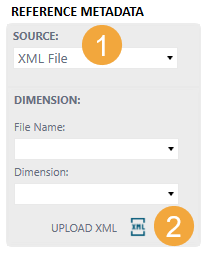
- Click the UPLOAD XML button (2).
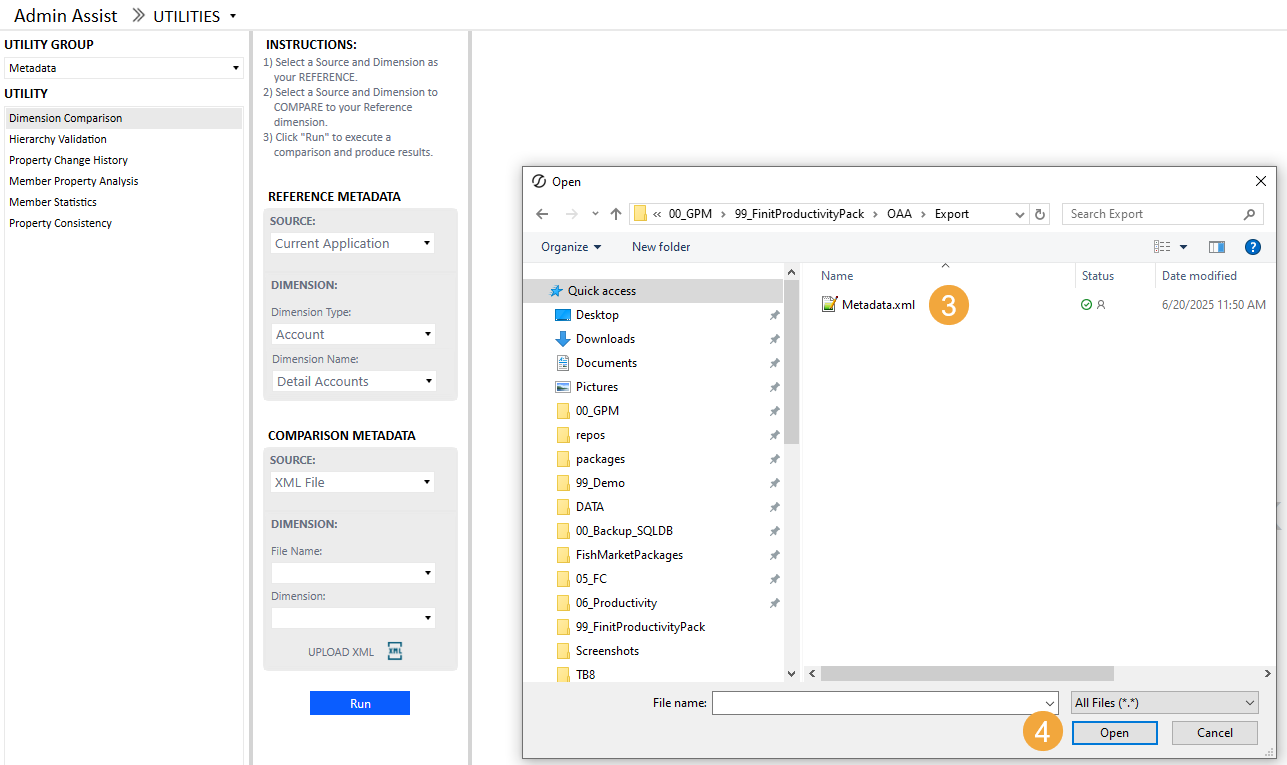
- A Windows Explorer dialog box will display. Select a metadata file in .xml format (3).
- Click the Open button (4).
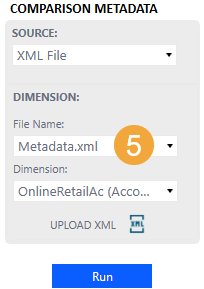
- After the file has completed loading in OneStream, the File Name drop-down menu will populate with the file (5), and you are ready to use the metadata in the utility.
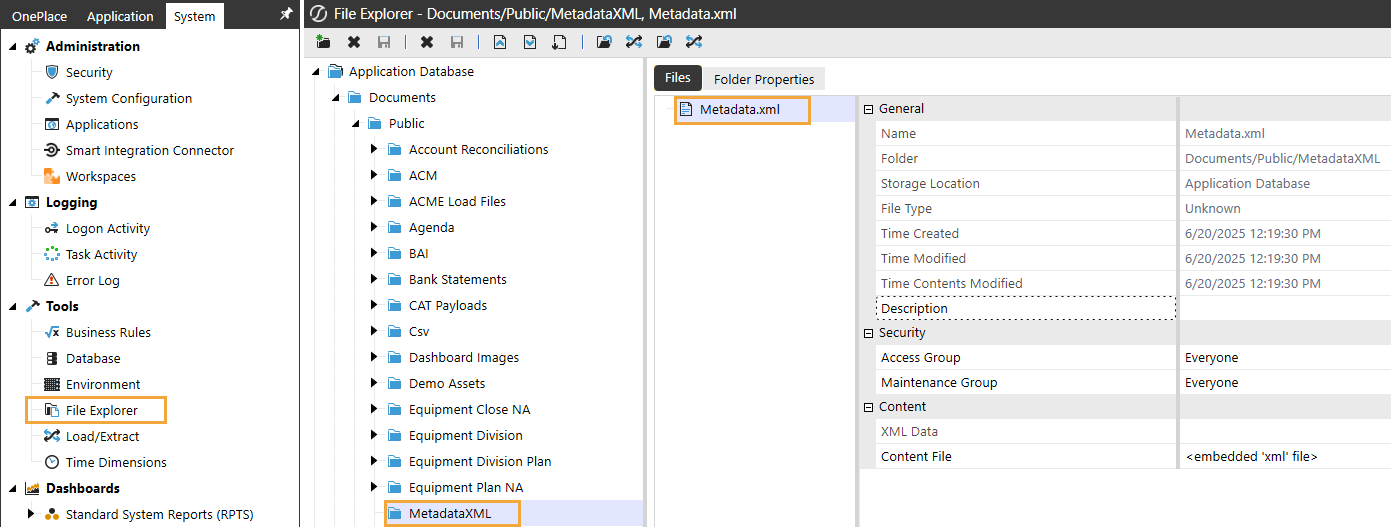
All files uploaded are stored in the Documents/Public/MetadataXML folder. Files can alternatively be uploaded directly to this folder, and they will be accessible by the utility.
Comparison Results
To create a Dimension Comparison:
-
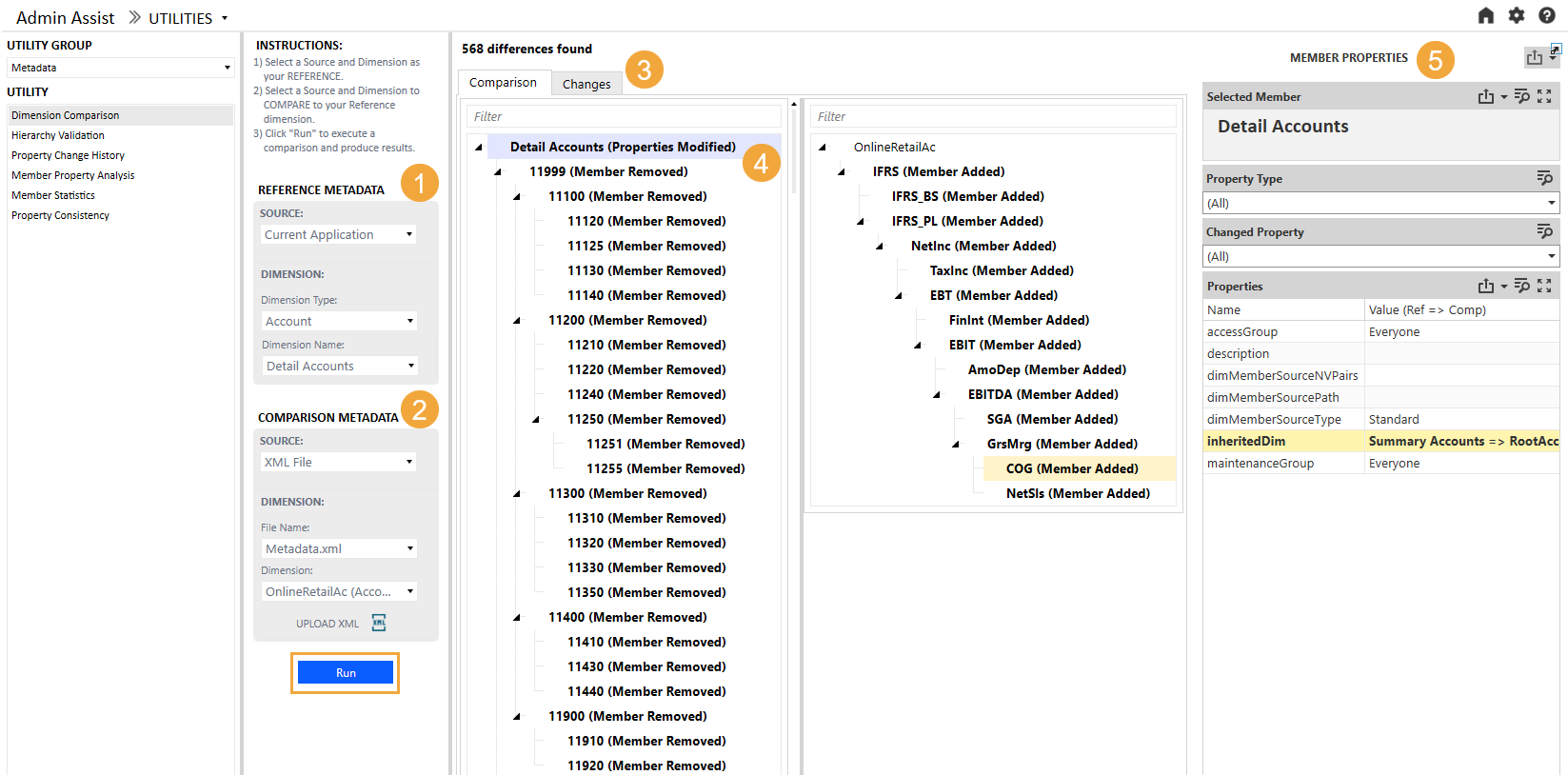
In REFERENCE METADATA (1), fill in the parameters.
-
In COMPARISON METADATA (2), fill in the parameters.
-
Click the Run button. A dialog box will display indicating the progress of your request and then a screen like the following example will display.
-
These are the result views (3): Comparison and Changes. The default is Comparison. In the Comparison view, a tree view of the reference metadata will display on the left, and a tree view of the reference metadata will display on right with member changes in bold (4). You can select any of the bold members to view details of the change on the right (5).
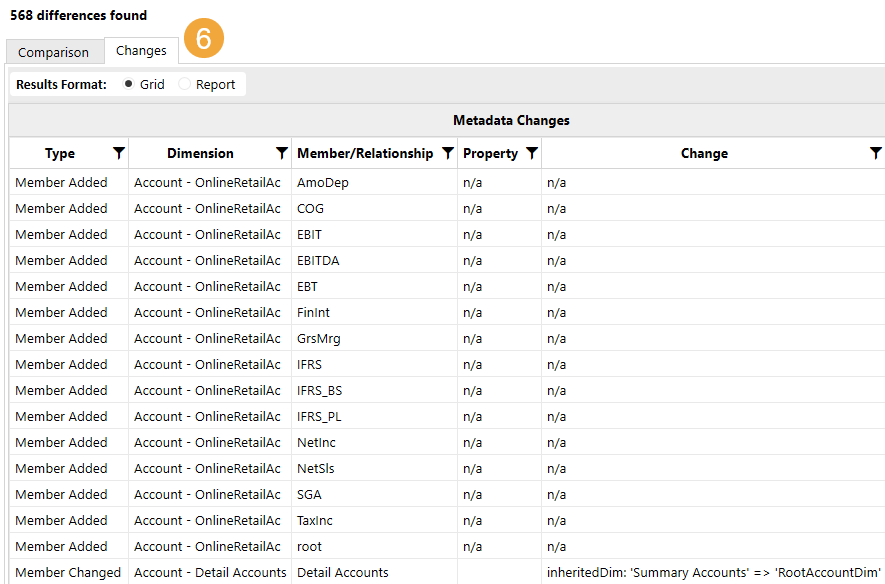
The Changes view displays in a Grid or Report format (6) the details of the all the noted changes in the metadata.
Difference Types
These are the Dimension Comparison changes categories. The following list includes the attributes and an example description of the change using an Entity dimension member.
|
Attribute |
Example Change |
|---|---|
|
Member Changed |
Description changed for a particular member from Corporate to Total Consolidate |
|
Member Added |
|
|
Member Removed |
|
|
Member Property Added |
Added the string CashFlow to the Text1 Member Properties field of the Corporate base Entity member for the default Scenario Type and Time |
|
Member Property Removed |
Deleted the string Active from the Text2 Member Property field of the WestCoast base Entity member for the default Scenario Type and Time |
|
Relationship Changed |
Changed the Percent Consolidation field for an Entity member from 100 to 90 |
|
Relationship Added |
Member Philadelphia added to AltEastPA as a shared member |
|
Relationship Removed |
Member Philadelphia removed from AltSouthPA |
|
Relationship Property Added |
Added the string Sold to the Text7 Relationship Properties field of the Corporate base Entity member for the default Scenario Type and Time |
|
Relationship Property Removed |
Deleted the string Sold to the Text7 Relationship Properties field of the Corporate base Entity member for the default Scenario Type and Time |
Hierarchy Validation
The Hierarchy Validation can be used to perform certain metadata validations and can be viewed in a grid or report format.
Base Member Check
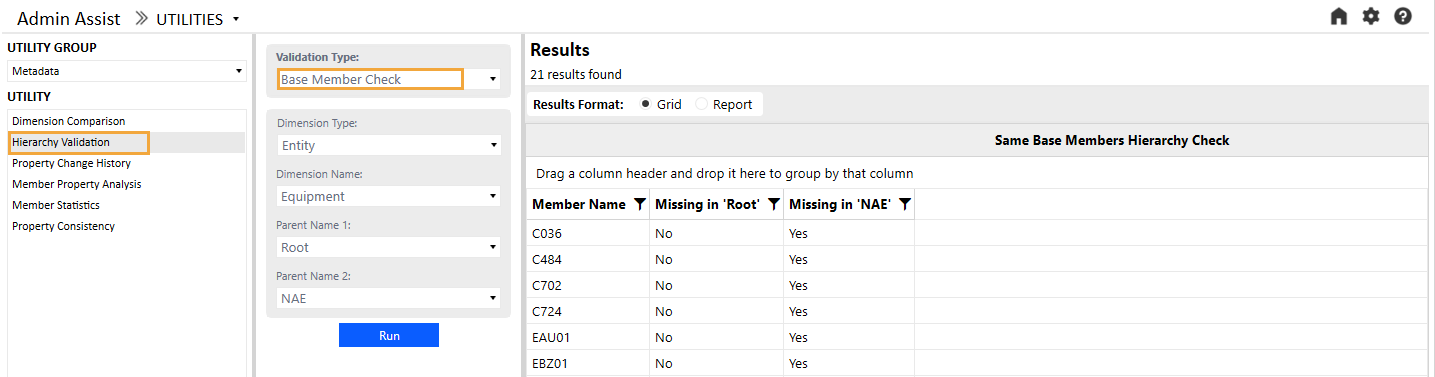
The Base Member Check type checks the agreement of base entities between two different parents within a selected dimension. An entire dimension can be evaluated by selecting the root parent. If the base members are not identical, the same between the two parents selected, the exceptions are identified along with noting the parent from which they are missing.
Base Member Check (Diff Dims)
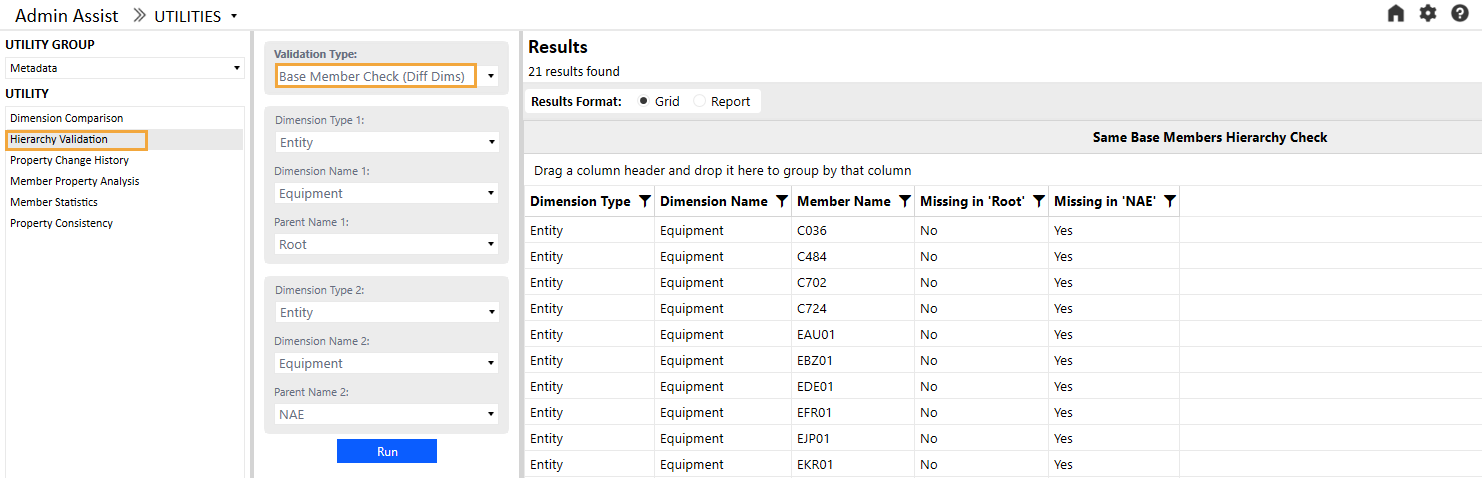
The Base Member Check (Diff Dims) is the same as the Base Member Check type except that the parents do not need to be within the same dimension, so there is an additional drop-down menu to select the dimension name for each parent.
Orphan Members Check
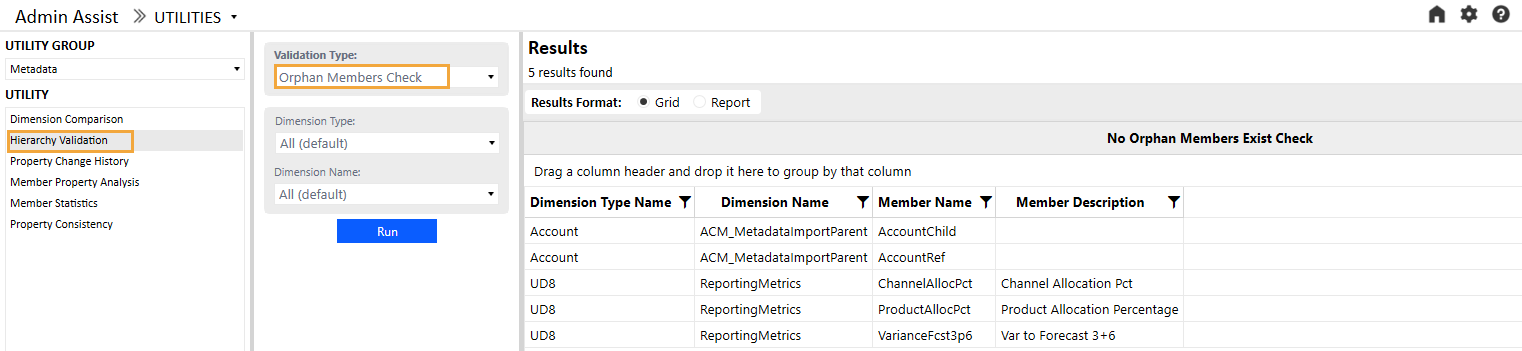
The Orphan Members Check type identifies any members that are not part of a dimension hierarchy (that is, orphan member). The report can be run for a particular dimension, all dimensions, a dimension type, or all dimensions across all dimension types.
Duplicate Member Check
The Duplicate Member Check type identifies any duplicate members under a particular dimension and lists its name and the name of its parent in a grid or report format.

Property Change History
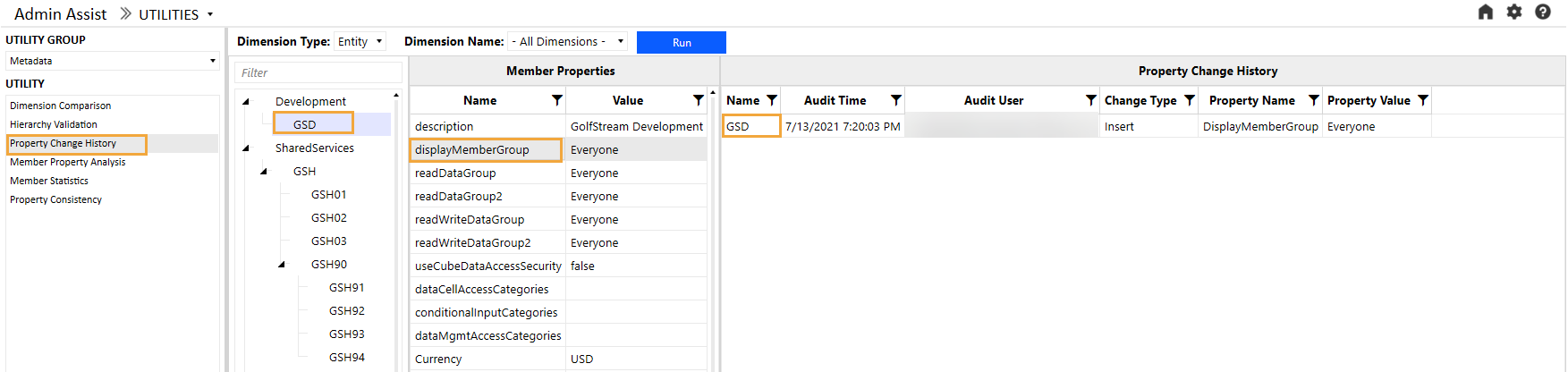
The Property Change History report can be used to view the change history quickly and easily for a particular metadata member and property. Select a dimension, hierarchy member, and property to view details of all changes to that member and property in the OneStream Audit tables.
Member Property Analysis
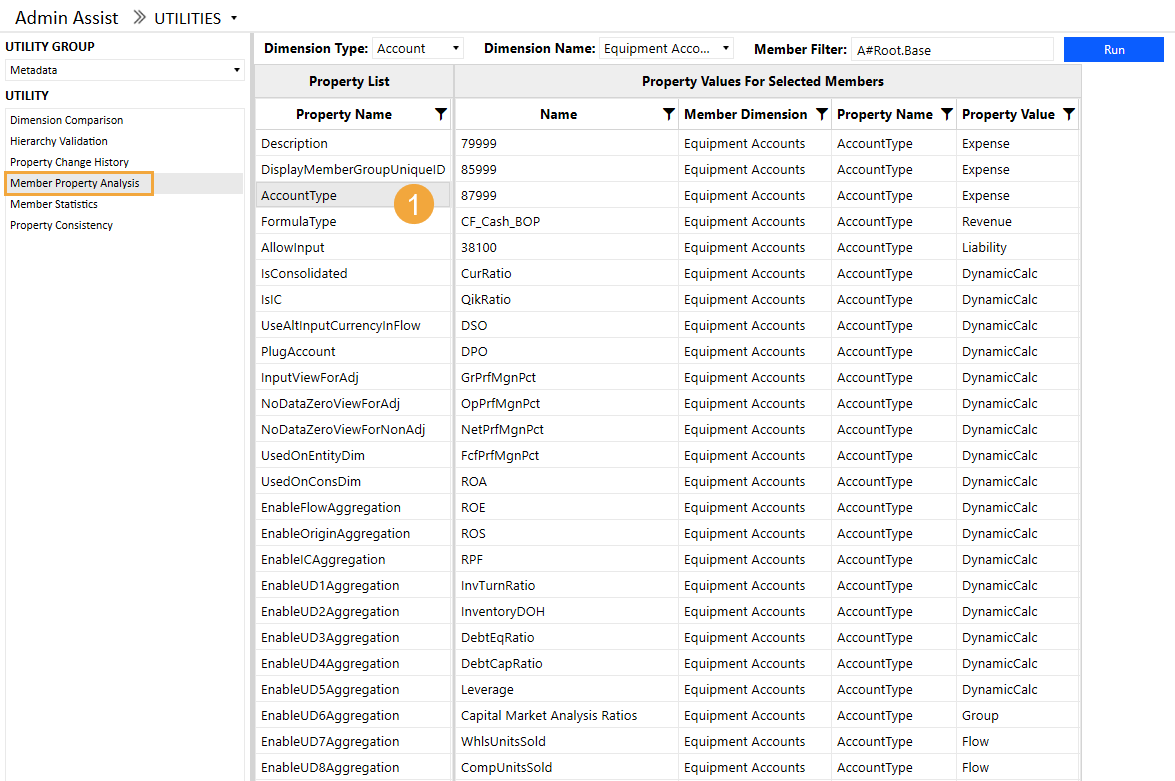
The Member Property Analysis report can be used to quickly navigate property values for multiple members. Make the necessary parameter selections and then click the Run button. All available properties will be listed under Property List. Select a property (1) to view that property value for all the members that meet the parameter criteria.
Member Statistics
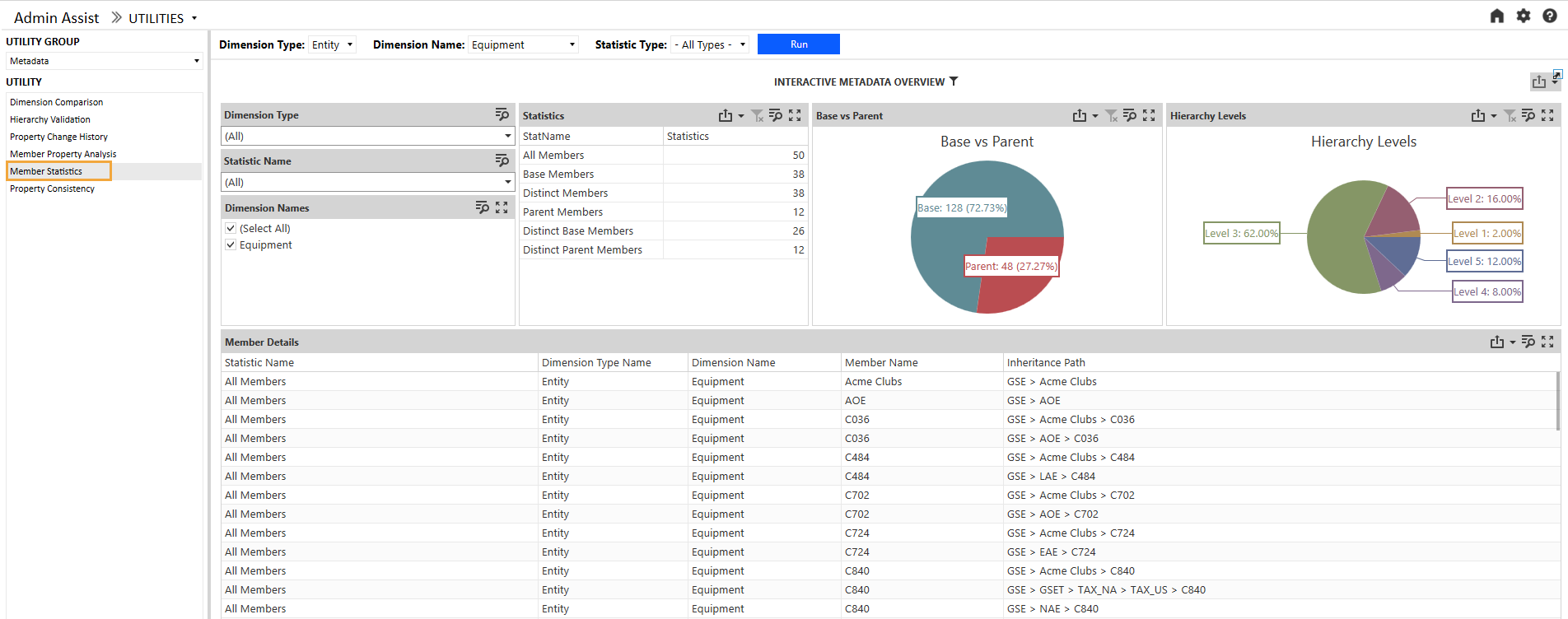
The Member Statistics report displays, in a user-friendly dashboard format, statistics for all application dimensions and members or subset. Select a Dimension Type, Dimension Name, and Statistic Type, and click the Run button.
Property Consistency
The Property Consistency report can be used to perform certain metadata property validations and searches in both grid and report format. These checks and searches include the following types.
Parent/Base Mismatch
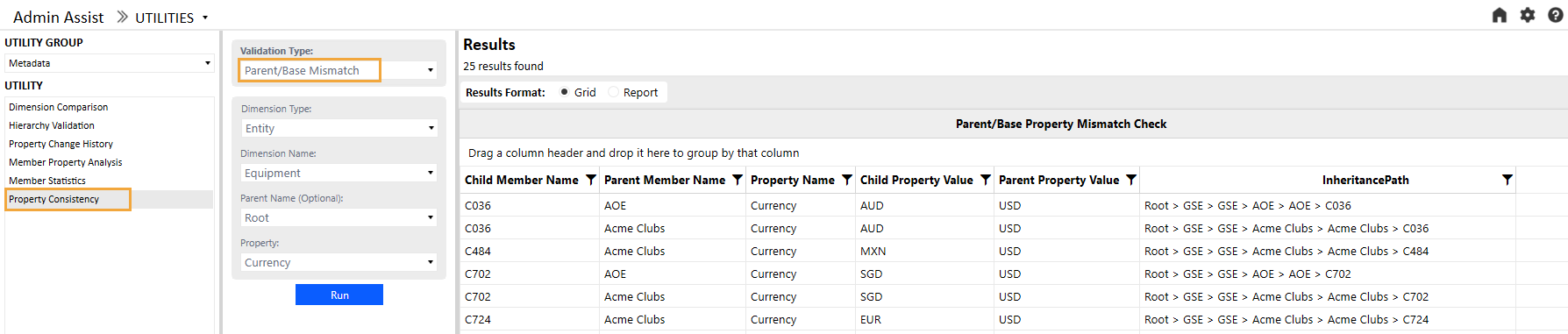
The Parent/Base Mismatch validation can be used to check the alignment of a particular property between a parent member and its children. In the following example, the report identifies any base member of the parent whose currency does not match that of the parent. If the parent is selected, all parent-child relationships within the hierarchy are evaluated.
Base Value Inequality
Th Base Value Inequality validation can be used to check if the base members of a particular parent equal a provided value. In the following example, the report identifies any base member of the parent Root that does not have a currency of AUD. 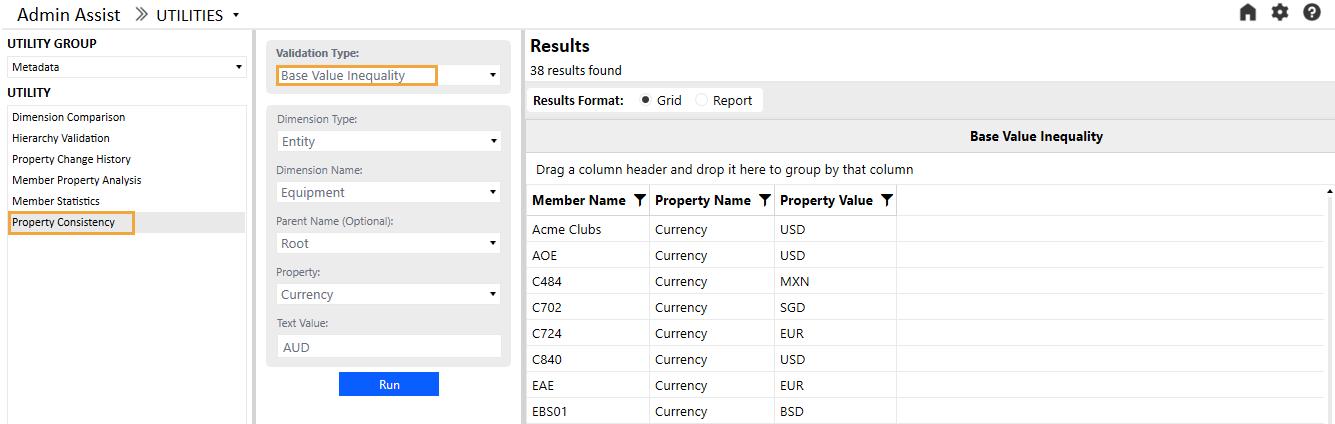
Base Mismatch
The Base Mismatch validation can be used to check the alignment of a particular property between base members of a selected parent. In the following example, the report identifies any base member of the parent whose Currency value does not match that of all other base members.



