Use the Download and Import buttons to download a data entry template and import your data for Definitions, emissions, and utilities.
Considerations
-
Only preparers with access to the Profile can import definition, emission, and utility data. The Download and Import icons are inactive for viewers and approvers.
-
Data can only be imported to Profiles that are in the Not Started or In Process status. If the Profile is in the Submitted or Completed statuses, the icons are inactive.
-
A preparer with access to the Site and not the Profile can only import emissions and utilities data.
-
Templates can only be imported to the Profile they were initially downloaded from.
-
If you do not want to import data for all pre-populated items in the template, you can delete the rows you do not need.
Definitions Data Import Template
The template will only populate Definitions assigned to the time period selected in the Workflow. Templates can only be imported to the corresponding time period, unless all time periods have the same definitions assigned to them.
| Column | Description |
|---|---|
| Definition | These columns are pre-populated based on selections made in the Definitions page. This data cannot be edited or deleted. See Definitions.
NOTE: If a Definition has a monetary unit type, the Unit Type field is read-only. |
| Category | |
| Frequency | |
| Control List 1 | |
|
Control List 2 |
|
| Control List 3 | |
| Control List 4 | |
| Unit Type | |
| Control List Value 1 |
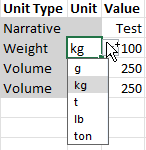
These columns have drop-down menus enabling you to select valid Control List and unit values. If the Definition input type does not require a unit, this column is grayed out.
|
| Control List Value 2 | |
| Control List Value 3 | |
| Control List Value 4 | |
| Unit | |
| Value |
Enter your value in this column. |
| Attachment Required |
This Column Lists whether an attachment is required for the Definition. If an attachment is required, you will receive a reminder to upload attachments for all required Definitions after the import. The Profile will not submit unless these required attachments are uploaded to the appropriate Definitions. |
| Preparer Comment | This column is optional. |
Emissions Data Import Template
| Column | Description |
|---|---|
| Site |
These columns are pre-populated. This data cannot be edited or deleted. |
| Factor Group | |
| Factor | |
| Control List | |
| Factor LCA Activity |
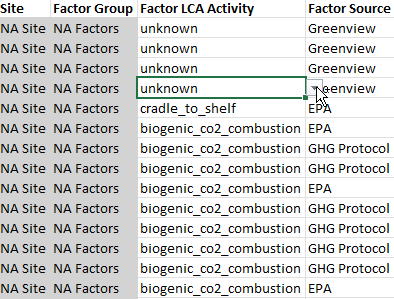
These columns have drop-down menus enabling you to select entries if multiple LCA Activities or Sources were selected when configuring the Factor Group. See Factor Groups.
|
| Factor Source | |
| Control List Value |
These columns have drop-down menus enabling you to select valid Control List, unit type, and unit values. The Control List Value, Unit Type 1, Unit 1, and Value 1 columns are required. Unit Type 2 and Unit 2 are only required if the unit requires two unit selections, such as AreaOverTime.
|
| Unit Type 1 | |
| Unit Type 2 | |
| Unit 1 | |
| Unit 2 | |
| Value 1 |
Enter your values in these columns. If the factor does not require two values, the Value 2 column is grayed out.
|
|
Value 2 |
|
|
Attachment Required |
These column entries list whether an attachment or comment is required. If an attachment is required, you will receive a reminder to upload attachments for all required Factors after the import. The Profile will not submit unless these required attachments are uploaded to the appropriate Factors. |
| Comment Required | |
| Comment |
If the Comment Required column is set to True, you must enter a comment in this column for a valid import. |
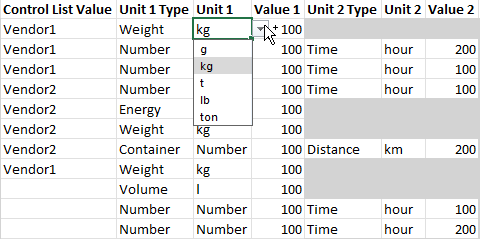
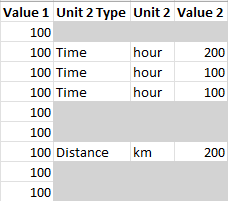
NOTE: If multiple Factors are used for a Control List, you can create separate rows for different Factors.
Utilities Data Import Template
| Column | Description |
|---|---|
| Site |
These columns are pre-populated. This data cannot be edited or deleted. |
| Supplier | |
| Category | |
| Region | |
| Unit Type | |
| Unit |
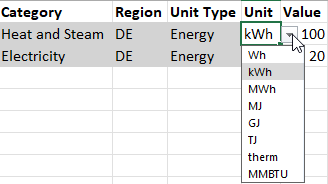
Use the drop-down menu to select a unit.
|
| Value | Enter a value in this column. |
| Control List | This column is pre-populated with the Control List name. |
| Control List Value |
Use the drop-down menu to select a Control List value. |
| Comment | Comments are not required for utilities. |
| Apply contract, if available |
Select True to apply the Contract. When False is selected, the data entry is not impacted by a matched Contract, which changes the market‑based calculation result. This column defaults to True. This column only displays if the user is in the group assigned to Advanced Contract Data Entry in Global Options. This column also displays for OneStream Administrators and Solution Administrators. See Global Options. |
Import Data
When you complete the template, follow these steps to import data:
-
Select the Import button.
-
In the File Upload window, select the BROWSE button to open File Explorer.
-
Select the template and select the Open button.
-
Select the Upload button.

