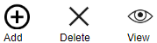
Use the Attachment icon to add, delete, and view attachments.
-
To add an attachment, select the Add button.
-
To delete an attachment, select the Delete button. Attachments can only be deleted by the one who uploaded the attachment.
-
To view an attachment, select the View button.
To add an attachment, complete the following steps:
-
Navigate to either the Definitions tab, the Emissions tab, or the Utilities tab.
-
Select an entry from the bottom grid and select the Edit button, or create a new entry.
-
Select the Attachment button to display the Attachments slide-out panel.
-
Select the Add button
-
In the File Upload window, select the BROWSE button to open File Explorer.
-
Select the file and select the Open button.
-
Select the Upload button. The attachment is displayed in the grid.
-
Select the Close button.
-
-
Select the Save button.
NOTE: A Profile cannot be submitted until all required attachments are uploaded.
Manage Comments
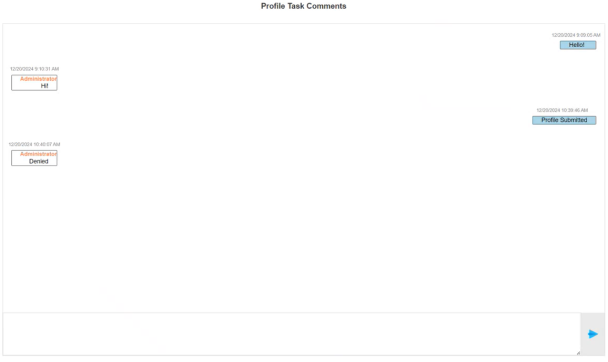
 Use the Comments button to enter Profile level comments. All comments entered and saved will display in the Profile Task Comments slide-out panel on each data entry tab. Users can add comments and reply to comments saved by other users.
To add a comment, select the Comments button to display the Profile Task Comments slide-out panel. Enter a comment in the text box and then select the Send icon. The comment displays in the chat. Each message displays the user who sent the comment and the date and time the comment was sent.