Use the Contracts page to enter and manage renewable energy contracts. Entering your contracts is a crucial step because they are applied to your Scope 2 market-based calculations. The supplier listed on the Contract will match with the supplier assigned to a site when a Site is created. See Sites. The Scope 2 market-based usage calculations use the Contract amount to offset the CO2e amounts. The Contract value is applied to the consumption number until the Contract value is fully used. Contracts are calculated when the Profile is submitted.
For information on how market-based Factors are applied, see Appendix E: Emissions Calculations.
NOTE: Contracts should match the reporting compliance year. For example, if the reporting year is June to July, Contracts should fall within June to July time periods.
Manage Contracts
Use the General and Activity tabs to manage Contracts. The General tab enables you to create and modify Contracts. In the Activity tab, you can view Contract spend history by scenario.
General
Use the General tab to create and modify Contracts. To add a Contract, complete the following steps:
-
Select the New button.
-
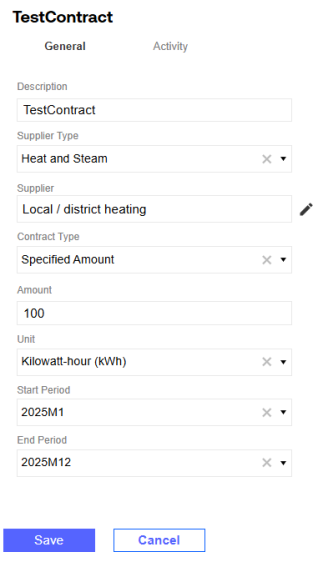
In the details pane, enter a Contract description.
-
From the Supplier Type drop-down menu, select either Electric or Heat and Steam.
-
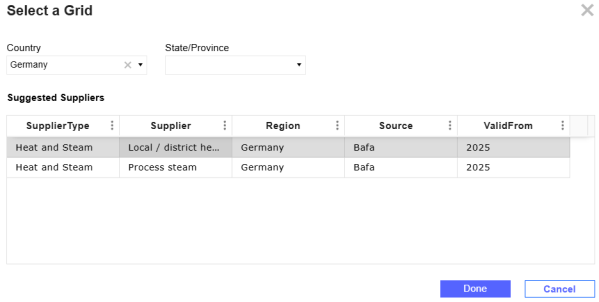
Select the Set Supplier icon and choose a supplier.

-
In the Select a Grid slide-out panel, from the Country drop-down menu, select a country.
-
From the State/Province drop-down menu, select a state/province, if needed.
-
Select a supplier from the grid and select the Done button.
-
-
From the Contract Type drop-down menu, select a contract type. You can choose from the following options:
-
Specified Amount: This is applied to a Contract with a defined quantity of renewable energy that is applied to offset consumption. The Contract value is applied to the consumption number until the Contract is fully used.
-
Total Consumption: This is applied to a Contract that applies renewable energy to all consumption for the applicable period.
NOTE: The Amount and Unit Type fields only display when the Specified Amount contract type is selected.
-
-
In the Amount field, enter your Contract amount.
-
From the Unit Type drop-down menu, select a unit type.
-
From the Start Period and End Period drop-down menus, select start and end dates for the Contract.
-
Select the Save button.
Contract Modification Considerations
The following considerations apply if the Contract has one or more spend transactions associated with it:
-
The Contract cannot be deleted.
-
The Supplier Type and Supplier properties cannot be modified.
-
The Amount property cannot be modified to be less than the total amount spent on the Contract.
-
The Start Period and End Period properties cannot be modified in a way that would cause the Contract to fall outside the Contract usage range.
Activity
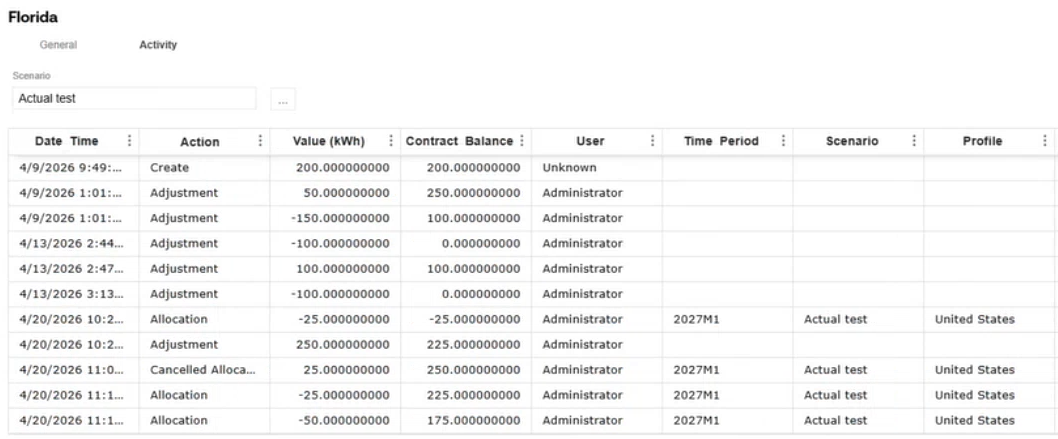
Use the Activity tab to view Contract spend history by scenario. The view defaults to the current scenario set in your Workflow POV. To change scenarios, in the Scenario field, select the ellipses to display the Select Member dialog box. Choose a member and select the OK button.
Date Time
The date and time of the contract activity.
Action
This column value indicates how the Contract was modified. The following values can display:
-
Create: The Contract was created.
-
Adjustment: The Contract value was changed.
-
Allocation: The Profile spent Contract value.
-
Canceled Allocation: The Profile that spent the Contract value was rejected and the amount returned to the Contract.
-
YTD Adjustment: The Profile was submitted and caused a YTD value to reallocate. The new value is listed as an Allocation.
Value (kWh)
The column displays value modifications made to the Contract. How the value amount displays depends on the contract type:
-
When a Contract is created, the column displays the initial amount. When a total consumption contract is created, the value is zero.
-
When a specified amount Contract is adjusted, the column displays the positive or negative change in value.
-
When a Contract is allocated, the column displays the amount used by the Profile as a negative value. For total consumption Contracts, the value is positive.
-
When a Contract allocation is canceled, the column displays the amount returned to the Contract as a positive value. For total consumption contracts, the value is negative.
NOTE: If the Contract Type property is set to Total Consumption, this column displays Contract spend as positive. When the Contract is created, the Value column entry is zero.
Contract Balance (kWh)
This column displays the total current Contract balance. How the balance displays depends on the Contract action:
-
When a Contract is created, the column displays the initial amount.
-
When a Contract is adjusted, the column reflects the adjusted amount, accounting for allocations and canceled allocations.
-
When a Contract is allocated, the column displays the remaining balance on the Contract.
-
When a Contract allocation is canceled, the amount is returned and the column displays the previous Contract balance.
Total Consumption
If the Contract Type property is set to Total Consumption, the Total Consumption column displays instead of the Contract Balance (kWh) column. This column displays the total amount consumed as a positive value.
Time Period, Scenario, Profile, and Site
These columns only display values if the Contract has been allocated.

