Complete the following steps to add a definition:
-
Click the New button.
-
In the General tab, fill in all required fields
Property Definition Name This field is required and all internal definition names must be unique.
When a dynamic dimension is set up for definitions, in ESG_AccountDefinitions, each definition is appended with D_<Name>.
Definition Enter a definition. Categories From the Categories drop-down menu, select a category.
Input Type From the Input Type drop-down menu, select an input type. To view which input types are mapped to the ESRS data types, see Appendix A: Definition Input Types.
The input type must be in the same category as the reporting unit you select in the Frameworks tab for definitions with these input types: time, data, distance, volume, weight, area, and energy.
Frequency In the Frequency field, enter a frequency. Comma delimited format and range format is accepted in this field.
This frequency determines which workflow periods the definition will display in.
Definitions with a Narrative unit type default to a yearly frequency.
Active Definitions are active by default. To make a definition inactive, deselect the Active checkbox. Attachment Required To require an attachment for a definition, select the Attachment Required checkbox. Baseline To include the baseline year in the report for this definition, select the Baseline checkbox. Prior Year To include the prior year in the report for this definition, select the Prior Year checkbox. Milestones To include the milestone years in the report for this definition, select the Milestones checkbox. -
Click the Save button.
-
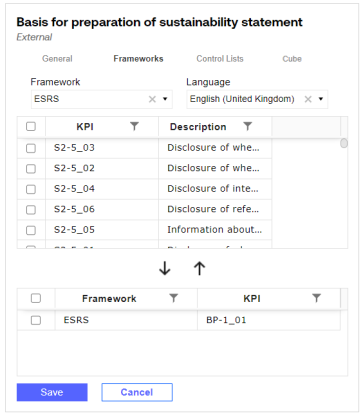
Go to the Frameworks tab to assign KPIs to the definition.
-
From the Frameworks drop-down menu, select the framework containing the KPIs you want to assign to the definition. All KPIs in that framework are displayed in the grid below.
NOTE: Both internal and external frameworks are supported and will display in the Frameworks drop-down menu.
-
Use the checkboxs to select KPIs.
-
Click the Add icon. The KPIs will display in the bottom grid.
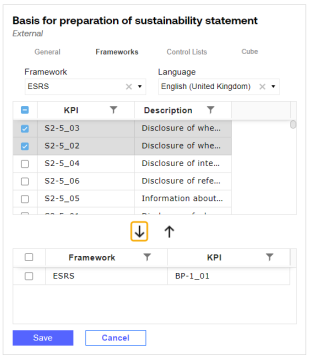
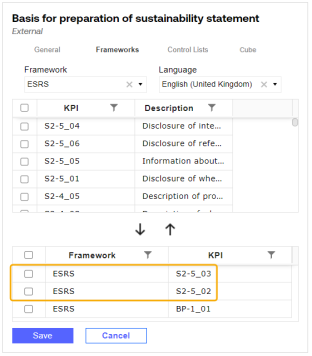
-
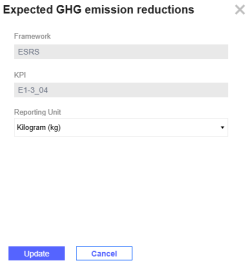
The Edit icon displays if the definition is set to an input type that requires a unit of measure. The reporting unit is selected by default based on the input type. To edit the reporting unit, click the Edit button to display the dialog box.
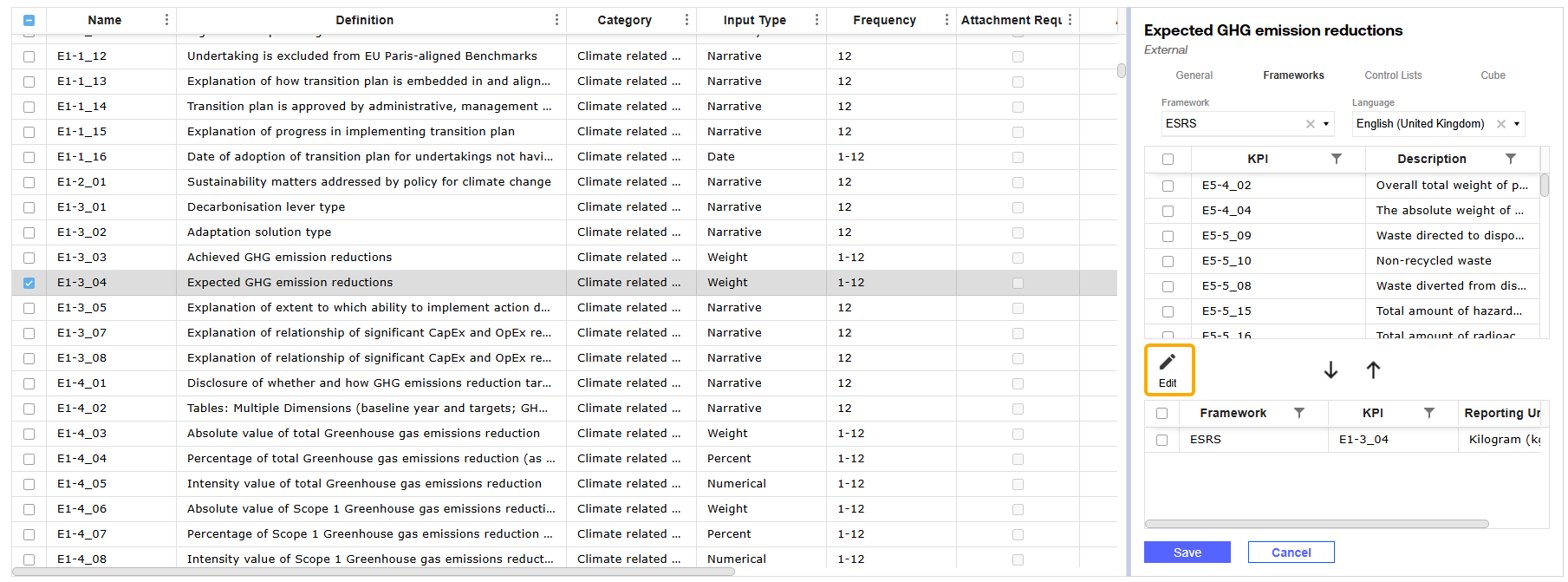
From the Reporting Unit drop-down menu, select a reporting unit for the KPI. The reporting unit must be in the same category as the input type selected in the General tab. Click the Update button.
-
Click the Save button.
NOTE: The reporting unit selected determines the unit of measure displayed for that definition in a dynamic cube and in a report built on the Reports page.
-
-
Go to the Control Lists tab to assign control lists to the definition. From the Control List 1,Control List 2, Control List 3, and Control List 4 drop-down menus, select control lists and then click the Save button.
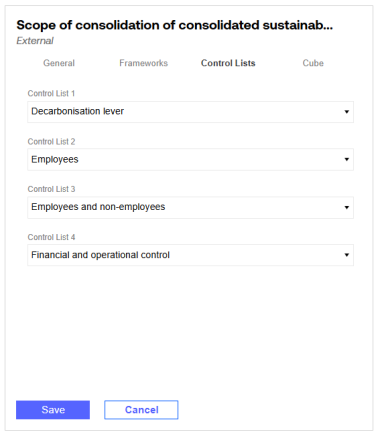
NOTE: Control lists must be selected sequentially. For example, the Control List 1 selection cannot be blank if Control List 2 has a selection.
-
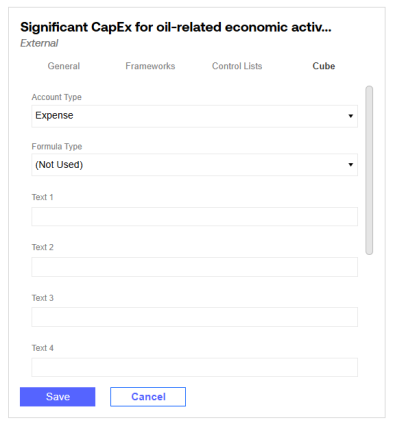
If configuring a Dynamic Cube Service, go to the Cube tab.
-
From the Account Type drop-down menu, select an account type. Each field defaults to the recommended settings.
-
From the Formula Type drop-down menu, select a formula type. Each field defaults to the recommended settings.
-
In the Text fields, enter values if needed. If multiple attributes are required in a single text field, separate them with a comma.
-
Click the Save button.
-
 To delete an internal definition, click the Delete icon.
NOTE: The Delete icon only displays when an internal definition is selected. Solution provided definitions cannot be deleted. If an internal definition is assigned to a profile, marked as active, or has data entered for it, you cannot delete the definition. To prevent data entry for a definition that cannot be deleted, mark the definition as Inactive.
Mass Update Definitions
Use the Mass Update pane to modify the properties for multiple definitions at once. To display the Mass Update pane, use the checkboxes to select multiple definitions from the grid. The Mass Update pane enables you to edit General properties and Cube properties.
The pane displays all common data between the selected definitions. If the property selection is not common between the selected definitions, that property is left blank.
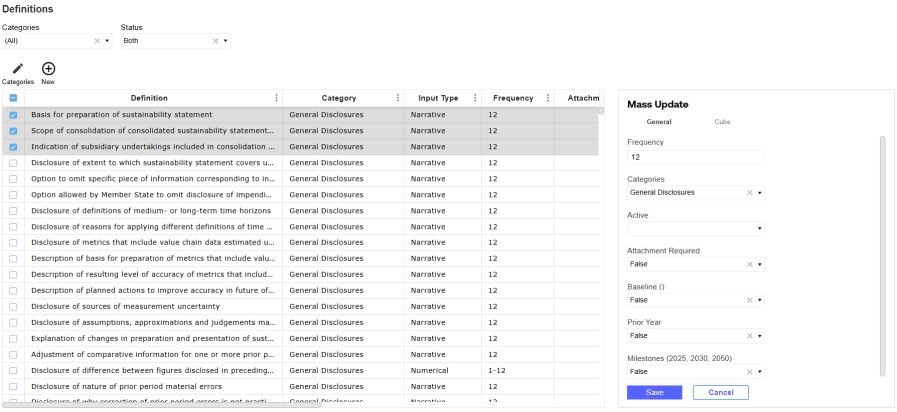
In the Cube tab, the Text properties display (No Change) by default. These properties are not updated unless a user modifies the default value.
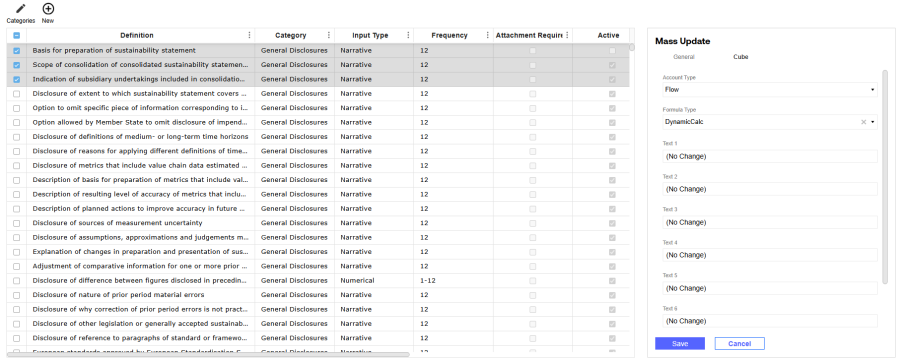
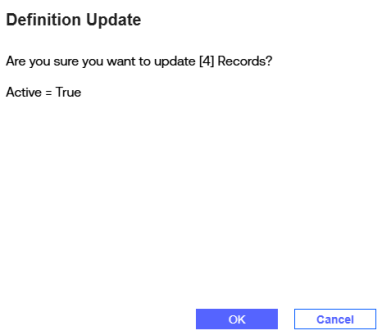
When you have finished editing the definitions, click the Save button. A Definition Update slide-out panel is displayed with a summary of your changes. To proceed with the mass update, click the OK button.
To mass delete internal definitions, use the checkboxes to select multiple internal definitions from the grid and then click the Delete icon.

