The Connections page enables you to communicate with any ERP within your business ecosystem.
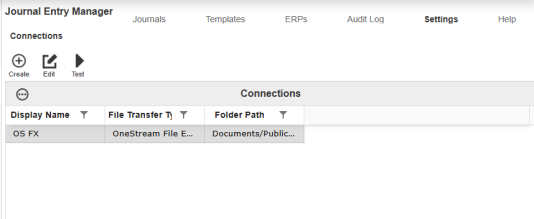
This page enables you to create different connections to send journals to a OneStreamFile Explorer folder or an external folder by Secure File Transfer Protocol (SFTP).
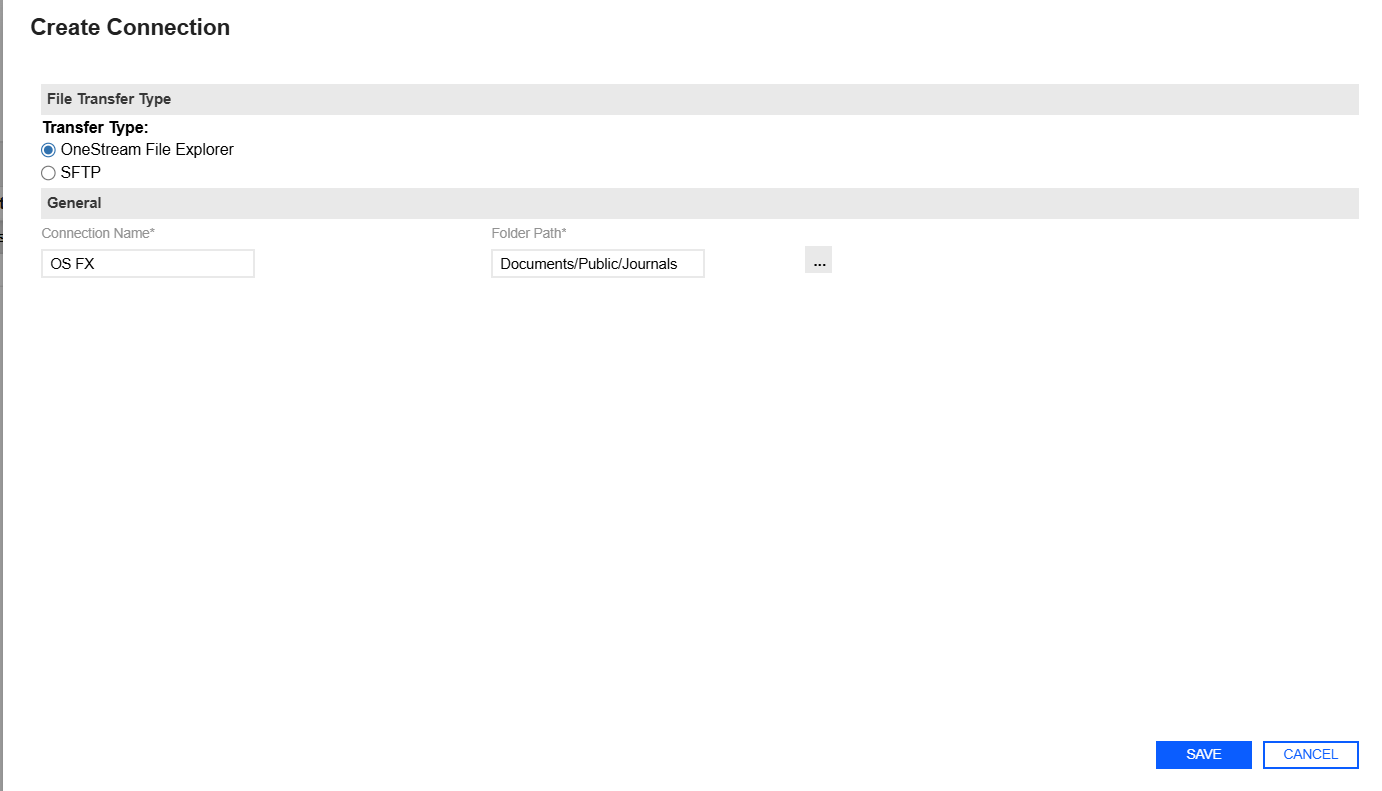
Example: The following example is a sample of the Create Connection slide-out panel for OneStream File Explorer.
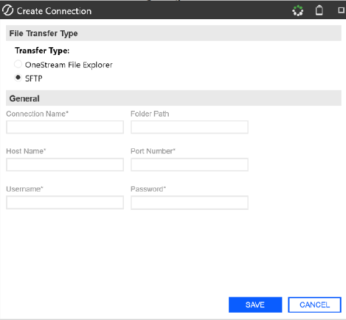
Example: The following example is a sample of the Create Connection dialog box for SFTP.
To use OneStream File Explorer folders and use the File Share folders within the File Explorer, these permissions must be adjusted to allow approvers to send journals to that folder. Changes need to be made to the ManageFileShare, ManageFileShareContents, AccessFileShareContents, and RetrieveFileShareConents permissions to allow all users to send journals. Also, a separate Platform Security user group can be created for Journal Entry Manager approvers, as they will be the main individuals sending journals to these folders.
If you are not using the File Share and choose to use the App Database, the folder chosen must be accessible to everyone within the solution. See File Share.
CAUTION: You are not able to use your own Users folder.

To set a OneStreamFile Explorer connection type, you must provide a Connection Name and select the desired folder for the Folder Path. SFTP connections requires the following:
-
Connection Name: Unique name of the Connection.
-
Host Name: The server's domain name where the SFTP service is running.
-
Port Number: A unique numerical identifier assigned to a specific application or service on a computer network.
-
Username: A unique identifier that allow users access to the connection.
-
Password: Passwords are encrypted and are not viewable in the solution to maintain security.
This page has validations that include:
|
Field |
Requirement |
Connection Type |
|---|---|---|
| Connection Name |
Required, less than or equal to 200 characters |
OneStream File Explorer and SFTP |
|
Folder Path |
Required, less than or limited to 250 character limit. |
OneStream File Explorer only |
|
Host Name |
Required, less than or limited to 250 character limit. |
SFTP |
|
Port Number |
Required, must be between 0 and 65535 |
SFTP |
|
Username |
Required |
SFTP |
| Password |
Required, less than or limited to 250 character limit. NOTE: The Password field is currently only available in the OneStreamWindows Application and is not accessible in the Modern Browser Experience. |
SFTP |
Create Connection
Follow these steps to set up your file transfer connection:
-
Go to Settings > Connections.
-
Click the Create button.
-
Select a Transfer Type:
-
OneStreamFile Explorer
-
SFTP
-
When selecting OneStream File Explorer:
-
Populate the Connection Name field with a unique name.
-
In the Folder Path field, click the ellipses (...).
-
In the OneStream File Explorer, select a folder path for files to be dropped in later. The folder you select appears in the Folder Path's text box.
-
Click the Save button.
When selecting SFTP:
-
Under General Information, fill out the following fields:
- Connection Name
- Folder Path
- Host Name
- Port Number
- Username
- Password
NOTE: All fields except for the Folder Path are required to be filled out.
-
Click the Save button.
Edit Connection
-
Select an existing Connection.
-
Click the Edit button.
-
The Edit Connection slide-out panel displays the current inputs of the Connection. Make your changes.
-
Click the Save button to save your changes.
NOTE: Saving any edits will overwrite the previous Connection, even with a name change.
Test Connection
-
Select an existing Connection.
-
Click the Test button.
-
If the connection is successful, a message box displays stating: Connection test successful.
-
Click the X button to exit out of the message box.


