Administrators can create various Notification Methods to be applied to different templates. These notifications inform and prompt users to act on journal entries.

They can be categorized in two types:
-
State Changes: These notifications are automatically sent to users in designated access groups when a journal is moved into the Prepared, Approved, Awaiting Confirmation, Posted, Rejected, Failed to Send, Failed to Post states. If the state changes are assigned to approvers, then the notification will only be sent to the last level of approvers.
-
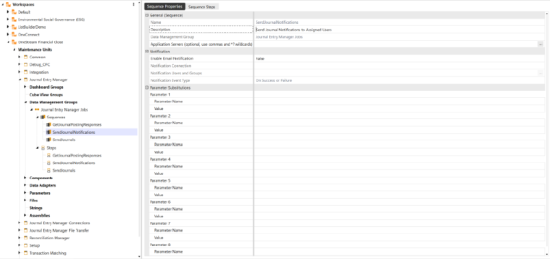
Warnings: These notifications are sent by the SendJournalNotifications Data Management job and are sent a number of days before the end of the period. See Accounting Periods. Like other Data Management jobs, these can be scheduled through the Task Scheduler to automate the process. The types of warnings include:
-
Preparer Warning: Sends a list of journals not prepared based on the warning days set for this type.
-
Approver Warning: Sends a list of journals not fully approved based on the warning days set for this type.
-
Confirmation Warning: Sends a list of journals not confirmed posted based on the warning days set for this type.
Example: The following image displays a sample email notification method sent to users.

Notification Methods Grid
Once a notification method is added, it displays in the Notification Methods grid. See Grid Toolbar.
Column Fields
The table displays the following column fields:
Field
Notification Method Options
Name Enter name for the Notification Method. For example, High Risk.
Prepared
Select one of the following options from the drop-down menu: None, All, Preparers, Approvers
Approved
Select one of the following options from the drop-down menu: None, All, Preparers, Approvers
Posted
Select one of the following options from the drop-down menu: None, All, Preparers, Approvers
Rejected
Select one of the following options from the drop-down menu: None, All, Preparers, Approvers
Failed to Send Select one of the following options from the drop-down menu: None, All, Approvers Failed to Post Select one of the following options from the drop-down menu: None, All, Approvers Awaiting Confirmation Select one of the following options from the drop-down menu: None, All, Preparers, Approvers Preparer Warning Select one of the following options from the drop-down menu: None, All, Preparers, Approvers Preparer Warning Days Enter number of days to send notification. Approver Warning Select one of the following options from the drop-down menu: None, All, Approvers Approver Warning Days Enter number of days to send notification. Confirmation Warning Select one of the following options from the drop-down menu: None, All, Approvers Confirmation Warning Days Enter number of days to send notification -
Add Notification Methods
-
Go to Settings > Notification Methods.
-
Click the Insert Row button.
-
Fill out the Notification Method fields you want applied to the desired template group. See Column Fields.
-
Click the Save button.


