Recurring Journal Definitions streamline the monthly closing process by automating journal entries that repeat over a defined range of accounting periods. Instead of manually recreating entries each period, you can define a recurring journal definition that specifies:
-
Start and end periods, such as October through December.
-
Effective date for each instance, such as the first or last day of the period.
-
Template structure including accounts, amounts, and commentary.
-
Approval and publishing states distinct from standard journals.
This page includes a grid view with the following headers:
-
Journal Name
-
ERP
-
Journal Template
-
Debit / Credit
-
Starting Period / Ending Period
-
Attachment
-
Approval State / Publish State
-
Created By / Created Time (UTC)
-
Update User / Update Time (UTC)
Approval actions and segregation of duties for recurring journals follow the same workflow and role-based controls as standard journals. See Workflow.

Create Recurring Journal Definitions
As a preparer, approver, or administrator, you can create journal entries that automatically recur across multiple accounting periods. This significantly improves efficiency and reduces manual effort during month-end close.
This page has the following validations:
-
A minimum of two line items is required.
-
Debit and credit amounts must be balanced.
When saving a recurring journal definition, a series of validations occur to ensure that all required fields are completed, values conform to ERP configurations, and the journal’s time frame is logically structured. These validations include:
-
Journal Template, Start and End Period, Day of Period, and Journal Name are required.
-
Header and Line fields marked as required in the ERP must contain a value.
-
Header and Line fields must:
-
Match the data type assigned in the ERP.
-
Respect character limits defined in the ERP.
-
-
Start Period must precede End Period based on their respective start dates.
Create a Recurring Journal Definition
-
Go to Journals > Recurring Journal Definitions.
-
Click the Create button.
-
Complete the following General fields:
-
Enter a Journal Name.
-
From the Journal Template drop-down menu, select the appropriate period.
-
From the Starting Period and Ending Period drop-down menus, select a period.
-
From the Day of Period drop-down menu, select a first day of period.
-
-
Click the Create button.
-
Under Header, select your fields.
-
Under Line Items, click the Insert Row button.
-
Enter values for each Line field.
-
Enter the amount.
-
-
Click the Save button.
Recurring Journal Definitions Scheduling and Send Behavior
Once a recurring journal definition is created, fully approved, and published, journal instances are generated based on the defined schedule. These instances are then eligible to be sent through the SendJournalEntries data management job.
When the SendJournalEntries job is run, the following criteria apply:
-
Journal Type: Recurring
-
Approval State: Fully Approved
-
Posting State: Ready to Send or Failed to Post
-
Effective Date: The current date or earlier
Recurring journal definitions instances that meet these conditions are sent for posting. This process ensures that only approved and timely entries are processed, reducing manual oversight and improving consistency.
Edit or Delete a Recurring Journal Definition
Use the Recurring Journal Definitions grid to locate and manage existing recurring journal definitions. Recurring journal definitions that are In Process or Rejected, states can be edited. The page dynamically displays the journal’s structure based on the selected recurring journal definition. This page provides validations that do not advance the journal’s approval or publishing status:
-
Validate: Runs validations and informs the user of any errors.
-
Save: Retains and saves all information within the slide-out panel.
NOTE: All changes must be saved before validating.
Edit a Recurring Journal Definition
-
Select the existing recurring journal definition.
-
Click the Manage button.
-
Make your edits in the Details, Schedules, Comments, or Attachments tabs.
-
Click the Save button.
Delete a Recurring Journal
Recurring journals can be deleted in any state other than Published or Closed. Once deleted, the journal definition and all associated data are permanently removed.
Delete
-
Select an existing recurring journal definition.
-
Click the Delete button.
IMPORTANT: Unpublish will delete any journals created from the recurring journal definition that are not yet awaiting confirmation.
Copy Recurring Journal Definitions
The Copy slide-out panel enables duplication of an existing recurring journal definition. When a recurring journal definition is copied, _Copy is appended to the original journal name to indicate it is a duplicate. The new recurring journal definition is only created once the Copy button is selected.
All fields from the original recurring journal definition are transferred and remain editable, except the ERP and Journal Template, which are locked due to ERP constraints. The Copy panel follows the same validations as the Create panel.
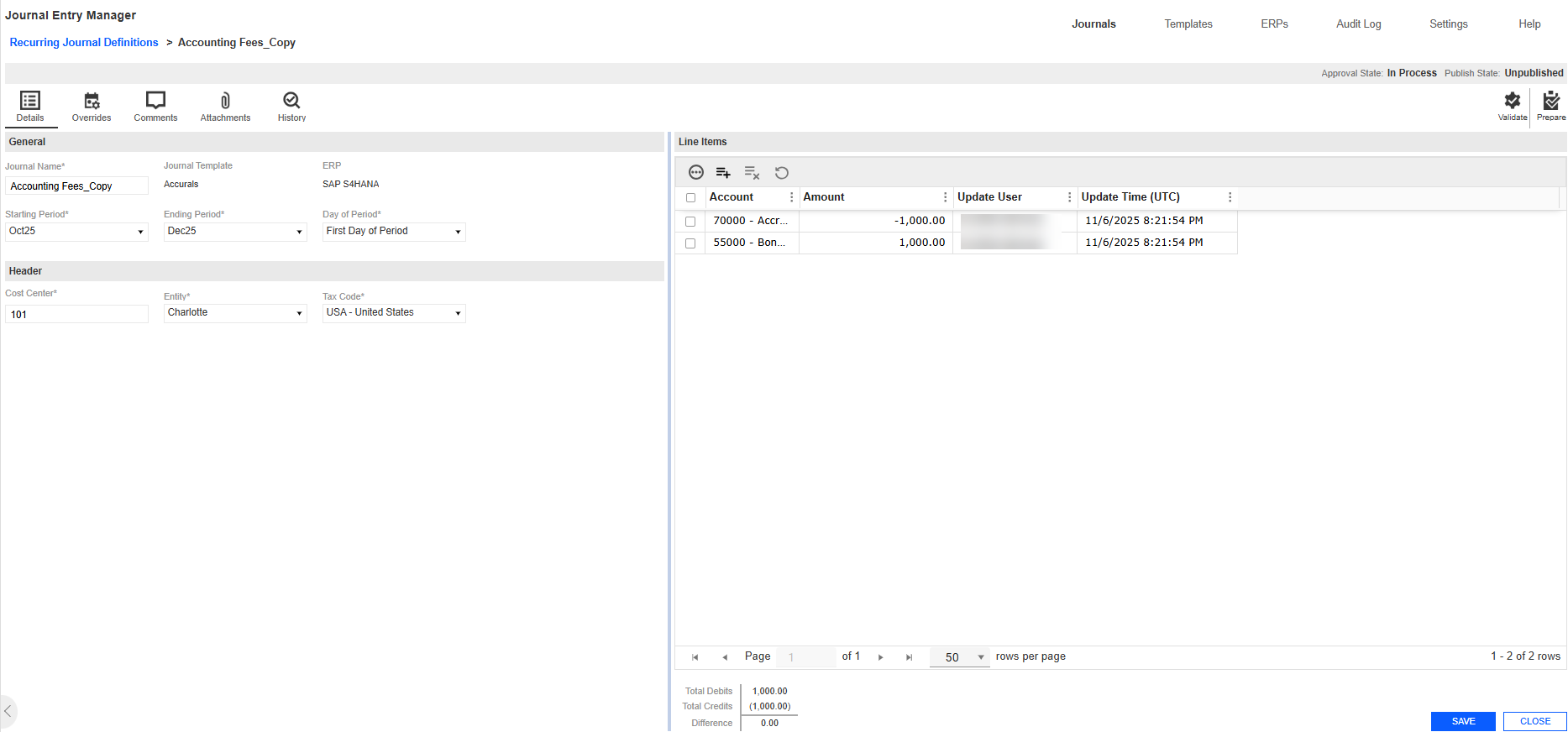
Copy a Recurring Journal Definition
-
Select an existing recurring journal definition.
-
Click the Copy button.
-
In the Recurring Journal Definition Copy slide-out panel, the duplicate recurring journal definition contains the fields from the original recurring journal definition. Modify these fields as needed.
-
Click the Copy button.
-
In the Header section, review and update any existing or copied fields as necessary.
-
In the Line Items section, review and adjust existing or copied fields as necessary.
-
Click the Save button to apply your changes.


