Administrators can create Template Access Groups by assigning a Platform Security user group as the Solution User Group in Global Options. Once this property is set in Global Options, the Template Access Groups page becomes available, allowing you to create Access Groups. You can then add Security User Members and Security Group Members to your template. The available users and groups that can be added to an Access Group are defined by the Solution User Group in Global Options.
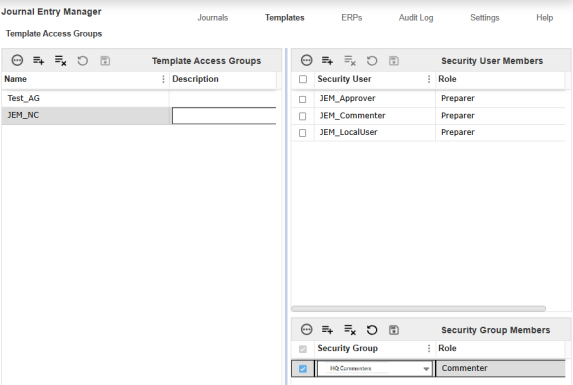
Template Access Groups Grid
The Template Access Groups grid displays on the page. See Grid Toolbar.
Roles
Each user or group can be assigned one of the following roles:
|
Role |
Duties |
|---|---|
| Viewer |
Read-only access to:
|
|
Commenter |
Same as Viewer and:
|
|
Preparer |
Same as Commenter and:
|
|
Approver 1 |
Same as Preparer and:
|
|
Approver 2 |
Same as Approver 1 and:
|
| Approver 3 |
Same as Approver 2 and:
|
| Approver 4 |
Same as Approver 3 and:
|
If a user is assigned to multiple roles, the highest level is granted.
Example: If a user is individually assigned as a Preparer but also included in a group assigned Approver 1, the user would have Approver 1 level access.
Once these groups are created, they can be assigned to specific templates. This assignment allows users to select from all templates associated with their access group when creating journals.
This page has validations that include:
-
Security User/Group cannot be duplicated or left blank.
Add a Template Access Group
-
Go to Templates > Template Access Group.
-
Click the Insert Row button.
-
Enter a name and description.
-
Click the Save button.
Under Security User Members
-
Click the Insert Row button.
-
Select a Security User and Role.
-
Add users as needed, then click the Save button.
Under Security Group Members
-
Click the Insert Row button.
-
Select a Security Group and Role.
-
Add groups as needed, then click the Save button.
Delete a Template Access Group
-
Select an existing Template Access Group.
-
Click the Delete Row button.
NOTE: All Security User Members and Security Groups assigned to that Template Access Group will also be removed.
-
Click the Save button.


