Add additional extensible content outside of the Artifacts wizard. These types are supported.
BI Viewer Chart Components
IMPORTANT: BI Viewer is available in Platform Versions 9.2 or higher.
Use these steps to insert BI Viewer chart components into your document.
-
Go to Application > Workspaces > Application Workspaces.
-
Click the Object Lookup button.
-
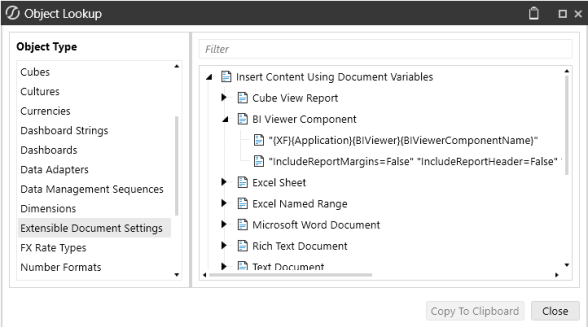
In the Object Lookup dialog box, in Object Types, select Extensible Document Settings.
-
Use the search filter or scroll to locate Insert Content Using Document Variables > BI Viewer Components.
-
Select the syntax and click the Copy to Clipboard button.
-
Return to your narrative document.
-
On the ribbon, go to the Insert tab > Quick Parts.
-
In the Doc Variable Name and Arguments dialog box, paste the syntax and update any variables.
Example: In this syntax, you will update the bolded text with the name of the BI Viewer component you want to display in your document: "{XF}{Application}{BIViewer}{BIViewerComponentName}".
-
Click the OK button.
-
Click the Save and Refresh button to view the component.
XFCell References
XFCells enable you to pull the data from a specific cell and dynamically display it in narrative documents. XFCell can be added to narrative documents as a parameter in the following ways:
-
As a parameter in Book Management at the book or document level.
-
As an application parameter, then inserted using Quick Parts.
IMPORTANT: XFCell parameters cannot be added using the Artifact Wizard. Inserting it using the wizard auto-resolves the XFCell value.
Book or Document Parameter
Insert an XFcell reference as a book or document parameter using these steps:
-
Go to Settings > Book Management.
-
For a book level parameter, enter the XFcell string into the Parameter field for the book, enclosing the string in brackets. For a document-level parameter, click the manage button to access the documents in the book. Enter the XFcell string into the Parameter field for the document in the book, enclosing the string in brackets.
-
Save your changes.
-
Open your narrative document.
-
On the ribbon, go to the Insert tab > Quick Parts.
-
In the Doc Variable Name and Arguments dialog box, paste the parameter value.
IMPORTANT: After pasting, verify the parameter includes pipes and exclamation points. For example: |!BookParam!|.
-
Click the OK button.
-
Click the Save and Refresh button to view your changes.
Application Parameter
-
Add the XFCell as an application parameter. See Create a Parameter.
-
Copy the syntax and navigate to your narrative document.
-
On the ribbon, go to the Insert tab > Quick Parts.
-
In the Doc Variable Name and Arguments dialog box, paste the parameter value.
IMPORTANT: After pasting, verify the parameter includes pipes and exclamation points. For example: |!prm_Entity!|.
-
Click the OK button.
-
Click the Save and Refresh button to view your changes.
XFBR
Add existing XFBR rules to narrative documents using Quick Parts.
-
Go to Application > Tools > Business Rules to locate the XFBR string you want to insert.
-
Copy the string and navigate back to the narrative document.
-
On the ribbon, go to the Insert tab > Quick Parts.
-
In the Doc Variable Name and Arguments dialog box, paste the XFBR string.
-
Click the OK button.
NOTE: The string is automatically modified to ensure the business rule run correctly.
-
Click the Save and Refresh button to view your changes.

