AI Insights
AI Insights streamlines the process of anomaly detection by leveraging sophisticated AI algorithms that carefully analyze reconciliations to identify any irregularities or deviations. AI Insights uses a combination of AI/Statistical analysis, depending on the type of detector. Preparers and above have flexible options, enabling them to run AI-powered Anomaly Detection either on a single reconciliation or across multiple reconciliations simultaneously. AI Insights is highly efficient and adapts to a variety of reconciliation processes and use cases, ensuring comprehensive results.
To run AI Insights for a single reconciliation:
-
Navigate to Account Reconciliations
-
Select a reconciliation on the Reconciliations Grid
-
Select the Anomalies tab in the Reconciliation Workspace
-
Click the AI Insights button to run anomaly detection
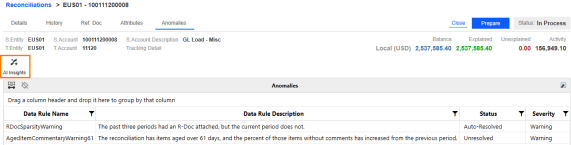
NOTE: Preparers or above can click the AI Insights button. When run, it looks to the AI Settings to determine which detectors/rules will run at that point in time.
To run AI Insights for multiple reconciliations:
-
Navigate to Account Reconciliations
-
Select multiple reconciliations on the Reconciliations Grid
IMPORTANT: To run anomaly detection on all reconciliations, select the top checkbox and then select AI Insights from the Mass Actions toolbar.
-
Click the AI Insights button on the Mass Actions toolbar
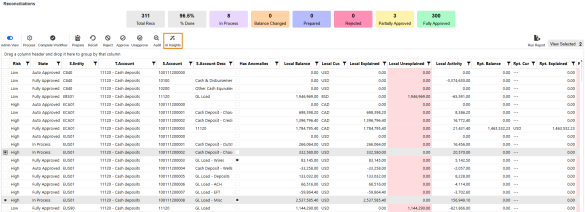
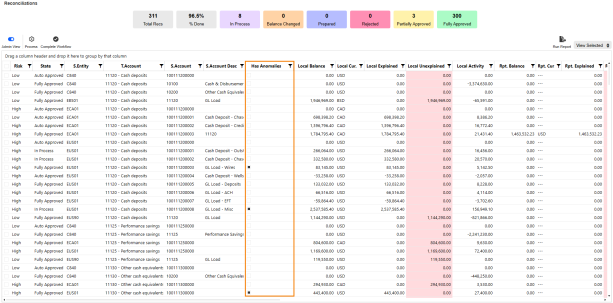
The Has Anomalies column included in the Reconciliations Grid shows if anomalies are detected on a reconciliation.
NOTE: The box remains checked if anomalies were detected at any point during the current period, regardless of severity. Even if those anomalies are later resolved, the box stays checked to indicate that an anomaly was detected on the reconciliation during the period.
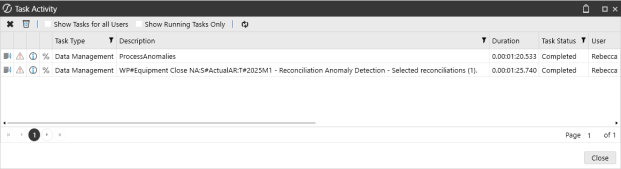
Task Activity
You can monitor the Anomaly Detection job in Task Activity. When running anomaly detection manually on selected reconciliations, the Task Activity displays the number of selected reconciliations under the Description.
TIP: To optimize system performance, we recommend limiting anomaly detection to a maximum of 15K-20K reconciliations per run.
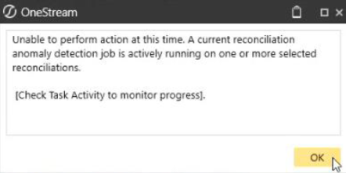
Multiple anomaly detection jobs can run simultaneously, provided they run on distinct reconciliations. When multiple jobs are run on the same reconciliations, you encounter the following error:
Anomalies
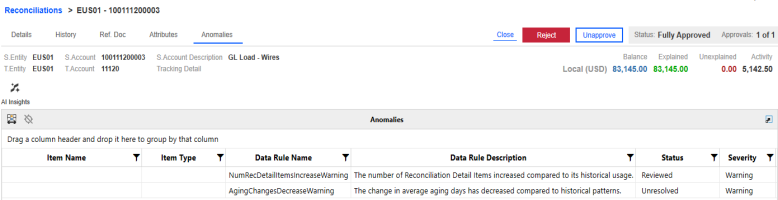
The Anomalies tab in the Reconciliation Workspace displays identified anomalies after the anomaly detection has been initiated (if applicable). It includes the specific rule that triggered each anomaly and relevant information.
-
Select a reconciliation with an anomaly indicated in the Has Anomalies column
-
Navigate to Reconciliations Grid > Reconciliation Workspace
-
Click the Anomalies button
Columns that display for each anomaly identified during the reconciliation process, when an anomaly has been detected in the selected reconciliation:
-
Data Rule name: Name of rule
-
Data Rule Description: Description of rule
-
Status: State of the rule that is editable by Preparers and above
-
Unresolved (default)
-
Reviewed
-
Auto-Resolved
-
Does not display in the drop-down
-
Anomalies can be Auto-Resolved when you correct the anomaly and rerun anomaly detection on the reconciliation.
-
-
Acknowledged
-
Does not display in the drop-down
-
Unresolved anomalies will be marked as Acknowledged when Anomaly Resolution Required is disabled and certification is active.
-
-
-
Severity: Level of seriousness identified
-
Info
-
Warning
-
Critical
-
-
Comment: Preparers and above can add a comment
-
Update User: Identifies who ran the Anomaly Detection job, added or updated the comment, or anomaly status.
-
Update Date: Identifies the date and time when the Anomaly Detection job was performed, or when a comment or anomaly status was added or updated.
-
Last Detected Date: Identifies the last time an anomaly was detected
-
Created Date: Identifies when the anomaly was created

