AI Settings
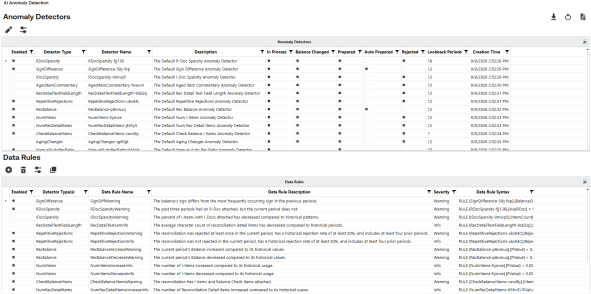
AI Settings utilizes an AI component, incorporating default detectors and rules as part of the solution when SensibleAI Studio is activated and the (PFC) AIS Plugin Financial Close workspace is present within your application. The AI Settings page displays an Anomaly Detectors grid and a Data Rules grid. Administrators have the ability to enable, disable, and reset detectors.
NOTE: AI Settings will only display for Administrators when AI Sensible Studio is enabled.
Export Configuration
|
|
Click the Export icon to export the current anomaly detector and data configuration to the OneStream File Explorer (your Favorites directory) in a JSON format. You can reimport the JSON file via the Reset Arena to refresh the AI Settings page to the export made at that point in time. |

Reset Arena
|
|
Click the Reset icon to open the Anomaly Arena Creation dialog box. |

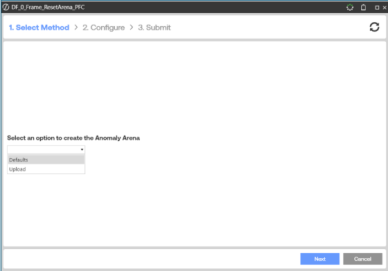
In the Anomaly Arena Creation dialog box you can:
-
Reset to default
-
Load a JSON configuration file
Resetting to default wipes the arena and recreates the standard template of detectors and rules.
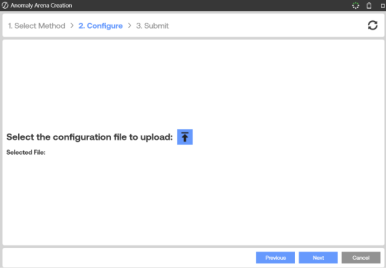
To load a JSON configuration file:
-
Navigate the OneStream file system
-
Locate a saved JSON configuration file
-
Reconstruct the arena precisely as specified in the file
NOTE: You can upload a JSON file directly.
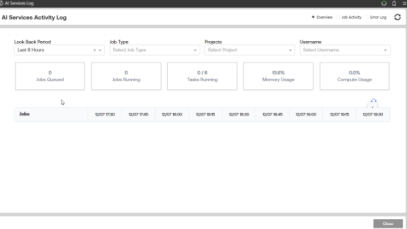
AI Services Log (Job Status and Error Log)
|
|
Click the AI Services Log icon to display an overview of AI Services activity in the environment, job activity, and the Xperiflow Error Log. |

Anomaly Detectors Grid
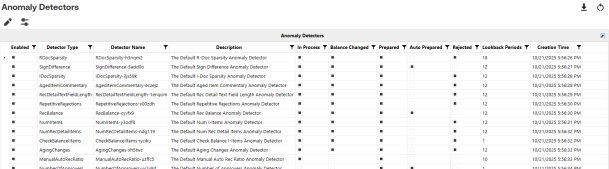
Anomaly detectors apply to reconciliations based on the Preparer's state of the reconciliations. You can edit the states in which these detectors are involved. Anomaly detectors scan reconciliations for a specific pattern or statistical output:
-
Enabled: Toggle whether the detector runs when AI Insights is run on a reconciliation.
-
Detector Type/Name: The Anomaly Detector to be run (Balance, Change, or Sign Difference).
-
Description: Description of Anomaly Detector. This is automatically provided based on what Detector Type is chosen.
-
In Process, Balance Change, Prepared, Auto Prepared, Rejected: Checkboxes that indicate which reconciliation state the detector will run on. For example, if only In Process is selected the detector will only run on reconciliations that have a current status of In Process.
-
Lookback Periods:The maximum number of lookback periods the detector will look at.
-
Creation Time:When the detector was first created to last reset.
|
|
Click the Modify icon to open the Edit Detector Wizard. |

|
|
Click the Toggle icon to enable or disable (a row must be selected). |

Editing an Anomaly Detector
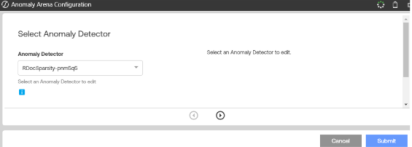
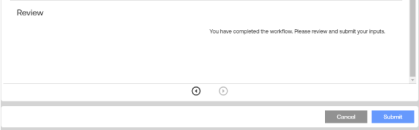
The Edit Anomaly Detector Wizard is a three-step form:
-
Select the detector you'd like to change from the drop-down menu.
-
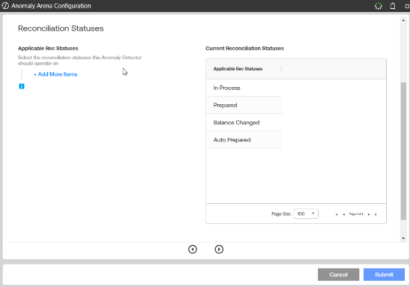
Select the reconciliation statuses the Anomaly Detector should operate on. This can be None or All of the statuses.
-
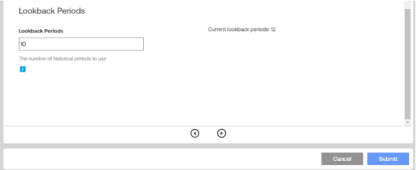
Enter a positive integer representing the max number of lookback periods the Anomaly Detector looks at historically when calculating anomalies.
-
Review your settings and click Submit.
Data Rules Grid
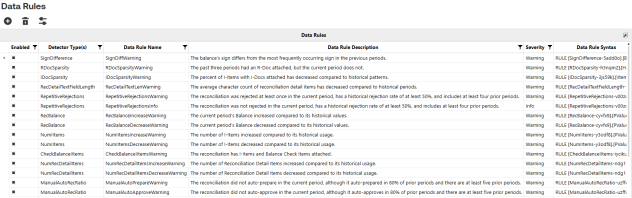
Data Rules are the "ifthen" alerts that are added under a parent anomaly detector. A rule can reference one detector or combine many. Columns in the Data Rules Grid include:
-
Enabled: This determines if the Rule is applied when AI Insights is run. If the rule is off when the parent detector is run, the rule itself will not. If the parent anomaly detector is turned off, then the rule will not run even if enabled. Disabling an anomaly detector disables the rules that refer to that detector.
-
Detector Name: Name of Parent Detector(s).
-
Data Rule Name: User-friendly, Administrator created identifier for the data rule.
-
Severity: Critical, Warning, or Info.
-
Lookback Periods: How many prior periods of history the algorithm analyzes.
-
Data Rule Syntax: The SQL-like rule expression that implements the triggering of anomalies.
|
|
Click the Add icon to launch the Add Data Rule wizard (filter-editor-based). |

|
|
Click the Delete icon to open the Delete Data Rule dialog box. Select a rule from the drop-down. Click Delete to confirm. |

|
|
Click the Toggle icon to enable or disable data rules. |
|
|
Click the Copy icon to launch a wizard to copy a current rule. |

NOTE: Rules cannot be edited to ensure accurate tracking of specific rules on reconciliations as its unable to track different instances of the rule at a point in time.
Create Rule Wizard
You can author complex logic without writing the Data Rule Syntax directly.
-
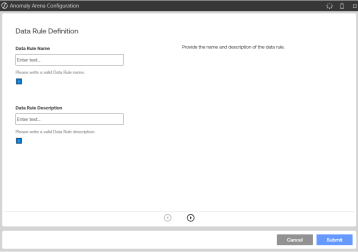
Enter a unique Name and Description of the Data Rule.
-
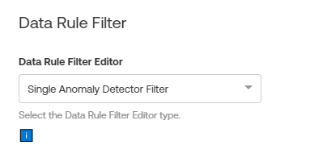
Select the Data Rule Filter Editor type.
-
Single Monitor builds conditions against a single detector's fields.
-
Multi-Monitor combines fields from several detectors (balance change and aged community) to build a single data rule.
-
-
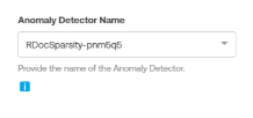
Select which detector(s) to apply.
-
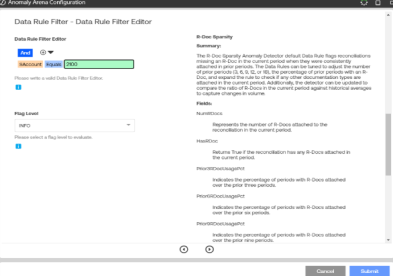
Build Conditions.
-
Select a field from the list of drop-downs.
-
Choose an operator.
-
Enter a value (numbers, dates, or True/False for booleans).
-
Chain multiple lines with the AND/OR toggle at the top.
-
-
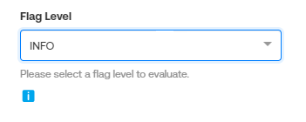
Choose the rule severity (Critical, Info or Warning)
-
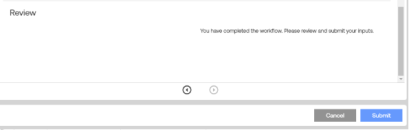
Review and submit.
How Changes Propagate
Edits to the Anomaly Arena in the component workflow update the Anomaly Arena and associated Anomaly Detectors or Data rules without needing to press the save button. The next run of the AI Insights button will use changes that are made on this page.
Previously detected anomalies will remain unchanged, however, if anomaly detection is re-run on a reconciliation with a data rule that no longer exists or is toggled off, the anomaly status updates to auto-resolved.
Best Practices
-
Start broad, refine, enable default detectors first, review flags, then narrow lookback windows or status scopes.
NOTE: For monitors that rely on statistics, fewer lookback periods result in less statistical power, requiring more significant anomalies to trigger.
-
Keep rule names short but descriptive.
-
Export JSON before major changes.

