The following guides provide step-by-step instructions for administrators to connect OneStream MCP servers to supported AI platforms. Each integration is initiated from the AI Control Tower Integrations page.
Claude
Step-by-step guide for setting up OneStream MCP servers in a Claude environment.
-
Navigate to the Integrations page in the AI Control Tower and select Configure for the Claude option.
-
Copy the connection details required to connect your Claude environment.
-
Continue in the Control Tower to the skill download section and download the skill file.
-
Open Claude Desktop and navigate to Organization Settings.
-
Go to the Connectors tab and add a custom web connector: click Add > Custom > Web. Provide a name and paste the connection details from step 2 into their respective fields. Click Add when complete.
-
Verify the MCP server appears in the Web Connectors section.
-
Navigate to the Skills section (above Connectors) and upload a new skill. Select the markdown file downloaded in step 3, this provides Claude with context on when and how to use the OneStream tools.
Users in the Claude environment are now ready to connect to the MCP server from their device.
ChatGPT
Step-by-step guide for setting up OneStream MCP servers in a ChatGPT environment. Note: this integration requires a support ticket with your OneStream product delivery team before configuration can be completed.
-
Navigate to the Integrations page and select Configure for the ChatGPT option.
-
Create a customer support ticket with your OneStream product delivery team. ChatGPT generates random callback URIs, so OneStream must allowlist your specific Callback URI before the connection can be established.
-
Obtain your ChatGPT Callback URI: navigate to Organization Settings > Apps > + Create. Enter any name and server URL, then click Advanced OAuth Settings and copy the custom Callback URL.
-
Paste the Callback URI into the OneStream SensibleAI Control Tower input section and include it in the support ticket.
-
Once the ticket is processed, re-enter the ChatGPT configuration modal and copy the connection details.
-
Input the connection details into the ChatGPT MCP app connector.
-
Continue through the Control Tower connection flow and download the skills markdown file.
-
In ChatGPT, navigate to Workspace Settings > Skills and create a new organization skill. Upload the skills markdown file downloaded in step 7.
Once all steps are completed, users are ready to connect to the MCP server.
Microsoft Copilot
Step-by-step guide for setting up OneStream MCP servers in a Microsoft Copilot environment.
-
Navigate to the Integrations page and select Initialize Connection for Copilot. You will receive multiple configuration values used to set up OneStream authentication for the Copilot agent.
-
Navigate to the Microsoft Developer Portal and go to Tools > OAuth Client Configuration.
-
Create a new OAuth Client Registration using the values from step 1, completing the following fields:
-
App Settings: Registration Name, Base URL, scope set to ‘My organization only’, App type set to ‘Any Teams App’
-
Auth Settings: Client ID, Client Secret, Authorization Endpoint, Token Endpoint, Refresh Endpoint, Scope, enable Proof Key for Code Exchange (PKCE), Request Body Parameters (default)
-
-
Save the configuration, copy the Reference ID to your clipboard, and return to the OneStream Copilot connection flow to enter it.
-
Download the appPackage zip file from the Control Tower.
-
Navigate to the M365 Admin Center and go to All Agents > Add Agent.
-
Upload the manifest from the appPackage downloaded in step 5 and grant the required permissions.
Once uploaded, users can access the OneStream tools from within their Copilot tenant.
Gemini
Step-by-step guide for setting up OneStream MCP servers in a Gemini environment.
-
Navigate to the Gemini integrations connector in the AI Control Tower.
-
Copy the JSON config object displayed in the Control Tower.
-
Locate your .gemini folder (typically at C:\Users\<user>\.gemini) and open settings.json.
-
Paste the JSON config object from step 2 into settings.json and save the file.
-
Verify the MCP server is recognized by running /mcp in Gemini. Once it appears, initiate authentication with /mcp auth <server name>.
-
Once authenticated, the MCP server is ready to use.
Evaluations
Role Access: SAI Control Tower Viewer and above
Overview
The Evaluations page in the OneStream Control Tower enables users to test and monitor the performance of configured AI agents, such as Finance Analyst, over time.
This page is intended for administrators, implementers, and delivery teams who need to verify that agent responses are:
-
Accurate
-
Repeatable
-
Explainable
-
Aligned with business context
Purpose
Evaluations provide a structured and repeatable method for validating AI agent responses against expected outcomes.
Without Evaluations, teams must manually:
-
Test prompts
-
Compare outputs
-
Track results across iterations
This approach does not scale, particularly when changes are made to:
-
Prompts
-
Models
-
Data sources
-
Personas
-
Agent configurations
The Evaluations engine enables:
-
Automated validation against expected outputs
-
Consistent testing across multiple runs
-
Scoring with explanation using the LLM Judge
Configurations
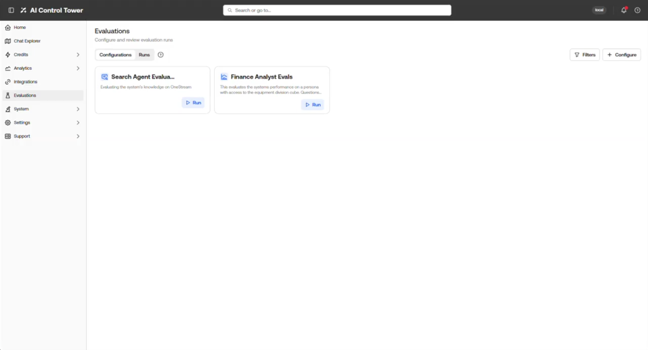
The Configurations tab is used to create and manage evaluation configurations. Each configuration defines a reusable validation setup.
When creating a configuration, define the following:
-
Agent Type: Specifies the agent to evaluate (for example, Finance Analyst or Search).
-
Agent Configuration: Defines the parameters used by the agent during the evaluation.
-
Finance Analyst: This includes the persona (which controls data access and business context, such as access to a specific cube) and the time period (which ensures consistency across runs by fixing the evaluation to a specific point in time, for example 2025M3 or 2025M4). Configuration options vary by agent type.
-
Search: This includes the clusters that the agent searches against.
-
Deep Analysis: Includes the plan and cluster that are to be used.
-
-
Repetitions: Specifies how many times the evaluation is executed. Running multiple repetitions helps validate consistency across responses.
-
Input Dataset: Provides the set of inputs used to test the agent. This may include expected outputs for comparison.
Runs
The Runs tab displays each execution of an evaluation configuration.
Selecting a run provides detailed results, including:
-
Input provided to the agent
-
Expected output (if defined)
-
Actual agent response
-
Evaluation score (if LLM judge was used)
The LLM Judge evaluates each response and provides:
-
A score
-
An explanation of which elements were correct or incorrect
This enables users to understand not only the result, but also the reasoning behind the evaluation.
System
The System section provides SAI Support users with some of the main tools needed to monitor platform health: monitor application logs, review audit logs, and manage document storage.
Application Logs
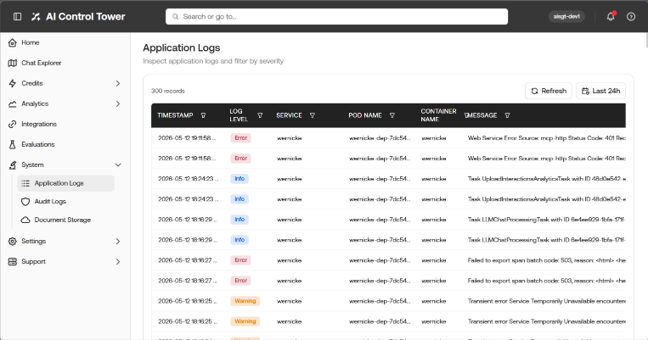
Role Access: SAI Support and above
The Application Logs page provides a full record of the application logs that occur across all services within the system. Each entry in the log captures the timestamp, log level, service, pod name, container name, and the log message. Individual records can be drilled into for a full inspection.
This page is a critical tool for troubleshooting, giving SAI Support users a complete trail of all application logs.
Audit Logs
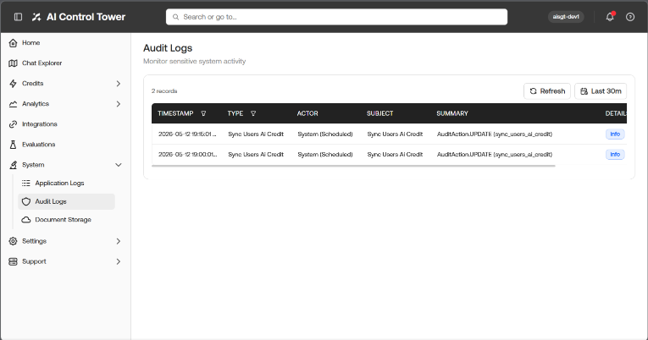
Role Access: SAI Support and above
The Audit Logs page provides a full record of sensitive system activity across the platform. Each entry in the log captures the timestamp, action performed, entity type, entity ID, user ID, and the before and after state of the record. Individual records can be drilled into for a full inspection.
This page is a critical tool for compliance, security monitoring, and troubleshooting, giving SAI Support users a complete trail of all significant system-level changes.
Document Storage
Role Access: SAI Support and above
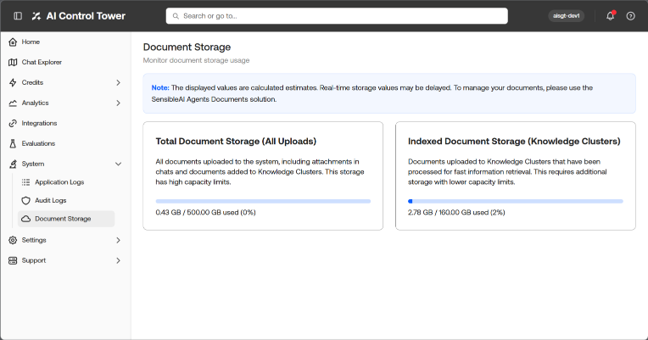
The Document Storage page gives administrators visibility into how much storage the platform is consuming across two categories:
| Storage Type | Description |
|---|---|
| Total Document Storage (All Uploads) | All documents uploaded to the system, including chat attachments and Knowledge Cluster documents. This storage has high capacity limits. |
| Indexed Document Storage (Knowledge Clusters) | Documents uploaded to Knowledge Clusters that have been processed for fast information retrieval. This requires additional storage with lower capacity limits. |
NOTE: Displayed values are calculated estimates and real-time values may be delayed. To manage documents, use the SensibleAI Agents Documents solution.

