Scope
Finance Analyst can be utilized on any application within an environment. However, you must complete the entire the setup process for each desired application. To render Quick Views through Finance Analyst, adjust the selected Application in User Settings.
Accessing Finance Analyst Configuration
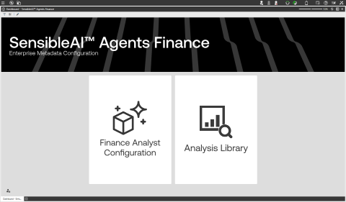
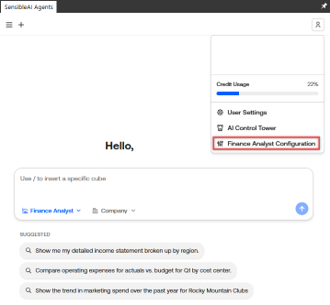
Administrators configure Finance Analyst using the Finance Analyst Configuration application, accessible through:
-
SensibleAI Agents Finance marketplace solution, or
-
Chat settings (where enabled)
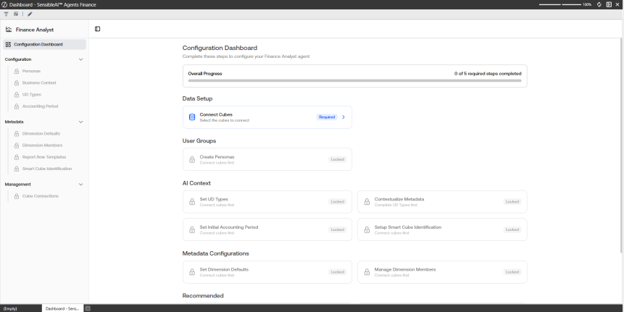
The initial landing experience is the Configuration Dashboard, which lists the required setup steps. Steps unlock sequentially based on dependencies.
IMPORTANT: Finance Analyst is not available to end users until all required steps are completed.
Required Setup Steps (Initial Enablement)
Complete these steps in the required order:
-
Connect Cubes (required first): Select which cubes Finance Analyst can access. All other steps remain locked until cubes are connected.
-
Set UD Types: Assign user-defined (UD) dimension types to provide semantic meaning.
-
Create Personas: Define user groups and their cube access and behavior.
-
Set Accounting Period: Define the most recently closed accounting period used when answering questions about actuals.
NOTE: After cubes are connected, Steps 2, 3, and 4 can be completed in any order.
Optional (Recommended) Setup Steps
After cubes are connected, the following configuration areas become available and are recommended to improve accuracy and usability:
-
Dimension Defaults (consistent behavior for unspecified dimensions)
-
Dimension Members (disable irrelevant members and provide disambiguating descriptions)
-
Business Context (organization-specific rules not captured in metadata)
-
Cube Context (provide descriptions of your cubes)
-
Report Row Templates (predefined account groupings for structured reporting)
-
Cube Views (provide descriptions for your existing OneStream Cube Views)

