A data source contains the name, connection string, and database provider for the database of your choice. To connect to a local data source, Smart Integration Connector provides the following default data providers:
-
Custom Database Providers (Custom DLL)
NOTE: If you are using a custom database provider, refer to the documentation of your custom database provider for installation, and note the full file path of the Custom DLL for setup.
The data source is configured using the Local Gateway Configuration Utility, which was installed as part of the Smart Integration Connector Local Gateway installation.
-
Start the OneStream Local Gateway Configuration. The existing XFGatewayConfiguration.xml opens by default.
-
Select the More
 icon next to Local Gateway Connections to set up the Data Sources to local databases, APIs, or other on-premises resources.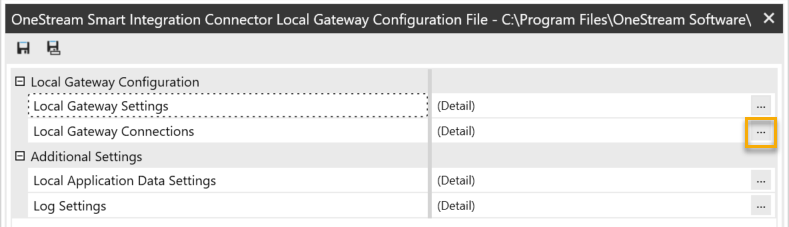
-
Select the Add Item
 icon to add a new data source.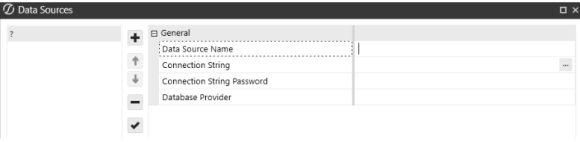
-
Enter the data source name and connection string.
-
Data Source Name: You can add as many data sources as necessary. The name must be unique for each connection defined within a specific OneStream Smart Integration Connector Local Gateway Server. Names can be reused across deployed instances of the Windows Service across your network.
-
Connection String: Connection strings are encrypted automatically. You can edit the plain text string by selecting the ellipsis.
-
-
If you have a password for the connection string, enter it in the Connection String Password field. For security purposes, we recommend using a substitution variable to ensure the password is not shown on screen. However, you can also embed the password directly within your connection string.
Example:
Data Source=localhost;Initial Catalog=Sales_DB;Persist Security Info=True;User ID=sa;Password=|xxxxx|; -
Select a database provider, or, if your provider is not listed, add a custom provider.
NOTE: If you are using a custom provider, select Custom DLL and enter the full file path in the Custom DLL File Path field.

-
Select OK to save your configuration.
IMPORTANT: The following connection strings include user IDs and the password substitution variable. You can also use integrated security to remove plain text user IDs and passwords from connection strings in Smart Integration Connector. See Remove UserID and Passwords by Integrated Security.
Npgsql Data Provider (PostgreSQL)
The following instructions are an example for setting up a PostGres database.
-
Select the More
icon next to Local Gateway Connections. -
Select the Add Item
icon to add the data source. -
Enter the data source name and connection string.
-
Data Source Name: RevenueMgmtPostGres
-
Connection String: This is an example connection string for configuring your data connection. Modify this connection string to align with your database client.
Server=localhost;Port=5432;Database=revmgt;User Id=<username>;Password=|password|;
-
-
Enter your connection string password.
NOTE: The Connection String Password is subsituted in place of |password| in the connection string. For security purposes, we recommend using the Connection String Password field and the substitution variable to ensure the password is not shown on screen. However, you can also embed the password directly within your connection string. For example:
Server = localhost;Port=3306;uid=root;pwd=|password|;database=gatewaymysql;. -
From the Database Provider drop-down menu, select Npgsql Data Provider.
-
Select the Test Connection
 icon to test the data source.
 -
Select the OK button to create the new source.
-
Select the Save button.
ODBC Data Provider
ODBC data sources can be defined (using a system DSN) to remove credentials from the configuration file. For ODBC connections, most ODBC drivers will allow you to set up a system DSN entry on the server, then the connection string in the gateway will only point to the DSN entry. See Administer ODBC data sources.
The following instructions are an example for setting up an ODBC data source for Oracle.
-
Select the More
icon next to Local Gateway Connections. -
Select the Add Item
icon to add the data source. -
Enter the data source name and connection string.
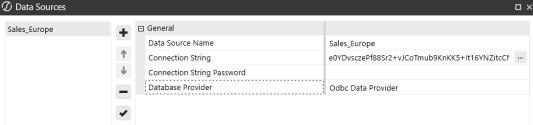
- Data Source Name: Sales_Europe
-
Connection String: This is an example connection string for configuring your data connection. Modify this connection string to align with your database client.
Driver={Microsoft ODBC for Oracle};Server=(DESCRIPTION=(ADDRESS=(PROTOCOL=TCP)(HOST=199.199.199.199)(PORT=1523))(CONNECT_DATA=(SID=dbName)));Uid=<username>;Pwd=|password|;
-
Enter your connection string password.
NOTE: The Connection String Password is subsituted in place of |password| in the connection string. For security purposes, we recommend using the Connection String Password field and the substitution variable to ensure the password is not shown on screen. However, you can also embed the password directly within your connection string. For example:
Server = localhost;Port=3306;uid=root;pwd=|password|;database=gatewaymysql;. -
From the Database Provider drop-down menu, select Odbc Data Provider.
-
Select the Test Connection
icon to test the data source. -
Select the OK button to create the new source.
-
Select the Save button.
OleDb Data Provider
The following instructions are an example for setting up an Oracle database. Additional download and configurations are not required.
-
Select the More
icon next to Local Gateway Connections. -
Select the Add Item
icon to add the data source. -
Enter the data source name and connection string.
-
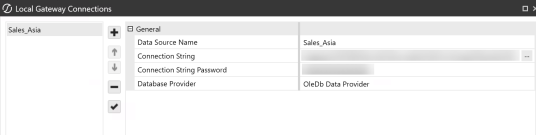
Data Source Name: Sales_Asia
-
Connection String: This is an example connection string for configuring your data connection. Modify this connection string to align with your database client.
Provider=OraOLEDB.Oracle;Data Source=localhost:1521/XE;Initial Catalog=myDataBase;User Id=<username>;Password=xxxxx;
-
-
Enter your connection string password.
NOTE: The Connection String Password is subsituted in place of |password| in the connection string. For security purposes, we recommend using the Connection String Password field and the substitution variable to ensure the password is not shown on screen. However, you can also embed the password directly within your connection string. For example:
Server = localhost;Port=3306;uid=root;pwd=|password|;database=gatewaymysql;. -
From the Database Provider drop-down menu, select OleDb Data Provider.
-
Select the Test Connection
icon to test the data source. -
Select the OK button to create the new source.
-
Select the Save button.
SqlClient Data Provider
The following instructions are an example for setting up a SQL database using the SqlClient provider.
-
Select the More
icon next to Local Gateway Connections. -
Select the Add Item
icon to add the data source. -
Enter the data source name and connection string.
-
Data Source Name: Northeast_Sales
-
Connection String: This is an example connection string for configuring your data connection. Modify this connection string to align with your database client. With UserID / Password:
Server=localhost;Initial Catalog=Sales_DB;User ID=<username>sa;Password=xxxxx|password|;Max Pool Size=1000;Connect Timeout=60;
-
-
Enter your connection string password.
NOTE: The Connection String Password is subsituted in place of |password| in the connection string. For security purposes, we recommend using the Connection String Password field and the substitution variable to ensure the password is not shown on screen. However, you can also embed the password directly within your connection string. For example:
Server = localhost;Port=3306;uid=root;pwd=|password|;database=gatewaymysql;. -
From the Database Provider drop-down menu, select SqlClient Data Provider.
-
Select the Test Connection
icon to test the data source. -
Select the OK button to create the new source.
-
Select the Savebutton.
Custom Database Providers
IMPORTANT: You will need the .NET 10 equivalent or compatible NuGet package for your custom database provider before connecting your local gateway to a data source.
NOTE: If you are using a custom database provider, refer to the documentation of your provider for installation, and note the full file path of the Custom DLL for setup.
To connect to a custom database provider, including Oracle, follow these steps.
-
Select the More
icon next to Local Gateway Connections. -
Select the Add Item
icon to add the data source. -
Enter the data source name and connection string.
-
Data Source Name: Sales_UK
-
Connection String: This is an example connection string for configuring your data connection. Modify this connection string to align with your database client.
Data Source=datasource123;User Id=<username>;Password=|password|;
-
-
Enter your connection string password.
NOTE: The Connection String Password is subsituted in place of |password| in the connection string. For security purposes, we recommend using the Connection String Password field and the substitution variable to ensure the password is not shown on screen. However, you can also embed the password directly within your connection string. For example:
Server = localhost;Port=3306;uid=root;pwd=|password|;database=gatewaymysql;. -
From the Database Provider drop-down menu, select Custom DLL.
-
In the Custom DLL File Path field, enter the full file path of your Custom DLL.
-
Select the Test Connection
icon to test the data source. -
Select the OK button to create the new source.
-
Select the Save button.

Notes Regarding Oracle
Connecting to Oracle requires the download and configuration of the Oracle Data Access Components (ODAC) obtained directly from the Oracle website. Follow these steps for access to these drivers and files.
-
Go to the latest web page for Oracle .NET and Visual Studio ODAC Downloads for Oracle Database.
-
The connection string for Oracle databases can be set up to either reference or require a locally defined TNSNames.ora file for the requested data sources.
Example Connection Strings:
IMPORTANT: These are example connection strings for configuring your data connection. Modify them to align with your database client.
-
Oracle Data Provider for .NET:
Data Source=oracletest;User Id=OneStream1;Password=|password|; -
Oracle Data Provider without TNSNames.ora:
Data Source=(DESCRIPTION=(ADDRESS_LIST=(ADDRESS=(PROTOCOL=TCP)(HOST=MyHost)(PORT=MyPort)))(CONNECT_DATA=(SERVER=DEDICATED)(SERVICE_NAME=MyOracleSID))); User Id=myUsername;Password=|password|;

