-
Go to System > Administration > Smart Integration Connector.
-
Select the Connection to export.
-
Click
 Export Connection Configuration. The Connection Details are copied to the clipboard.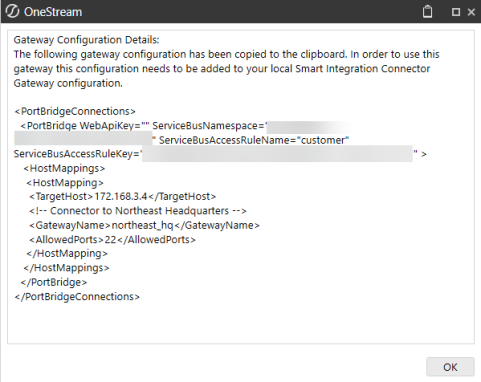
-
On your Windows Server, open the OneStream Local Gateway Configuration. This runs as administrator by default.
-
The existing XFGatewayConfiguration.xml opens by default.
-
Click
 next to Local Gateway Settings.
-
Import
 Import Gateway Configuration to import the previously copied Connection Configuration.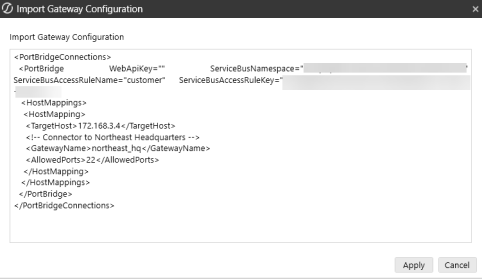
-
Click Apply.
-
Click Test Connection to test the connection.
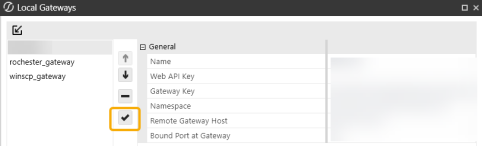
-
Click OK twice.
-
Save the configuration.
-
Click Yes to apply the changes and restart the Local Gateway Server.
New Key Generation
Smart Integration Connector administrators can rotate the Key maintained by the underlying cloud service; however, it must be the same for both the Smart Integration Connector local gateway and the gateway configuration in the OneStream Windows Application to function properly.
-
Select an existing connection.
-
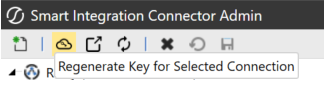
Click Regenerate Key for Selected Connection.
-
You must re-export your Connection Configuration and apply the new settings throughout the OneStream Local Gateway Configuration. See Export and Import the Connection Configuration.
-
Click OK.

