This section provides help on addressing errors in Smart Integration Connector:
Error Log
To view the error log, click System > Logging > Error Log.
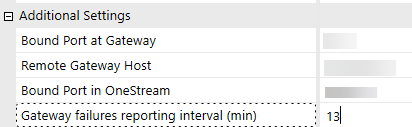
Every minute, by default, the Smart Integration Connector tries to connect to an established Smart Integration Connector local gateway from each application server used in a deployment. If the gateway is unable to connect, it adds an error to the error log based on the Gateway failures reporting interval (min). These errors are recorded in the OneStream error log along with other errors related to the OneStream application. You can configure the interval at which OneStream application servers log this gateway failure from 1 minute to 1440 minutes, or 1 day, to reduce the volume of logged failures for infrequently online test or validation environments.
NOTE: It is recommended to increase the time intervals for queries that run longer than five minutes. For example, if you have a query that runs 10 minutes long, you need to set your time interval to above 10 minutes, such as 15 minutes. Time intervals can be adjusted from System > Smart Integration Connector > Your connection > Gateway failures reporting interval (min).
Error Messages and Statuses
If you receive an error message or status while using Smart Integration Connector, use the reference tables below for troubleshooting steps. If your error message is not listed, see Other Common Errors for detailed troubleshooting information regarding more intricate issues.
Messages
| Situation | Message | Action |
|---|---|---|
| General | An assembly with name '{name}' is referenced by the remote Business Rule '{1}'. However no file with this name is found at configured remote location: '{location}'. Please verify the file exists and that it can be accessed by OneStream Smart Integration Connector Gateway. | Verify that the referenced assembly is in your Referenced Assemblies folder and that it is unlocked and loaded, which can be verified in the log at start-up. |
| General | At least one public method required. | Verify that the Smart Integration Connector Function contains at least one public method. |
| General | Code DOM provider is null. | This may indicate that the required .NET 10 SDKs are not installed on your system. Verify the installation of required dependencies. |
| General | Exceeded Data Threshold - Defined Max: {maxRows} |
To enhance performance, consider revising the query to return fewer than the maximum configured rows. You can also increase Maximum Records to Return if lower than 5 million. |
| General | ExecuteCode Remote cached method not found: {cacheKey} for Request:{requestId} |
Verify that the method has been executed with the associated cacheKey prior to calling ExecRemoteGatewayCachedBusinessRule(). |
| General | InternalCompiler results null. | Contact Support. |
| General | Internal execution results null. | Contact Support. |
| General | Null/Invalid Cached DataFrame Original Request ID: {requestId} |
Check the Smart Integration Connector cache scavenging report. This is only available when Verbose logging is enabled. If the cache shows that items were removed prior to this message, the DataFrame was likely cleaned prior to transmission. Contact Support if this causes data transfers to fail. This error could also happen if the Smart Integration Connector Gateway is restarted during data transfer. |
| General | Paged Data Operation Missing Originating Request ID | If the error is reproducible and preventing data transmission, contact Support. |
| General | Page Number Exceeded Pages | This should not happen unless manually constructing the XFRequest. Contact Support if this is reproducible and prevents data transmission. |
| General | Unable to retrieve a valid configuration file for OneStream Smart Integration Connector Gateway | Verify that the XFGatewayConfiguration.xml is present and accessible. If this failed to load, there should be other errors in your local gateway log file when the Gateway Service starts. |
| General | Unexpected NULL DataFrame Result Value | Contact Support. |
| When executing a Smart Integration Connector Function | xfRequest Null/Invalid message received. Request Source:{remoteSource} Request:{requestId} |
|
| When running a database operation | xfRequest Null message or invalid command type received. Request Source:{remoteSource} |
|
Statuses
| Status | Action |
|---|---|
| CreateDbConnectionFailed | Verify that the provider configuration is accurate. This may require corrections to the provider name, assembly, or driver installation. Troubleshoot the connection using the Local Gateway Configuration Utility. Contact Support if the installation and configuration are correct, but the Smart Integration Connector Gateway still cannot create the connection. |
| JobStatusError | Retry the job status request. If the error continues, inspect gateway logs for the related job ID and run the job again, because the job record is in an unexpected state. |
| RemoteBRNotFound |
The requested remote job or result is no longer available. Verify the job ID and cache context is correct and resubmit or recompile the remote code request if needed. |
| RemoteCodeExecutionIsDisabled | Enable AllowRemoteCodeExecution in the Smart Integration Connector Gateway configuration. |
| RemoteEndPointProviderIsInvalid |
Verify that the configured database provider is valid and installed. Check the provider name, provider assembly and driver, connection string, credentials, and network connectivity to the database. Status: SQLCommandInvalid |
| RequestedDBEndPointNotFound | Verify the requested RelayRemoteDBConnection name exactly matches a configured database connection. Reload/restart the gateway if needed. |
| SQLCommandInvalid | Verify that a populated SQL query or command is being sent to the Smart Integration Connector Gateway. |
| Timeout | The remote business rule or job ran longer than the configured timeout. Increase the timeout or consider executing the rule with ExecRemoteGatewayJob() if not already doing so. |
Other Common Errors
The following section lists common errors and their work-arounds related to Smart Integration Connector.
Memory Issues
If you receive any of the following errors, increase the memory in your Smart Integration Connector Local Gateway Server. For queries returning over 1 million records, 32 GB or more RAM is recommended.
-
"Error while copying content to a stream. Received an unexpected EOF or 0 bytes from the transport stream."
-
"An error occurred while sending the request. The response ended prematurely."
Gateway Server Version is Empty
If your connection is reporting online, is of type "Gateway Connection" and the Active Local Gateway Server Version field is empty, verify with your IT Admin that port 443 is fully open outbound between the Smart Integration Connector Local Gateway Server and the Azure Relay and that Deep Packet Inspection or SSL Teardown is not being performed.
Refer to Knowledge Base article KB0013213 for additional information.
Custom Data Source Names
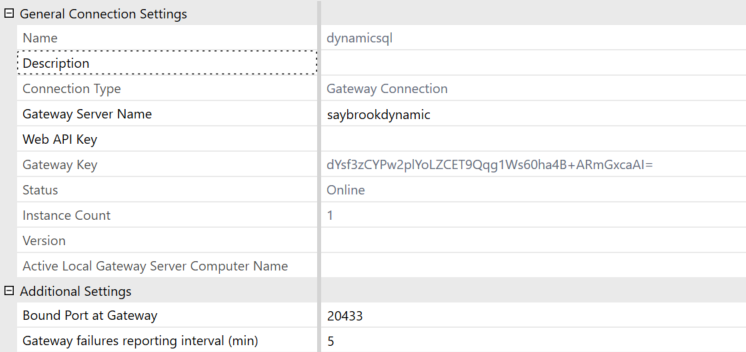
You may not see the Data Source Names populate when setting up the custom connection with a new connection. It is recommended to wait for five minutes from creating a new connection to when you create the custom connection.

Array Cannot Be Null Error
You receive the error: "Array cannot be null. (Parameter 'bytes')" or "System.AggregateException - System.NullReferenceException: Object reference not set to instance of object"
NOTE: CompressionHelper.InflateJsonObject is now automatically executed as part of remote calls resulting in serialized .NET types returned from the Smart Integration Connector Gateway. Update any Smart Integration Connector related business rules accordingly.
Previously, it was required that a OneStream BR developer invoking a remote Smart Integration Function be aware of the data type returned and convert accordingly after the result is returned. An example where the returned result was a byte array involved code that appeared as follows:
bytesFromFile = CompressionHelper.InflateJsonObject(Of System.Byte())
(si,objRemoteRequestResultDto.resultDataCompressed)
' The Smart Integration Connector Gateway now provides this type information back to OneStream
' and streamlines this conversion process using a newly added property called
' ObjectResultValue which is populated.
' When invoking the same operation shown above that previously required
' the type to be converted, a BR developer can do the following:
bytesFromFile = objRemoteRequestResultDto.ObjectResultValue
Windows Feature Installation Error
If you receive the following error in the Local Gateway Utility, remove all references to Oracle.DataAccess.dll in your configuration.
-
"The following feature couldn't be installed: .NET Framework 3.5 (includes .NET 2.0 and 3.0)"
Opening and Saving Configuration Errors
You may receive an error opening or saving your OneStream Local Gateway Configuration after installing Oracle Data Provider for .NET.
You must comment out the following line <!--<add name="Oracle Data Provider for .NET" invariant="Oracle.DataAccess.Client" description=".Net Framework Data Provider for Oracle" type="Oracle.DataAccess.Client.OracleClientFactory, Oracle.DataAccess" />--> when editing your OneStreamLocalGatewayConfiguration.exe.config to resolve this error.
Your configuration should look similar to this:
    <DbProviderFactories>
 <add name="Npgsql Data Provider" invariant="Npgsql" description="Data Provider for PostgreSQL" type="Npgsql.NpgsqlFactory, Npgsql" />
 <add name="MySQL Data Provider" invariant="MySql.Data.MySqlClient" description=".Net Framework Data Provider for MySQL" type="MySql.Data.MySqlClient.MySqlClientFactory, MySql.Data" />
 <!--<add name="Oracle Data Provider for .NET" invariant="Oracle.DataAccess.Client" description=".Net Framework Data Provider for Oracle" type="Oracle.DataAccess.Client.OracleClientFactory, Oracle.DataAccess" />-->
Incorrect or Missing Library References
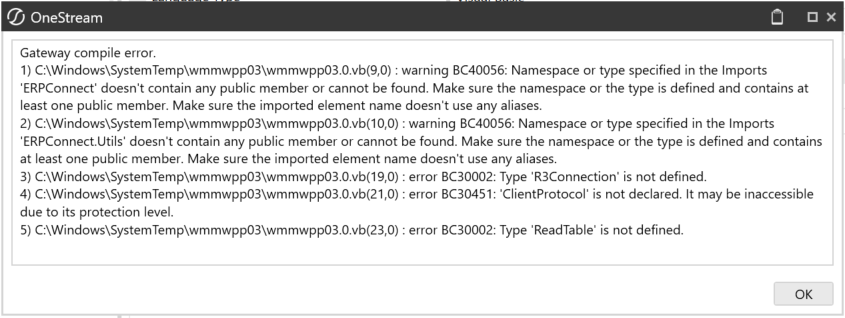
During compilation of remote business rules using .NET DLLs such as the ERPConnect Library to interface with SAP, incorrect or missing library references will result in an error similar (Smart Integration Connector compile error) to the image below.
Script Error During Upgrade
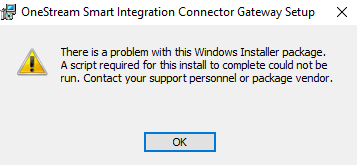
During upgrades, you may run into the error "a script required for this install to complete could not be run." The action to resolve this error is to rerun the Smart Integration Connector installer. If you continue to see this error during upgrades, contact OneStream support.
Data Returned as a String
Occasionally, data types can return as a string when you are expecting to see data in the original source format. Smart Integration Connector transfers data in Apache Parquet format from the Local Gateway Service to OneStream. If you are transferring a data type that is unsupported by parquet, the data converts and returns as string. You will need to add logic to re-convert the string to the desired and supported data type if needed.
In certain cases, if you receive the error "The method or operation is not implemented" then you can use a remote business rule to transfer data. This occurs when returning the varbinary(max) datatype.
Manual Start and Stop
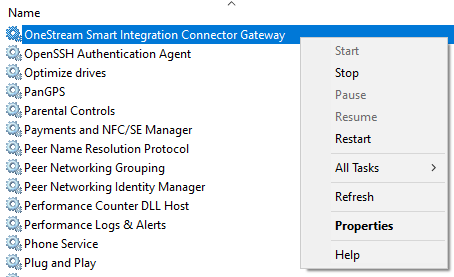
If you run into errors with the service, you may need to manually stop and restart the service. This can be accomplished in the GUI-based Services control manager as shown below or by using the command-prompt/PowerShell. The name of the service when using command-line tools is "OneStreamSmartIntegration".
Using the Windows Service Control Manager:
-
Open Services from your Windows start menu.

-
Right-click on OneStream Smart Integration Connector Gateway.
-
Select Stop.
-
Right-click again and select Start.
Using an elevated command-prompt:
-
net stop OneStreamSmartIntegration
-
net start OneStreamSmartIntegration
Using an elevated PowerShell prompt:
-
stop-service -ServiceName OneStreamSmartIntegration
-
start-service -ServiceName OneStreamSmartIntegration
Remote Endpoint Not Found/Could Not Decrypt
To troubleshoot the errors "Remote Endpoint Not Found" or "Could not decrypt connection string on Smart Integration Connector Gateway Connection: [Connection Name]", check your service account permissions. The service account used will require local administrative rights to access resources on the Windows server, such as the machine certificate store and private keys used for encryption.
ERPConnect Module or Dependency Not Found
When executing a Smart Integration Function that uses ERPConnect, an error may occur that indicates that the ERPConnect DLL or one of its dependencies was not found or did not load. For additional information, refer to Knowledge Base article KB0013553.
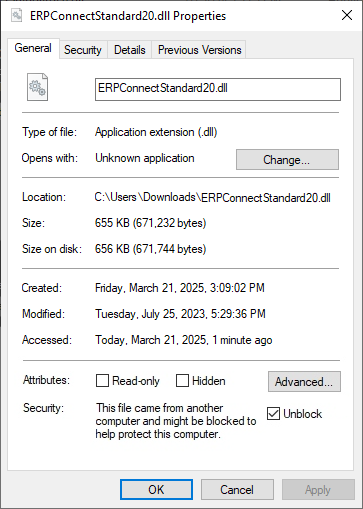
If the DLL is located in the correct folder, Windows security policies are preventing the DLL from loading and the file must be unblocked.
-
Right click the DLL file and then select Properties.
-
In the General tab, select Unblock and then select OK.
-
Restart the Smart Integration Connector gateway. For details, refer to Restart the Gateway.
Connections Requiring a Signed Certificate
For connections that require a signed certificate in order to establish a connection, then a Certificate Authority (CA) needs to be accessible from the Smart Integration Connector Local Gateway Server in order to function.
-
Gateway Connections: CA needs to be accessible from the Smart Integration Connector Local Gateway Server.
-
Direct Connections: CA needs to be publicly accessible from OneStream.
Trusted Certificate Chain
If you are using Smart Integration Functions and set the SQL Server connection string within the function, you may receive the following error:
A connection was successfully established with the server, but then an error occurred during the login process. (provider: SSL provider, error: 0 - The certificate chain was issued by an authority that is not trusted.)
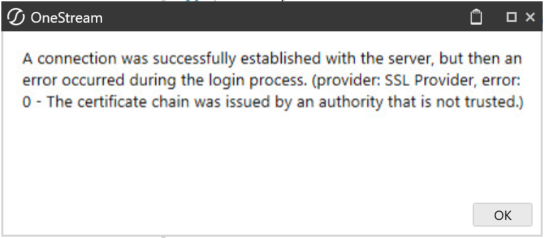
If you do not have a trusted certificate installed on your DB server, you can work around this with TrustServerCertificate. However, this workaround is less secure and discouraged in production environments. To resolve this error, include TrustServerCertificate=True; to your connection string within the function.
Unable to Connect
If your connection fails, check your Smart Integration Connector error log for:
[2023-10-04 07:09:59 INF] Starting Listener for: <site name>.servicebus.windows.net
[2023-10-04 07:10:00 ERR] Unable to connect: Generic: Ip has been prevented to connect to the endpoint.
To resolve this issue, verify that the IP addresses in your Whitelisting to the Azure Relay are set up properly. See Networking and Whitelisting.
Communication Error
If you see the following error in the Windows Service Log, it means that you have a mismatched WebAPIKey. This could occur if the WebAPI key is changed in OneStream and the configuration for the Smart Integration Local Gateway service is not exported from OneStream and re-imported into the Local Gateway Server service using the configuration utility.
[14:13:36 INF] HTTP Request with invalid API key
You can resolve this error by matching the WebAPIKey in the configuration utility.
NOTE: If the value is changed, you must restart the service.
Host Header Communication Error
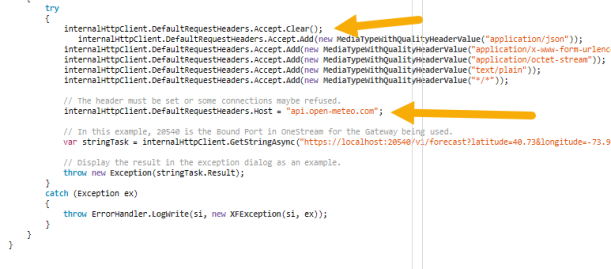
If you copy the business rule below and are having trouble communicating with your WebAPI after compiling, ensure that you have set your host header correctly. Refer to highlights in the screenshot below.
bytesFromFile = CompressionHelper.InflateJsonObject(Of System.Byte())
(si,objRemoteRequestResultDto.resultDataCompressed)
'The Smart Integration Connector Gateway now provides this type information back to OneStream
'and streamlines this conversion process using a newly added property called
'ObjectResultValue which is populated.
'When invoking the same operation shown above that previously required
'the type to be converted, a BR developer can do the following:
bytesFromFile = objRemoteRequestResultDto.ObjectResultValue <DbProviderFactories>
<add name="Npgsql Data Provider" invariant="Npgsql" description="Data Provider for PostgreSQL" type="Npgsql.NpgsqlFactory, Npgsql" />
<add name="MySQL Data Provider" invariant="MySql.Data.MySqlClient" description=".Net Framework Data Provider for MySQL" type="MySql.Data.MySqlClient.MySqlClientFactory, MySql.Data" />
<!--<add name="Oracle Data Provider for .NET" invariant="Oracle.DataAccess.Client" description=".Net Framework Data Provider for Oracle" type="Oracle.DataAccess.Client.OracleClientFactory, Oracle.DataAccess" />-->Gateway Testing Issue Resolution
If your connection testing is failing, refer to the steps below to fully test the connection.
-
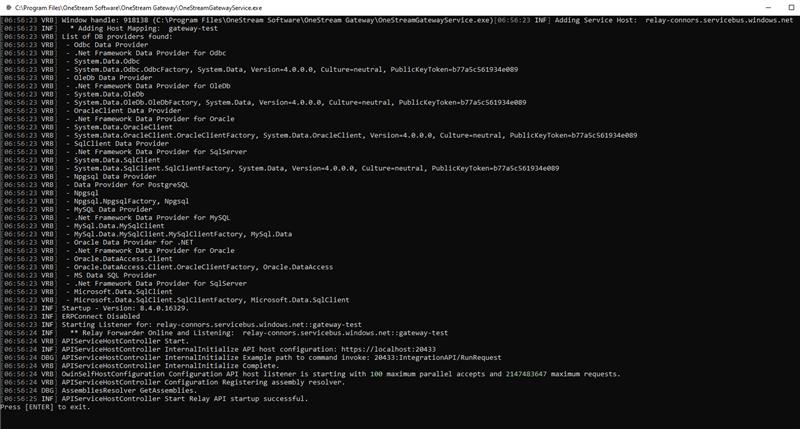
You can test the connection by double-clicking the OneStreamGatewayService.exe file located in the installation folder.
NOTE: The Smart Integration Connector Gateway Windows Service must be in a stopped state to run in the console for test purposes.
The following command window is displayed:
-
Correct any errors that are displayed in the command window.
NOTE: If the command window output does not proceed beyond the "APIServiceHostController Start Relay API startup successful." line, this indicates that the outbound traffic over port 443 to the Azure Relay is blocked. Open the port to resolve this issue.
-
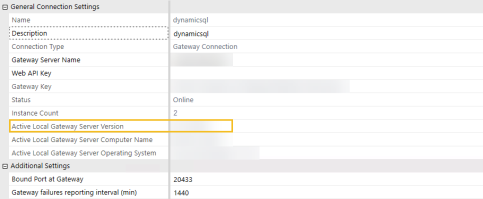
In the OneStream Windows Application client, refresh Connection Details from System > Administration > SmartIntegration Connector > Your connection.
-
The Instance Count changes from 0 to 1.
-
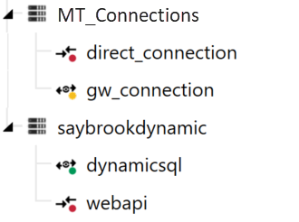
The Status changes from Offline to Online. Additionally, status indicators turn green on the side menu if the Connection is Online, red if the Connection is Offline, and yellow if the Connection is Offline but there is a newer version of the Local Gateway Server available. See the second screenshot under this step for a close-up of the indicators.
-
The Active Local Gateway Server Version field shows the version of the running Smart Integration Connector Gateway.
-
-
Press Enter twice on the keyboard to stop the service in the command window and then close the command window.
Automatic Business Rule Decompression (Prior to Version 8.0)
Prior to version 8.0, it was required that a OneStream Business Rule developer invoking a remote Smart Integration Function be aware of the data type returned and convert accordingly after the result is returned.
Example: An example where the returned result was a byte array involved code that appeared as follows:
bytesFromFile = CompressionHelper.InflateJsonObject(Of System.Byte())
(si,objRemoteRequestResultDto.resultDataCompressed)
The Smart Integration Connector Gateway now provides this type of information back to OneStream and streamlines this conversion process using a newly added property called ObjectResultValue, which is populated.
When invoking the same operation shown above that previously required the type to be converted, a BR developer can do the following:
bytesFromFile = objRemoteRequestResultDto.ObjectResultValuebytesFromFile = CompressionHelper.InflateJsonObject(Of System.Byte())
(si,objRemoteRequestResultDto.resultDataCompressed)bytesFromFile = objRemoteRequestResultDto.ObjectResultValue
