The following sections describe the ways to navigate the Forecast Value Add solution.
Forecast Value Add Home Page
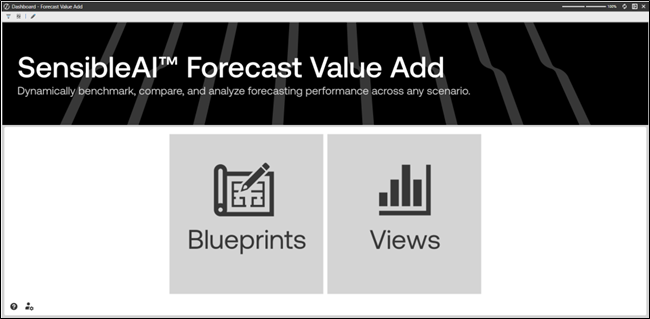
The Home Page is the launching point for the solution. From here, you can enter either of the two main sections (defined below).
Forecast Value Add Sections
The left navigation panel includes two sections: Blueprints and Views. The top left corner of the upper tool bar shows the pages available for each section. You can refresh each page by clicking on the page name. For each section of Forecast Value Add, there is only a single page. Below are the descriptions of each page available in the two sections:
Blueprints Section – Manage Page
Within the Manage Page, click on a Blueprint in the available grid to generate data and related visuals on the dashboard.
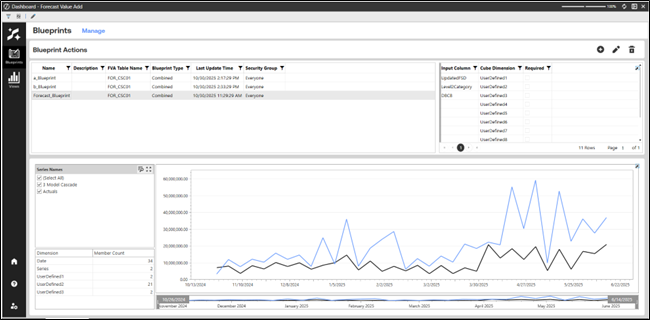
To create, edit, or delete a Blueprint, use the action buttons on the top right-hand corner of the screen, and follow the workflow steps presented on your screen.
Views Section – Explore Page
Within the Explore Page, click on a View in the available grid on the left to begin configuring its respective settings.
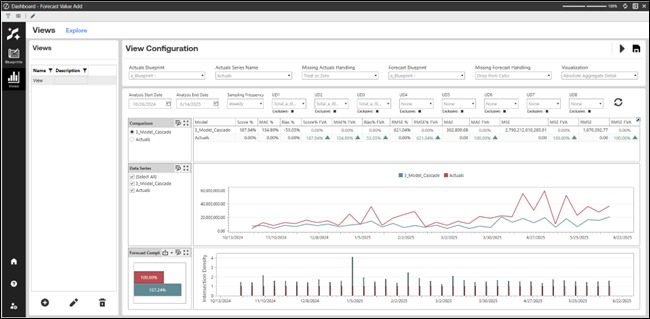
To create, edit, or delete a View, use the action buttons on the bottom left-hand corner of the screen, and follow the workflow steps presented on your screen.
Toolbar
Each section page includes the Home, Help, and Settings buttons at the lower left.
|
Icon |
Description |
|---|---|
|
|
Opens the Forecast Value Add Home page. |
 Help Help
|
Opens the Forecast Value Add User Guide. |
 Settings Settings
|
Opens the Forecast Value Add settings. Configure Global Settings options and uninstall the solution. |


