Factor Groups help you manage Factors by enabling you to view relevant Factors based on grouping criteria. Use the Factor Groups page to create groups of external and internal Factors. Factor Groups are assigned to Sites to organize data collection. See Sites.
Use the toolbar options to manage Factor Groups.

-
To add a new Factor Group, select the New button.
-
To edit a Factor Group, select the Edit button.
-
To delete a Factor Group, select the Delete button.
NOTE: Factor Groups cannot be deleted if they are assigned to a Site.
-
To disable a Factor Group and prevent data entry, select the Disable button.
-
To enable a Factor Group, select the Enable button.
Manage Factor Groups
To edit a Factor Group, select the Factor Group you want to edit and select the Edit button. Use the General tab to edit Factor Group properties. Use the Factors tab to edit which Factors are assigned to the Factor Group.
General
Use the fields to edit the Factor Group name, description, and Control List assignment. The Control List selected is applied to every Factor in that Factor Group. See Control Lists.
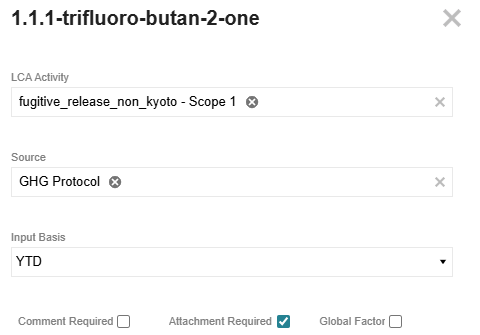
 To edit properties, select a Factor from the Assigned Factors grid and select the Edit button to display the slide-out panel.
| Property | Description |
|---|---|
| LCA Activity |
Scope ID is included with LCA Activity. This selection determines activity and the corresponding Factor Scope for calculation. See Scope. If there is only one LCA Activity and Scope for the Factor, the LCA Activity drop-down menu will default to that value. Some assigned Factors have multiple potential Scopes. For these Factors, the LCA Activity drop-down menu defaults to the first value. You cannot add multiple Scopes for one LCA Activity. If there are multiple LCA Activities associated with the selected Factor, more than one Scope can be selected from the LCA Activity drop-down menu. If you select multiple LCA Activities and Scopes, you will enter data for each selection on the Home page. If the Factor is internal, this field is a user defined value. |
| Source |
The organization providing the Factor. If you select multiple sources for a Factor, you will enter data for each one on the Home page. The Source drop-down menu only shows sources that match Factors with the selected LCA Activity. If the Factor is internal, this field is a user defined value. |
| Input Basis | This determines if data is collected as periodic or YTD. The Default Input Basis Global Options setting determines the field's default value. See Global Options. |
| Comment Required | If administrators want users to enter a comment for the Factor, select the Comment Required checkbox. If this property is selected, when you enter data for the Factor on the Home page, the entry cannot be saved until a comment is added. |
| Attachment Required |
If administrators want users to submit an attachment for the Factor, select the Attachment Required checkbox. If this property is selected, a Profile cannot be submitted unless an attachment is added for the Factor. |
| Global Factor |
To make the Factor Global, select the Global Factor checkbox. When this checkbox is selected, the Factor displays in the Profile for data entry even when the Factor's region does not match the Site's region. |
To save property selections, select the Done button and then select the Save button.
Factors
Two grids are displayed with Factors. The top grid contains all available Factors, and the bottom grid contains all Factors already assigned to that Factor Group. The Assigned Factors grid has columns displaying the LCA Activity and Factor Scope.
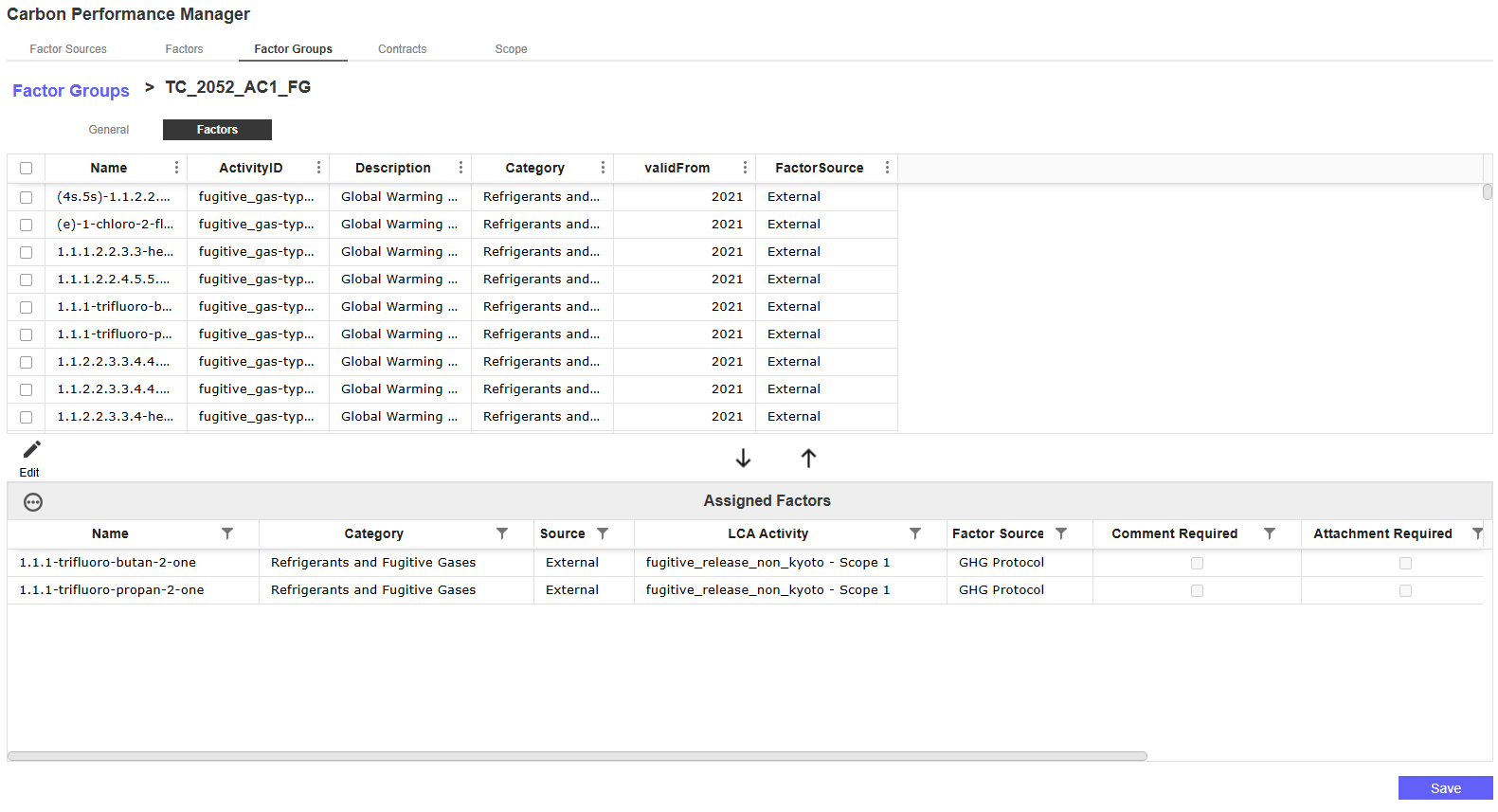
To edit properties, select a Factor from the Assigned Factors grid and select the Edit button to display the slide-out. See General.
Add and Remove Factors From Factor Group
-
To add a Factor to the selected Factor Group, select the checkbox next to the Factor and then select the Add Factor button. The Factor will now display in the Assigned Factors grid for that Factor Group. Select the Save button.
-
To remove a Factor from the selected Factor Group, select the Factor from the Assigned Factors grid and then select the Remove Factors button. The Factor will now display in the grid of available Factors. Select the Save button.
Create a New Factor Group
-
Select the New button to navigate to the New Factor Group page.
-
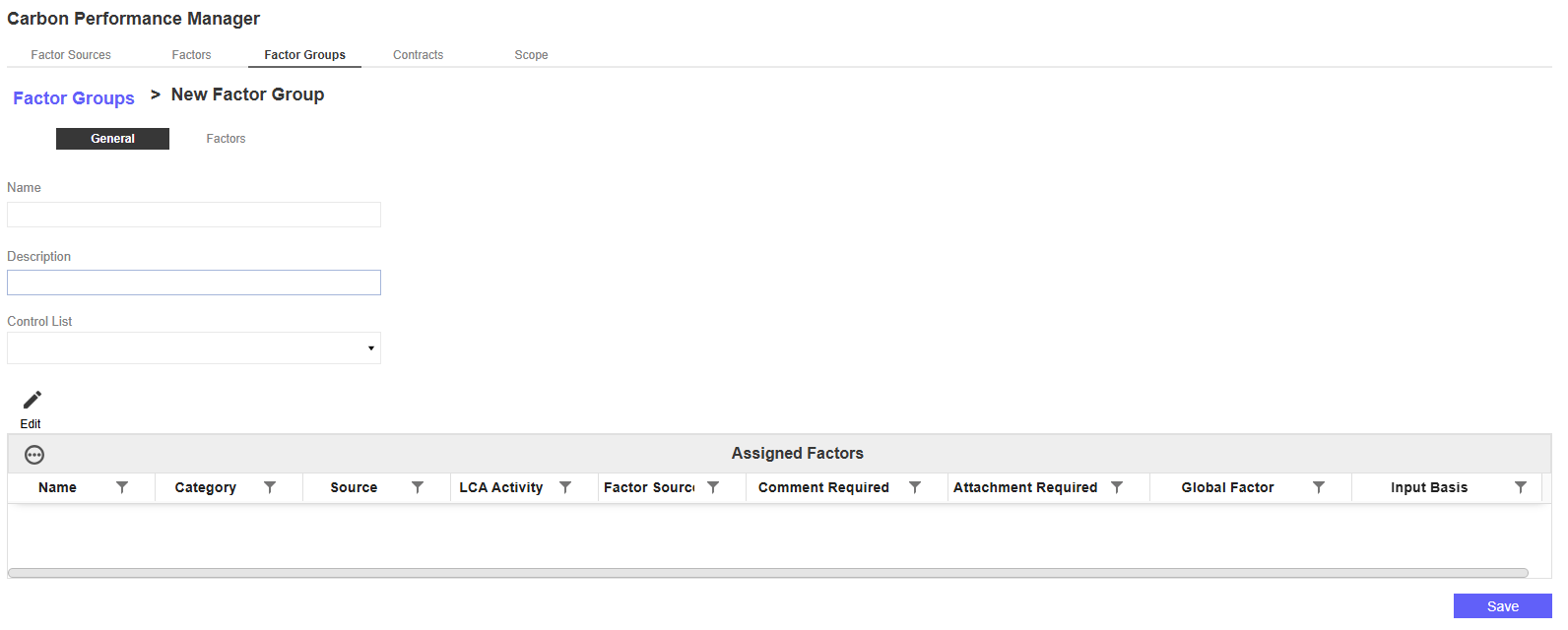
In the General tab, enter a Factor Group name and description. From the Control List drop-down menu, select a Control List to assign to the Factor Group. This is optional. The Control List will be applied to every Factor in that Factor Group. See Control Lists.
-
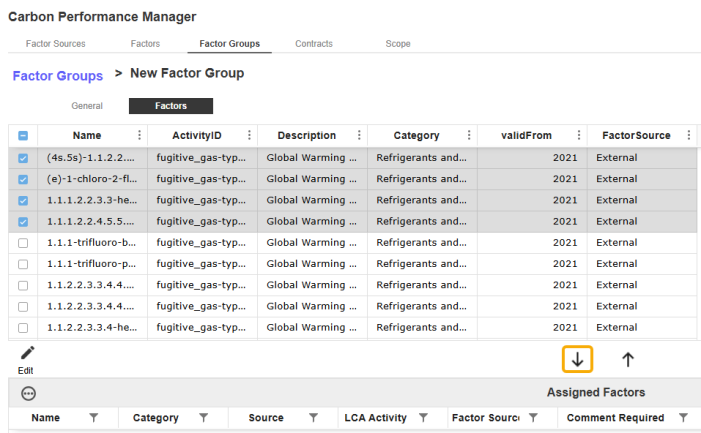
To add a Factor to the new Factor Group, select the Factors tab. The top grid displays a grouping of Factors by activity ID and category. In the grid of available Factors, select the checkbox for the Factor you want to assign. Select the Add Factor icon. The Factor now displays in the Assigned Factors grid for that Factor Group.
-
To edit properties from this page, select a Factor from the Assigned Factors grid and select the Edit button. See General.
-
Select the Save button.

