You can individually upgrade eligible Content Blocks to the latest version to adopt the latest functionality and fixed issues.
See the following sections:
Compatibility Requirements
To upgrade Content Blocks, ensure the following compatibility requirements are met:
-
Minimum platform version required by the Content Block
-
Minimum Genesis version required by the Content Block
-
Both the current and new Content Blocks must require a minimum of Genesis Version 2.0.0 or later.
TIP: If the current Content Block requires a minimum version earlier than Genesis Version 2.0.0, an administrator may be able to force upgrade the Content Block. See Force Upgrade.
View Upgrade Availability for Content Blocks
-
Select Upgrade.

-
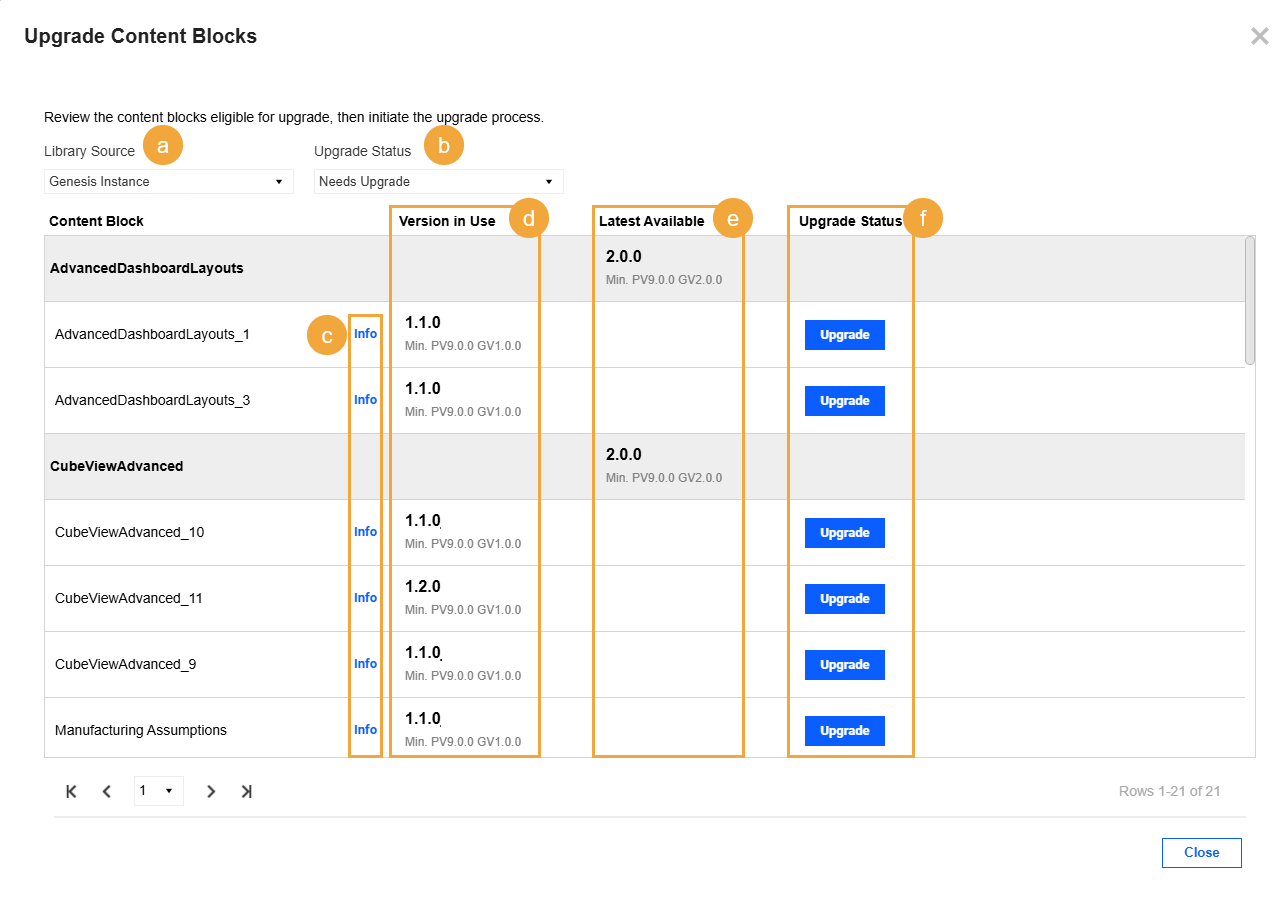
In the Upgrade Content Blocks slide-out panel, by default, each injected Content Block available for upgrade is displayed, organized by type. Review upgrade information.
-
Library Source: See Library Source Filter.
-
Upgrade Status: See Upgrade Status Filter.
-
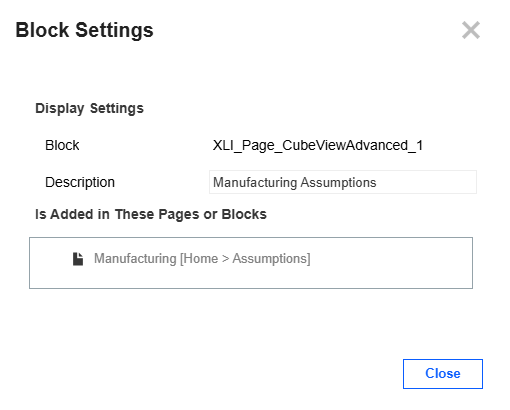
Info: Select to view the Block Settings slide-out panel, which includes the description and the parents and children of the Content Block.
NOTE: Parent Content Blocks located outside the current instance are not listed.
-
Version in Use: Current Content Block version and minimum platform and Genesis versions required
-
Latest Available: Newest Content Block version available with minimum platform and Genesis versions required
-
Upgrade Status: Indicates whether the Content Block can be upgraded
-
-
(Optional) Select Info to view the Block Settings slide-out panel.
Upgrade a Content Block
When all requirements are met, follow these steps to review relevant information and upgrade a Content Block. See Compatibility Requirements.
-
Select Upgrade.
-
In the Upgrade Content Blocks slide-out panel, by default, each injected Content Block available for upgrade is displayed, organized by type. Review upgrade availability. See View Upgrade Availability for Content Blocks.
TIP: You can filter the list to view specific Content Blocks. See Library Source Filter and Upgrade Status Filter.
-
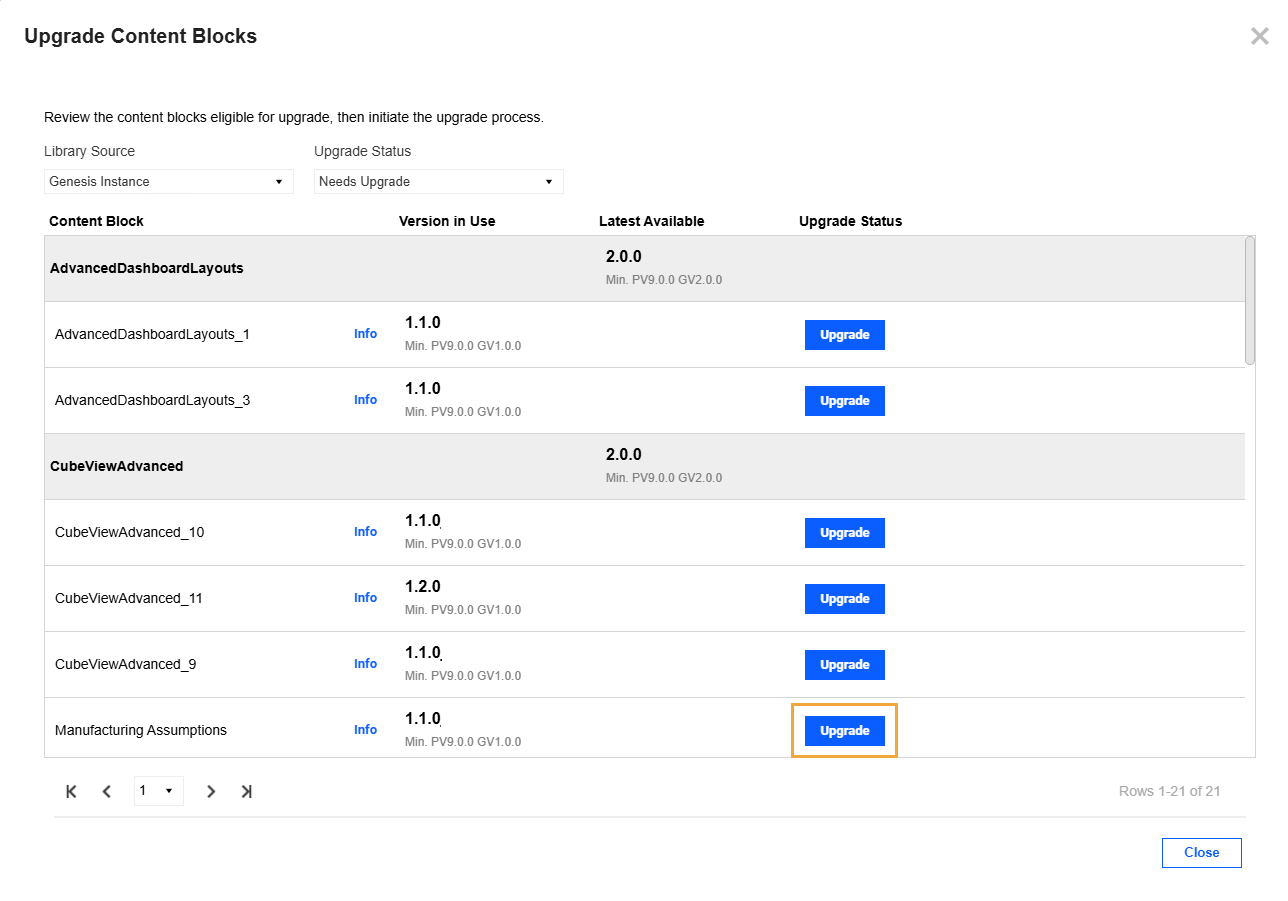
In the row for the Content Block, select the Upgrade button.
-
In the Confirm slide-out panel, select the Confirm button.
Library Source Filter
In the Upgrade Content Blocks slide-out panel, use the Library Source filter to identify the source for new Content Block versions.
-
Exchange Store: This is the default option for cloud environments and displays the centralized library of up-to-date Content Blocks. You must enable Library Service to use this live exchange store. See Enable Library Service.
TIP: If Exchange Store is selected, you can view details about the latest Content Block versions. In the Latest Available column, select a Content Block version number to view the documentation, including release notes.
-
Select the name of the Genesis instance to display the library of Content Blocks stored within the Genesis Workspace. These Content Blocks were manually downloaded from OneStream Solution Exchange and imported into Genesis.
Upgrade Status Filter
In the Upgrade Content Blocks slide-out panel, use the Upgrade Status filter to display Content Blocks based on upgrade availability.
-
Needs Upgrade: This is the default option and displays only the Content Blocks available for upgrade.
-
All: Select to display all Content Blocks.
-
Up To Date (No Action): Select to display only Content Blocks on the latest available version.
-
Blocked (Not Compatible): Select to display only the Content Blocks that cannot be upgraded because the compatibility requirements are not met. See Compatibility Requirements.
-
Unknown (Not Found): Select to display only the Content Blocks that cannot be found in the selected library source.
Force Upgrade
Force upgrade is intended for Content Blocks whose current injected version requires a minimum earlier than Genesis Version 2.0.0. The only alternative is to manually inject and reconfigure the new version.
CAUTION: Force upgrade bypasses standard validation. Configuration settings and generated artifacts may not be preserved. Only force upgrade when the risk of losing existing configurations outweighs the effort of manually injecting and reconfiguring the new Content Block version.
Requirements
To force upgrade Content Blocks, ensure the following requirements are met:
-
Only system or application administrators can force upgrade a Content Block.
-
Enable Force Upgrade Mode. See Enable Force Upgrade Mode for Content Blocks.
-
Ensure the following compatibility requirements are met:
-
Minimum platform version required by the Content Block
-
Minimum Genesis version required by the Content Block
-
The new Content Block must require a minimum of Genesis Version 2.0.0 or later.
-
Force Upgrade a Content Block
When all requirements are met, follow these steps to force upgrade a Content Block. See Requirements.
-
Select Upgrade.
-
In the Upgrade Content Blocks slide-out panel, in the row for the Content Block, select the Upgrade button.
NOTE: When Force Upgrade Mode is enabled and you click Upgrade, the system automatically determines the method. If the Content Block meets the standard upgrade requirements, a standard upgrade runs. If only force upgrade requirements are met, a force upgrade runs instead. You do not need to select the method manually.
-
In the Confirm slide-out panel, select the Confirm button.
Eligible Content Blocks
You can force upgrade the following Content Blocks:
-
Announcement
-
Book Viewer
-
Cube View Tree View
-
Document Editor
-
Document Tree
-
File Viewer
-
Image Display
-
Rich Text
-
Spreadsheet Tree
-
Webpage Viewer

