The following steps describe the environment upgrade process:
Step 1: Review Release Notes After the Upgrade Is Released
Release notes for currently available release versions are available on the SensibleAI Agents Release Notes.
When a new upgrade is released, review the following items:
-
Release Overview: Enhancements and bug fixes included in the release.
-
Upgrade Guide
-
Compatibility Guide
Step 2: Submit RITM
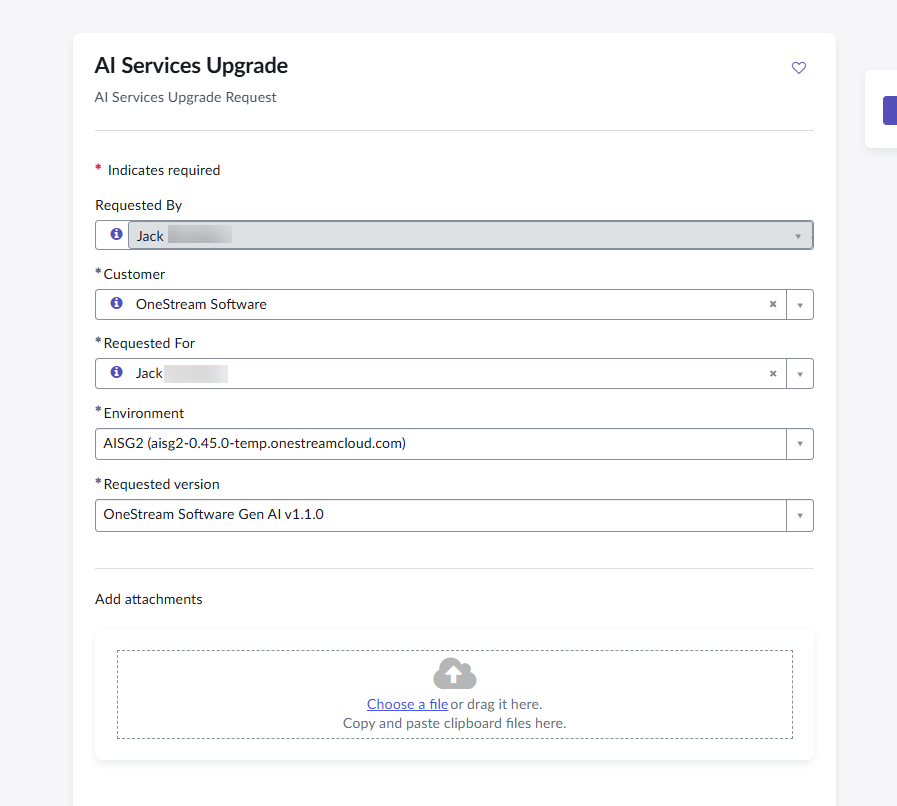
When you decide you want to upgrade, navigate to your Service Now support portal and input the following support ticket:
AI Services Upgrade | OneStream Software - ServiceNow
-
Requested By: Customer organizations OneStream representative
-
Customer: Customer organization name
-
Requested For: Customer organizations OneStream representative
-
Environment: Customer agents environment URL. This will have AISG in the name for dropdown and usually agents somewhere in the OneStream URL.
-
Requested Version: The desired version for the upgrade. Advertised in notifications
Step 3: Set up the Environment
An update will be given on the upgrade ticket once it has been completed. You can then follow these steps to finish the upgrade and set up the environment.
-
Go to Solution Exchange and download the latest Marketplace applications.
-
Load these items into the environment:
-
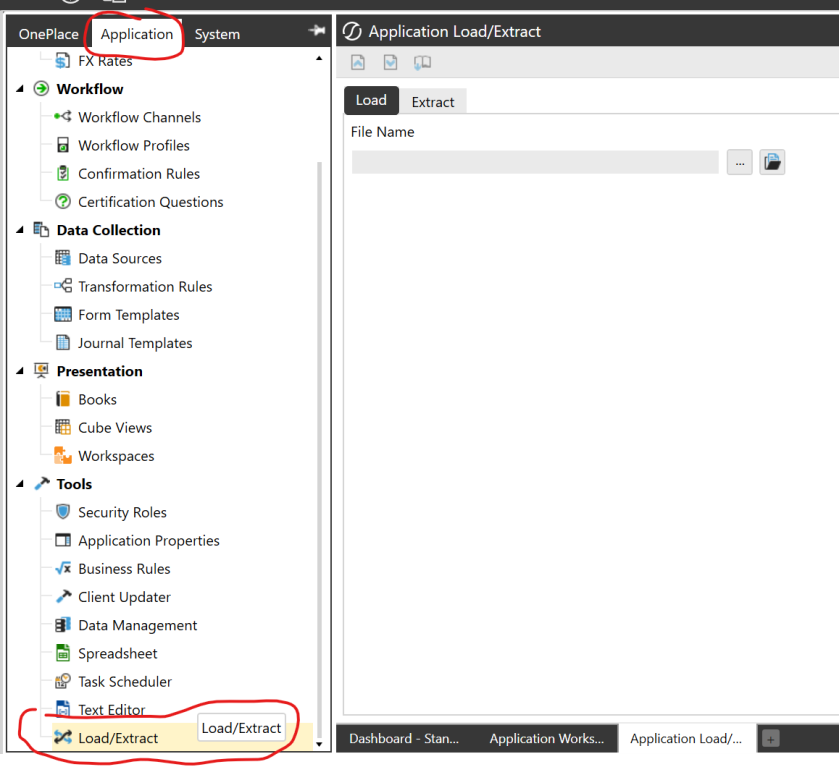
In OneStream, navigate to Application > Load/Extract.
-
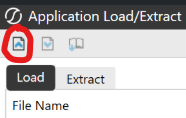
Load each .zip file individually and select Load.
-
-
Verify that the applications appear in OnePlace and load successfully.
Step 4: Run the Port
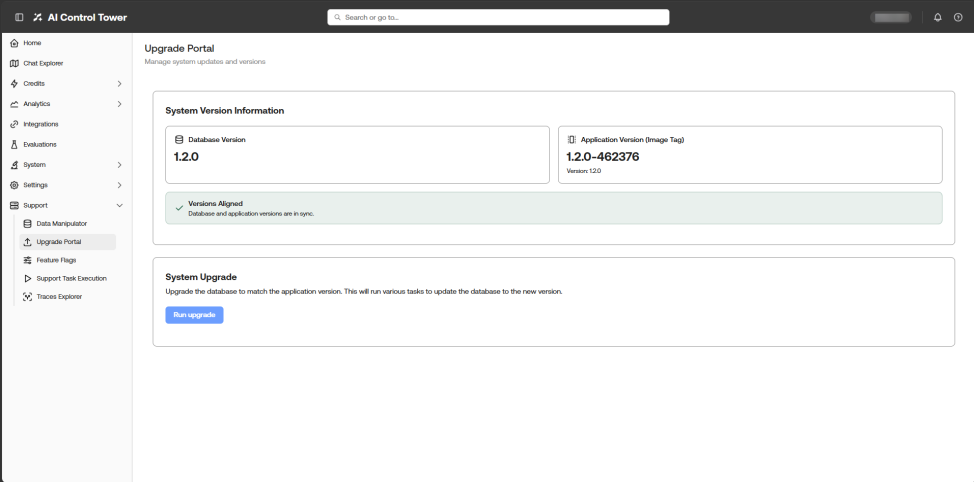
Navigate to SensibleAI Control Tower > Support > Upgrade Portal.
Starting a port
Ports are kicked off from the System Upgrade screen.
CAUTION: While a port is running, the system locks. New tasks are blocked, and a 503 response is returned.
If a step fails
Open a customer support ticket, and provide the following details:
-
Version Task ID
-
Version range (version_start → version_end)
-
Which step/sub-step shows FAILURE (name and step index)
-
Task comments: The error message attached to the failed task (shown in the activity feed/status response)
-
Progress at the time of failure: completed_tasks / total_tasks and completed_versions / total_versions
NOTE: A screenshot is usually sufficient to capture all of these details.
Someone should then be in contact with the next steps on how to proceed.
Step 5: Confirm the Environment is Working
Verify that all functionality is working as expected.

