In the Application Groups drop-down menu, select the Application Group to view the associated Navigation Groups and Pages. The Application Groups are Home, Admin, Config, and Help.
Rename an Application Group
You can rename Application Groups to align with the purpose of the user flow (for example, Planning or Reporting).
-
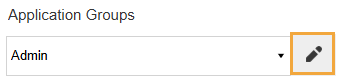
In the Application Groups drop-down menu, select the group.
-
Click the Edit the Selected Item icon to the right of the drop-down menu.
-
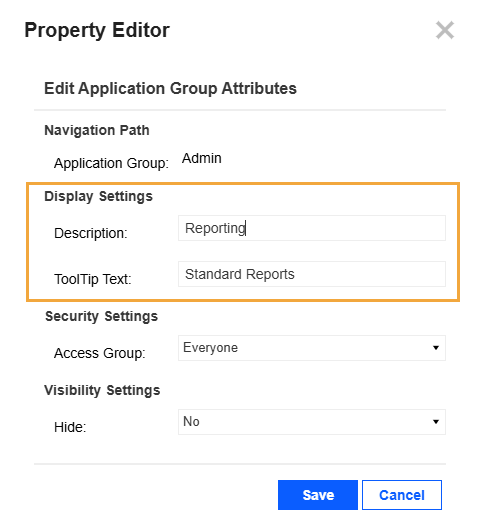
In the Property Editor slide-out panel, update the display settings.
Display Settings
-
Description: Enter a new description, which will display as the name.
-
ToolTip Text: Add text to display as a tooltip when a user hovers over the Application Group name.
-
-
Click the Save button.
Update Application Group Security and Visibility Settings
You can update security and visibility settings for Admin, Config, and Help Application Groups. All users automatically have access to the Home Application Group; this setting cannot be changed.
-
In the Application Groups drop-down menu, select the group.
-
Click the Edit the Selected Item icon to the right of the drop-down menu.
-
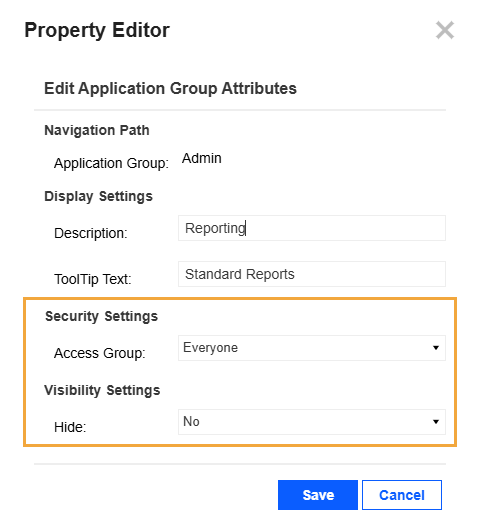
In the Property Editor slide-out panel, update the security and visibility settings.
Security Settings
-
Access Group: Select the security group that will have access to view this item. These security groups are in System > Security > Groups.
Visibility Settings
-
Hide: To hide the content from all users, select Yes. This option is useful if you are preparing content that is not ready for display. When the content is ready for users to view, you can select No, then it will be visible to the selected Access Group.
-
-
Click the Save button.
TIP: Click the Preview tab to see the end-user view with the updated settings.


